
- Home
- How to
- How to Features
- How to Find and Erase a Lost Android Phone Using Find Hub: A Step by Step Guide
How to Find and Erase a Lost Android Phone Using Find Hub: A Step-by-Step Guide
Even if your phone is offline, Find Hub can still show its last known location and may use nearby Android devices to help locate it.
Written by Sucharita Ganguly, Edited by David Delima | Updated: 16 April 2026 17:40 IST
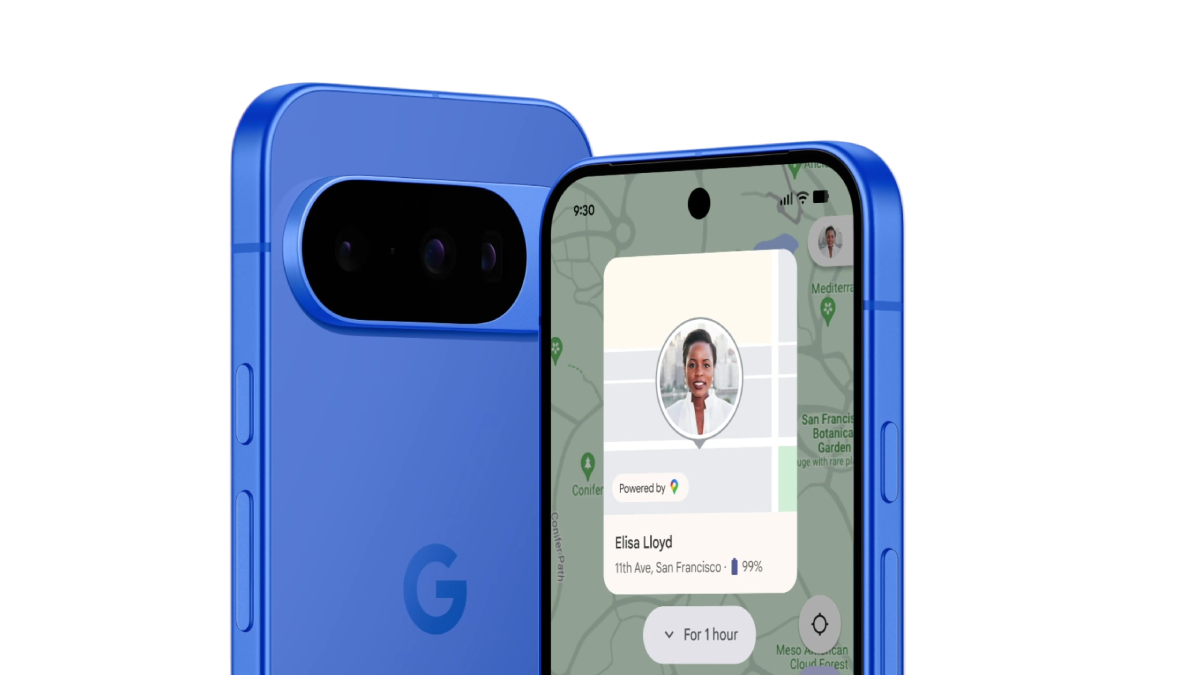
Photo Credit: Google
Find Hub lets you locate, lock, or erase a lost Android phone remotely using a browser or another device
Click Here to Add Gadgets360 As A Trusted Source

Advertisement
Losing your Android phone can feel overwhelming, especially when it holds your photos, messages, and personal data. Thankfully, Google's Find Hub, previously known as Find My Device, gives you a simple way to track, lock, or erase your phone remotely. Whether you misplaced it at home or suspect it was stolen, the tool works from any browser or another Android device. As long as your phone was set up correctly beforehand, you can take quick action to protect your data or recover your device.
How to Find and Erase a Lost Android Phone Using Find Hub
You can access Find Hub through multiple methods. The easiest way is via a web browser or another Android device, but you should read through all the methods below and select the option that is most suitable for your needs.

How to Find Your Android Phone Using Find Hub
- First, go to android.com/find on any browser or open the Find Hub app on another Android device.
- Then, sign in using the Google account linked to your lost phone.
- After that, select your device from the list shown on the screen.
- Once selected, Find Hub will display the phone's current or last known location on a map.
- If the device is nearby, tap the Play Sound option to make it ring at full volume, even if it is on silent.
- If supported, you can also use the Find Nearby feature to locate it more precisely using Bluetooth or UWB.
How to Lock Your Lost Android Phone Remotely
- First, access Find Hub and select your lost device from the dashboard.
- Then, choose the Secure Device or Lock option.
- After that, set a new PIN, password, or pattern to prevent unauthorised access.
- You can also add a message or contact number to display on the lock screen.
- Once locked, your phone will be secured and signed out of your Google account.
How to Erase Your Android Phone Using Find Hub
- First, open Find Hub and sign in to your Google account.
- Then, select the lost device you want to erase.
- After that, click on the Erase Device option.
- Confirm your choice to begin the factory reset process.
- Once completed, all data on the phone will be permanently deleted.
- After erasing, the device will no longer appear in Find Hub, and you will need your Google account to use it again.
For Find Hub to work smoothly, your Android phone needs to have a few basics in place. It should be switched on and connected to Wi-Fi or mobile data, and you must be signed in with your Google account. You also need to have Find Hub and location services turned on beforehand, and the device should be visible on Google Play so it can be tracked remotely.
Even if your phone is offline, you are not completely out of options. Find Hub can still show its last known location, and in some cases, it can use nearby Android devices to help pinpoint where it might be, as long as these features were enabled earlier.
FAQs
1. Can I find my Android phone if it is offline?
Yes, Find Hub can show the last known location and may use its network to help locate the device.
2. Will my phone still be trackable after I erase it?
No, once you erase the device, it will no longer appear on Find Hub.
3. Do I need to install Find Hub manually?
No, Find Hub is automatically enabled when you add a Google account to your device.
Comments
Get your daily dose of tech news, reviews, and insights, in under 80 characters on Gadgets 360 Turbo. Connect with fellow tech lovers on our Forum. Follow us on X, Facebook, WhatsApp, Threads and Google News for instant updates. Catch all the action on our YouTube channel.

Related Stories



Advertisement
Follow Us




-
![[Sponsored] LG NANO 4K UHD AI TV NU885: Gemini Search, Dolby Atmos & 5 Years of Updates](https://www.gadgets360.com/static/desktop/images/spacer.png)
04:17
[Sponsored] LG NANO 4K UHD AI TV NU885: Gemini Search, Dolby Atmos & 5 Years of Updates -
00:57
[Sponsored] Samsung Galaxy Z Fold8 My Fan Cam in Action: Find the Moment, Then Share It -
01:41
[Sponsored] What Do You Need To Know Before Your Next Run? | Samsung Galaxy Watch Ultra2 -
01:32
[Sponsored] Big Day Tomorrow? Prep Today | Samsung Galaxy Watch Ultra2 -
04:37
[Sponsored]: CP PLUS CarKam CP-F89B: 4K Dashcam With Rear Camera, GPS & Emergency Recording
-
Dell Pro Essential 14, Essential 15 लॉन्च, सिक्योरिटी के लिए गजब फीचर्स
-
Flipkart Big Billion Days Sale: ₹15 हजार में स्टूडेंट के लिए बेस्ट लैपटॉप
-
Amazon Great Indian Festival Sale: 10 हजार से सस्ते मिल रहे ये स्मार्टफोन
-
Poco X8s के जल्द लॉन्च की तैयारी, 50 मेगापिक्सल हो सकता है प्राइमरी कैमरा
-
Amazon पर Samsung Galaxy A56 5G, Flipkart पर Motorola Edge 70 Fusion की डील, ₹30 हजार में कौनसा फोन बेहतर?
Advertisement
Popular on Gadgets
- Samsung Galaxy S26 Ultra
- Motorola Razr Fold
- ChatGPT
- OPPO Find N6
- Mobiles Under Rs. 40,000
- Vivo X300 Ultra
- Asus Zenbook S14
- iQOO 15
- Vivo X300 Pro
- Lenovo Yoga Slim 7i Aura Edition
- iQOO 15R
- Vivo X Fold 5
- Sony PlayStation 5
- HP OmniPad 12
- OnePlus Nord CE 6 Lite
- OnePlus Pad 4
- OPPO F33 Pro 5G
- Cryptocurrency
- HP OmniBook Ultra 14 (2026)
- iPhone 17
- Eureka Forbes AP 355 Room Air Purifier
- Latest Mobile Phones
- Compare Phones
Latest Gadgets
- Vivo Y600s Pro
- Vivo Y32 (2026)
- Infinix Smart 20 HD
- Vivo V80
- Vivo S2 FE
- Vivo Y600K Turbo
- Realme P4s Lite
- Vivo S60t
- HP ZBook Ultra G3a
- Dell Pro Rugged 14
- Amazon Alexa Tablet 8
- Amazon Alexa Tablet 11
- Amazfit T-Rex Dual Solar
- OPPO Watch S2
- Toshiba 65-Inch 4K Ultra HD Smart Mini LED QLED TV (65Z670SP)
- Haier M70 Mini LED 65-inch
- Acer Predator Atlas 8
- Asus ROG Ally
- Blue Star 1.5 Ton 5 Star Inverter Split AC (IE518ZNURS)
- Blue Star 2 Ton 3 Star Inverter Window AC (WIE324L)

- About Us
- Sitemaps
- Feedback
- Archives
- Contact Us
- RSS
- Advertise
- Career
- Privacy Policy
- Ethics
- Editorial Policy
- Terms & Conditions
- Complaint Redressal
Download Our Apps
Available in Hindi
© Copyright Red Pixels Ventures Limited 2026. All rights reserved.
-
 Apple Watch Series 12
Starts from ₹56,900
Apple Watch Series 12
Starts from ₹56,900
-
 Samsung Galaxy Watch Ultra 2
Starts from ₹62,479
Samsung Galaxy Watch Ultra 2
Starts from ₹62,479
-
 Samsung Galaxy Watch 9 (44mm, LTE)
Starts from ₹41,999
Samsung Galaxy Watch 9 (44mm, LTE)
Starts from ₹41,999
-
 Samsung Galaxy Watch 9 (40mm, LTE)
Starts from ₹37,999
Samsung Galaxy Watch 9 (40mm, LTE)
Starts from ₹37,999
-
 Samsung Galaxy Watch 9 (40mm)
Starts from ₹36,999
Samsung Galaxy Watch 9 (40mm)
Starts from ₹36,999
-
 Samsung Galaxy Watch 9 (44mm)
Starts from ₹40,999
Samsung Galaxy Watch 9 (44mm)
Starts from ₹40,999
-
 Rockstar Explains Why It Took Over 8 Years to Make GTA 6, Says It Will Make Its Next Game Faster
-
 Facebook Introduces Your Algorithm Feature to Let Users Customise Feed and Reels
-
 Solana’s Alpenglow Upgrade Set for October 21 With 150-Millisecond Finality Target
-
 Haier In-Vista Five-Door Refrigerator and M3 Series Washing Machine Launched in India: Price, Features