-
 Apple Reportedly Plans October Launch Experience for Touchscreen MacBooks, New iPad Mini16 October 2026
 -
iPhone Duo Pre-Orders in India Begin Today: Price, Offers and Specifications16 October 2026
-
Amazon Great Indian Festival 2026: Best Premium Smartwatch Deals15 October 2026
-
iPhone Duo Screen Repair in India Costs Almost as Much as an iPhone 18 Pro15 October 2026
-
iPhone 18 Reportedly Set to Enter Production Soon; Apple Anticipating Strong Demand15 October 2026
- Home
- Mobiles
- Mobiles News
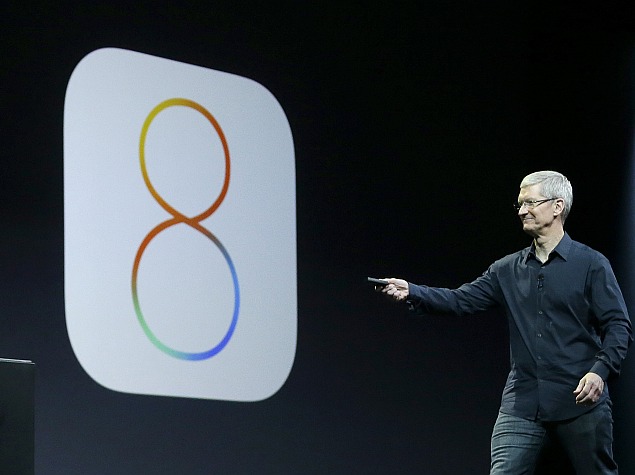
- iOS 8 Direct Download Links for iPhone, iPad, iPod Touch
iOS 8 Direct Download Links for iPhone, iPad, iPod Touch
By NDTV Correspondent | Updated: 17 November 2014 18:53 IST
Click Here to Add Gadgets360 As A Trusted Source

Advertisement
While upgrading to iOS 8 OTA or via iTunes is simple enough, there are times when the ability to download the firmware for your device as a standalone file is helpful.
Whether you want to save bandwidth costs by downloading the file once and deploying to multiple devices, or if you have an unreliable Internet connection and you would like to be able to resume your downloads, you can directly download iOS 8 firmware files for your device. This also comes in handy when you want to restore the device at a later date.
- Apple Watch or AirPods upgrade first?
- Apple to Introduce redesigned Apple Pencil models in 2027
- Apple to introduce a new device leasing programme, Apple Upgrade tomorrow
- Apple has increased the prices of Apple Music and Apple One Subscription plans
- Apple is planning to bring OLED technology to the iPad mini
If you are directly downloading iOS 8 firmware files, you likely know what you are doing, but here's a refresher nonetheless. Download the file corresponding to your device using the links below. Connect your device to a computer with the latest version of iTunes installed, launch iTunes, select the device and instead of clicking on Check for Update, press the Option (Alt) key on your Mac and then click Check for Update or if you are Windows, hold down Shift before doing the same.
Point iTunes to the file you've just downloaded, sit back and follow the iOS 8 upgrade instructions as usual.
Here are the iOS 8 direct download links:
- iPad Air (5th generation WiFi + Cellular)
- iPad Air (5th generation WiFi)
- iPad (4th generation CDMA)
- iPad (4th generation GSM)
- iPad (4th generation WiFi)
- iPad mini (CDMA)
- iPad mini (GSM)
- iPad mini (WiFi)
- iPad mini 2 (WiFi + Cellular)
- iPad mini 2 (WiFi)
- iPad mini 2 (CDMA)
- iPad 3 Wi-Fi (3rd generation)
- iPad 3 Wi-Fi + Cellular (model for ATT)
- iPad 3 Wi-Fi + Cellular (model for Verizon)
- iPad 2 Wi-Fi (Rev A)
- iPad 2 Wi-Fi
- iPad 2 Wi-Fi + 3G (GSM)
- iPad 2 Wi-Fi + 3G (CDMA)
- iPhone 4s
- iPhone 5 (CDMA)
- iPhone 5 (GSM)
- iPhone 5c (CDMA)
- iPhone 5c (GSM)
- iPhone 5s (CDMA)
- iPhone 5s (GSM)
- iPhone 6
- iPhone 6 Plus
- iPod touch (5th generation)
Comments
Get your daily dose of tech news, reviews, and insights, in under 80 characters on Gadgets 360 Turbo. Connect with fellow tech lovers on our Forum. Follow us on X, Facebook, WhatsApp, Threads and Google News for instant updates. Catch all the action on our YouTube channel.
Related Stories


Advertisement
Follow Us




-
![[Sponsored] LG NANO 4K UHD AI TV NU885: Gemini Search, Dolby Atmos & 5 Years of Updates](https://www.gadgets360.com/static/desktop/images/spacer.png)
04:17
[Sponsored] LG NANO 4K UHD AI TV NU885: Gemini Search, Dolby Atmos & 5 Years of Updates -
00:57
[Sponsored] Samsung Galaxy Z Fold8 My Fan Cam in Action: Find the Moment, Then Share It -
01:41
[Sponsored] What Do You Need To Know Before Your Next Run? | Samsung Galaxy Watch Ultra2 -
01:32
[Sponsored] Big Day Tomorrow? Prep Today | Samsung Galaxy Watch Ultra2 -
04:37
[Sponsored]: CP PLUS CarKam CP-F89B: 4K Dashcam With Rear Camera, GPS & Emergency Recording
-
iPhone 18 Pro vs iPhone 17 Pro: Flipkart पर किस पर मिल रही ज्यादा छूट
-
Flipkart Big Billion Days Sale: 9 हजार से भी सस्ता रेफ्रिजरेटर, डिस्काउंट
-
दिवाली पर नया टूव्हीलर खरीदने का प्लान 1 लाख से भी कम में मिल रहे ये 5 EV
-
Tata Play Smart ऐप लॉन्च: आपके टीवी पर बिना केबल/DTH के चलेंगे 500 से ज्यादा लाइव चैनल
Advertisement
Popular on Gadgets
- Samsung Galaxy S26 Ultra
- Motorola Razr Fold
- ChatGPT
- OPPO Find N6
- Mobiles Under Rs. 40,000
- Vivo X300 Ultra
- Asus Zenbook S14
- iQOO 15
- Vivo X300 Pro
- Lenovo Yoga Slim 7i Aura Edition
- iQOO 15R
- Vivo X Fold 5
- Sony PlayStation 5
- HP OmniPad 12
- OnePlus Nord CE 6 Lite
- OnePlus Pad 4
- OPPO F33 Pro 5G
- Cryptocurrency
- HP OmniBook Ultra 14 (2026)
- iPhone 17
- Eureka Forbes AP 355 Room Air Purifier
- Latest Mobile Phones
- Compare Phones
Latest Gadgets
- Vivo Y600s Pro
- Vivo Y32 (2026)
- Infinix Smart 20 HD
- Vivo V80
- Vivo S2 FE
- Vivo Y600K Turbo
- Realme P4s Lite
- Vivo S60t
- HP ZBook Ultra G3a
- Dell Pro Rugged 14
- Amazon Alexa Tablet 8
- Amazon Alexa Tablet 11
- Amazfit T-Rex Dual Solar
- OPPO Watch S2
- Toshiba 65-Inch 4K Ultra HD Smart Mini LED QLED TV (65Z670SP)
- Haier M70 Mini LED 65-inch
- Acer Predator Atlas 8
- Asus ROG Ally
- Blue Star 1.5 Ton 5 Star Inverter Split AC (IE518ZNURS)
- Blue Star 2 Ton 3 Star Inverter Window AC (WIE324L)

- About Us
- Sitemaps
- Feedback
- Archives
- Contact Us
- RSS
- Advertise
- Career
- Privacy Policy
- Ethics
- Editorial Policy
- Terms & Conditions
- Complaint Redressal
Download Our Apps
Available in Hindi
© Copyright Red Pixels Ventures Limited 2026. All rights reserved.