
-
 Best Smartphones with 1TB Storage in India (2026): iPhone Duo, Samsung Galaxy S26 Ultra and More25 October 2026
 -
Best Smartphones With 1TB Storage in India: Samsung Galaxy S25 Ultra, iPhone 17 Pro Max and More19 December 2025
-
iPhone 8 to Launch on September 12, 512GB Variant Expected: Reports23 August 2017
-
iPhone 8 Facing 3D NAND Storage Chip Shortage, Samsung Asked to Step In: Report7 July 2017
-
iPhone Storage Isn't Going as Far as It Used To23 June 2017
- Home
- How to
- How to Features
- How to Free Up iPhone Storage Without Deleting Photos
How to Free Up iPhone Storage Without Deleting Photos
Here's how to free up space on your iPhone without deleting photos using Optimise iPhone Storage, duplicate removal, app offloading and more.
Written by Nithya P Nair, Edited by Rohan Pal | Updated: 13 September 2026 18:00 IST
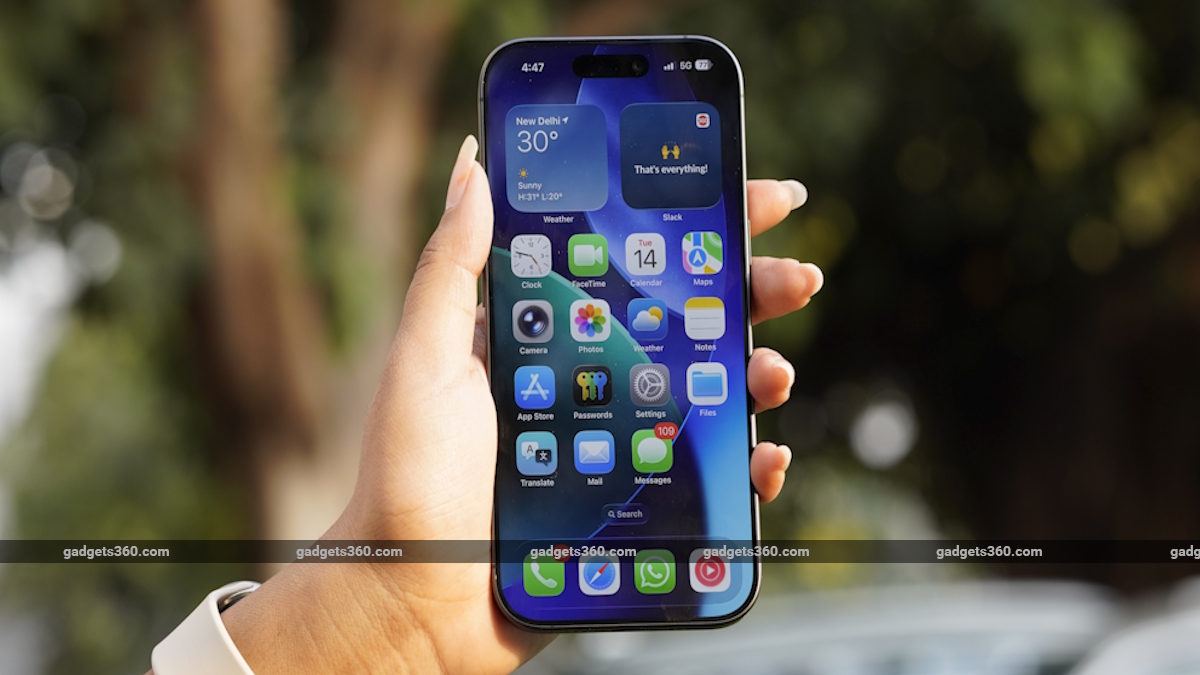
When you sign up for iCloud, you automatically get 5GB of free storage
Click Here to Add Gadgets360 As A Trusted Source

Advertisement
In recent years, the number of buyers choosing iPhone models with higher storage has spiked. While powerful chipsets, AI and gaming features, and capable cameras remain key attractions, sufficient storage is a basic requirement to keep all your apps and performance of the phone on track. Running out of storage on your iPhone can be frustrating, especially when your photos and videos take up more of the available space. Deleting photos definitely helps to free up some storage, but you dont necessarily have to delete your memories and moments every time to make room for other apps and files.
In this article, we will guide you through ways to manage iPhone storage without permanently deleting your favourite photos.
How to Optimise iPhone Storage
Before starting, you need to find out how much storage is available on your iPhone and what is taking up space. You can access this breakdown of the storage usage by following these steps
- Open Settings.
- Head to General.
- Tap iPhone Storage.
- Review the apps and content listed on the page.
This helps you identify apps, media and other data that take up significant storage on your device. If photos and videos take up more space on your iPhone, you can optimise the photo library with iCloud Photos, remove duplicate files, and review other storage recommendations from Settings.
With iCloud Photos, users can free up space on the device and still access their entire full-resolution collection on their phone. This can be enabled by
- Open Settings and tap your name at the top.
- Tap iCloud, then tap Photos.
- Turn on Sync this iPhone.
- Select Optimise iPhone Storage.
This will enable original, full-resolution photos and videos to remain stored in iCloud. The space-saving versions can be stored on the iPhone. You can download original high-quality images from iCloud when needed. iCloud storage is separate from the built-in storage, and an Apple account automatically gets 5GB of free storage. Users who need more iCloud storage can upgrade to iCloud+ by paying extra.
You can check your iCloud Storage on iPhone by going to Settings> Tap your name> Tap iCloud, and check the storage bar to see used space.
Delete Duplicate Photos
Through social media downloads and AirDrop, your iPhone may include duplicate images and videos. The Photos app on the iPhone can identify duplicate photos and videos in the photo library in the Duplicates collection. Merging them or deleting duplicate files will also free up storage without affecting your original photo library.
You can check for duplicates by
- Open the Photos app and tap Collections.
- Scroll down to Utilities and Tap Duplicates.
- Review the duplicate photos and videos.
- Select Merge to combine them.
Offload Unnecessary Apps
Instead of deleting apps, users can offload apps rarely used apps. This will remove the app but keep the documents and data. The app icon will remain on the Home Screen with a cloud symbol, and users can tap it to reinstall.
You can check which app takes the most space by heading to Settings > General > iPhone Storage and selecting it.
Delete Unwanted Files
If you have documents and data on your iPhone that you no longer need, you can review and delete them in the Files app by following these steps: Settings > General > iPhone Storage and check the recommendations shown near the top of the screen.
Users with large photo libraries who do not want to pay for an iCloud subscription can choose to move their files to a computer or an external hard disk. Connect your iPhone to a Mac or Windows PC, copy folders, and then delete the files from your handset.
You can also check apps like WhatsApp and Telegram to find and delete old conversations and chats with large media attachments. Additionally, you can also check for app caches, streaming data, duplicate system files, and unwanted contacts. If your iPhone is frequently showing an “iPhone Storage Almost Full” notification, regularly checking the storage breakdown will help you to clean up unwanted data.
FAQs
Does Optimise iPhone Storage delete photos from the iPhone?
No. Full-resolution original images are stored in iCloud, while the iPhone will keep space-saving versions.
Is iCloud free?
Yes, iCloud is free for a 5GB storage limit.
Does iCloud increase iPhone storage?
No. iCloud storage and the iPhone's built-in storage are different.
Comments
Get your daily dose of tech news, reviews, and insights, in under 80 characters on Gadgets 360 Turbo. Connect with fellow tech lovers on our Forum. Follow us on X, Facebook, WhatsApp, Threads and Google News for instant updates. Catch all the action on our YouTube channel.
Related Stories



Advertisement
Follow Us




-
![[Sponsored] A Last-Minute Diwali Makeover With Galaxy Z Fold8](https://www.gadgets360.com/static/desktop/images/spacer.png)
01:24
[Sponsored] A Last-Minute Diwali Makeover With Galaxy Z Fold8 -
01:42
[Sponsored] Galaxy Watch9 for Everyday Health Insights | Smarter Wellness Choices -
01:15
[Sponsored] Galaxy Tab S10 Lite for Students: Notes, Solve Math and More -
04:17
[Sponsored] LG NANO 4K UHD AI TV NU885: Gemini Search, Dolby Atmos & 5 Years of Updates -
00:57
[Sponsored] Samsung Galaxy Z Fold8 My Fan Cam in Action: Find the Moment, Then Share It
-
Samsung Galaxy S25 Ultra 5G खरीदें 47,849 डिस्काउंट पर, Amazon पर ऑफर
-
Karbonn Rebel Pro, Rebel जल्द होंगे भारत में लॉन्च, फीचर्स आए सामने
-
शुभमन गिल ने टेस्ट किया दीपिंदर गोयल का Temple डिवाइस, जानें क्या है काम?
-
Wobble Speed 5G जल्द होगा भारत में लॉन्च, डुअल रियर कैमरा यूनिट
-
10001mAh की विशाल बैटरी और 144Hz डिस्प्ले वाला 5G फोन, फ्लिपकार्ट सेल में सीधे ₹3400 सस्ता
Advertisement
Popular on Gadgets
- Samsung Galaxy S26 Ultra
- Motorola Razr Fold
- ChatGPT
- OPPO Find N6
- Mobiles Under Rs. 40,000
- Vivo X300 Ultra
- Asus Zenbook S14
- iQOO 15
- Vivo X300 Pro
- Lenovo Yoga Slim 7i Aura Edition
- iQOO 15R
- Vivo X Fold 5
- Sony PlayStation 5
- HP OmniPad 12
- OnePlus Nord CE 6 Lite
- OnePlus Pad 4
- OPPO F33 Pro 5G
- Cryptocurrency
- HP OmniBook Ultra 14 (2026)
- iPhone 17
- Eureka Forbes AP 355 Room Air Purifier
- Latest Mobile Phones
- Compare Phones
Latest Gadgets
- OnePlus Ace 7 Pro
- OnePlus Ace 7
- Samsung W27
- Huawei Pura 90 Plus
- iQOO Neo 12
- Redmi K100
- Vivo Y600
- HMD 2660 Flip Senior Edition
- MacBook Pro With PROLED XDR (16-Inch, M5 Max)
- MacBook Pro With PROLED XDR (14-Inch, M5 Max)
- iPad mini (2026)
- Amazon Alexa Tablet 8
- Pebble Qore 2
- Amazfit T-Rex Dual Solar
- Toshiba 65-Inch 4K Ultra HD Smart Mini LED QLED TV (65Z670SP)
- Haier M70 Mini LED 65-inch
- Acer Predator Atlas 8
- Asus ROG Ally
- Blue Star 1.5 Ton 5 Star Inverter Split AC (IE518ZNURS)
- Blue Star 2 Ton 3 Star Inverter Window AC (WIE324L)

- About Us
- Sitemaps
- Feedback
- Archives
- Contact Us
- RSS
- Advertise
- Career
- Privacy Policy
- Ethics
- Editorial Policy
- Terms & Conditions
- Complaint Redressal
Download Our Apps
Available in Hindi
© Copyright Red Pixels Ventures Limited 2026. All rights reserved.