-
 WhatsApp Reportedly Brings Third-Party Agent Chats to iOS Beta Users22 September 2026
 -
WhatsApp May Let You Share Custom Wallpapers and Chat Themes With Others21 September 2026
-
How to Stop WhatsApp From Automatically Downloading Photos and Videos: A Step-by-Step Guide19 September 2026
-
WhatsApp Could Bring New Theme Categories and Wallpapers to Android18 September 2026
-
WhatsApp Reportedly Rolling Out New Search Shortcut for Chats and Channels on iOS17 September 2026
- Home
- How to
- How to Features
- How to Silence Unknown Callers on WhatsApp: A Step by Step Guide
How to Silence Unknown Callers on WhatsApp: A Step-by-Step Guide
Enabling WhatsApp's Silence Unknown Callers feature does not completely block people from contacting you.
Written by Sucharita Ganguly, Edited by David Delima | Updated: 10 May 2026 13:00 IST
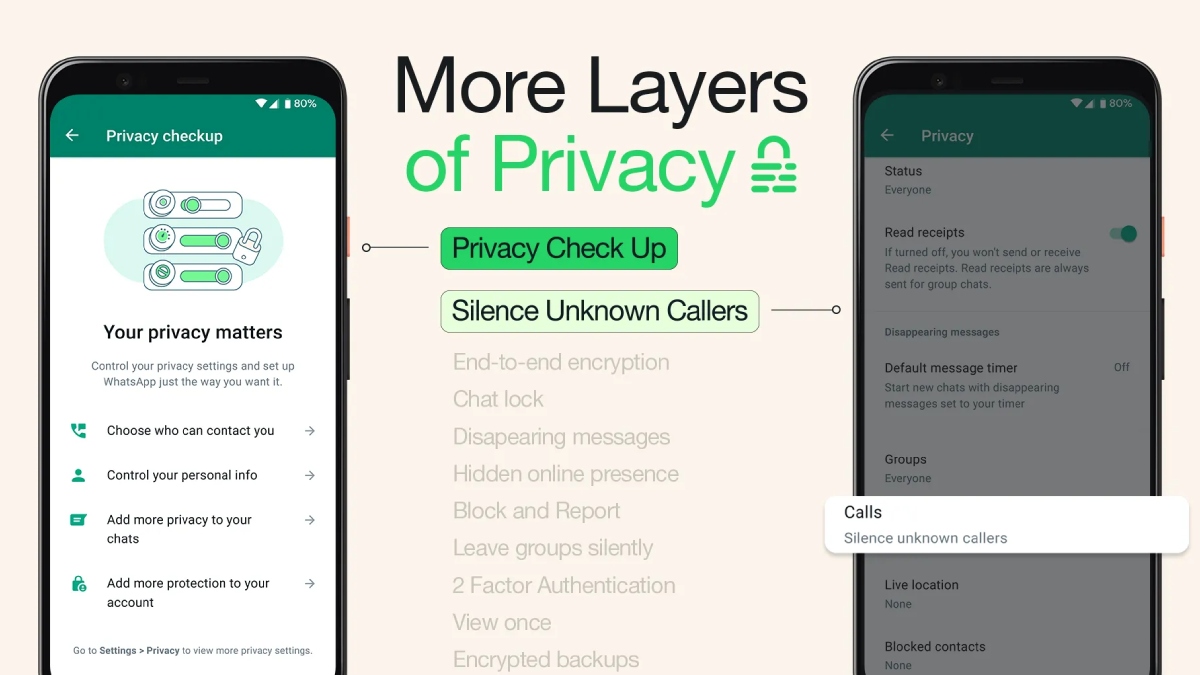
Photo Credit: WhatsApp
If you call or message a silenced number, future calls from that contact may start ringing normally again
Click Here to Add Gadgets360 As A Trusted Source

Advertisement
WhatsApp includes a privacy feature that lets users silence calls from unknown numbers on both Android and iPhone. The setting can help avoid spam calls, scam attempts, and random interruptions without completely blocking people. Once enabled, calls from numbers that are not saved in your contacts or have never interacted with you before will no longer ring on your phone. WhatsApp will still show these calls in the Calls tab and notifications, so you can check them later or return the call if needed. Here is a step-by-step guide to enable the feature on WhatsApp.
How to Silence Unknown Callers on WhatsApp for Android
Follow these steps to silence unknown callers on WhatsApp for Android:
- Begin by opening WhatsApp on your Android smartphone.
- Once the app opens, tap the three-dot menu in the top-right corner.
- From there, head into the Settings section.
- Inside Settings, tap Privacy to access privacy-related controls.
- Scroll down until you find the Calls option, then tap on it.
- Finally, switch on the Silence Unknown Callers toggle to enable the feature.
Once enabled, calls from unknown numbers will no longer ring on your device. WhatsApp will still display these calls in the Calls tab and notification panel.
How to Silence Unknown Callers on WhatsApp for iPhone
Follow these steps to silence unknown callers on WhatsApp for iPhone:
- To get started, open WhatsApp on your iPhone.
- Head to the Settings tab at the bottom of the screen.
- Inside Settings, tap Privacy to access account privacy controls.
- Now, look for the Calls option and open it.
- Finally, enable the Silence Unknown Callers toggle.
After turning on the setting, unknown callers will be silenced automatically. You can still see missed calls and notifications inside WhatsApp.
What Happens After You Silence Unknown Callers?
Enabling the Silence Unknown Callers feature on WhatsApp does not completely block people from contacting you. Instead, the app simply stops your phone from ringing when a call comes in from a number that is not saved in your contacts or has never interacted with you before on WhatsApp.
Even after the feature is turned on, WhatsApp will continue to show these calls inside the Calls tab and your notification history. This means you can still check missed calls later, return the call directly from WhatsApp, or continue the conversation through chat if needed.
There is one important thing to keep in mind. If you call or message a silenced number, future calls from that contact may start ringing normally again. As a result, future calls from that number could ring normally on your phone again. Users who want to stop all communication from a particular number can still block the contact directly through WhatsApp.
FAQs
1. What is an unknown caller on WhatsApp?
An unknown caller is someone whose number is not saved in your contacts or with whom you have not interacted on WhatsApp before.
2. Will WhatsApp block unknown callers automatically?
No. WhatsApp only silences the calls. The calls will still appear in notifications and the Calls tab.
3. Can I call back a silenced WhatsApp caller?
Yes. You can return the call directly from the Calls tab inside WhatsApp.
4. Will silenced calls still appear in notifications?
Yes. WhatsApp continues to show missed calls and notifications from unknown callers even after the feature is enabled.
5. Can I disable the feature later?
Yes. You can return to the Calls settings inside WhatsApp and turn off the Silence Unknown Callers toggle at any time.
Comments
Get your daily dose of tech news, reviews, and insights, in under 80 characters on Gadgets 360 Turbo. Connect with fellow tech lovers on our Forum. Follow us on X, Facebook, WhatsApp, Threads and Google News for instant updates. Catch all the action on our YouTube channel.
Related Stories





Advertisement
Follow Us




-
![[Sponsored] Samsung Galaxy Z Fold8: How It Fits Into an Actor’s Busy Day | Camera, Multitasking & More](https://www.gadgets360.com/static/desktop/images/spacer.png)
03:41
[Sponsored] Samsung Galaxy Z Fold8: How It Fits Into an Actor’s Busy Day | Camera, Multitasking & More -
09:53
iPhone 18 Goes On Sale In India: Huge Crowds, Long Queues At Apple Stores -
06:32
Google Pixel 11 Pro XL Review: The Most Exciting Pixel Yet? | 120X Zoom + Tensor G6 -
05:20
Samsung Galaxy Watch Ultra 2 Review: Is This the Best Android Smartwatch? -
07:01
Samsung Galaxy Z Fold 8 Review: Is This the Best Foldable Phone?
-
Motorola Signature 27 हुआ लॉन्च; 200MP कैमरा के साथ मिलेगा पावरफुल चिप
-
Amazon Great Indian Festival Sale: ₹20 हजार तक सस्ता iPhone 16!
-
Ai+ Nova 2 Power 5G की आज से सेल शुरू, ₹16 हजार में 7000mAh बैटरी
-
Ultraviolette की अमेरिकी मार्केट में बिजनेस शुरू करने की योजना, 8 करोड़ डॉलर की मिली फंडिंग
-
Lava Virat Power के जल्द लॉन्च की तैयारी, IMEI डेटाबेस पर हुई लिस्टिंग
Advertisement
Popular on Gadgets
- Samsung Galaxy S26 Ultra
- Motorola Razr Fold
- ChatGPT
- OPPO Find N6
- Mobiles Under Rs. 40,000
- Vivo X300 Ultra
- Asus Zenbook S14
- iQOO 15
- Vivo X300 Pro
- Lenovo Yoga Slim 7i Aura Edition
- iQOO 15R
- Vivo X Fold 5
- Sony PlayStation 5
- HP OmniPad 12
- OnePlus Nord CE 6 Lite
- OnePlus Pad 4
- OPPO F33 Pro 5G
- Cryptocurrency
- HP OmniBook Ultra 14 (2026)
- iPhone 17
- Eureka Forbes AP 355 Room Air Purifier
- Latest Mobile Phones
- Compare Phones
Latest Gadgets
- Xiaomi 18 Pro Max
- Motorola Signature 27
- OPPO Find X10 E
- OnePlus N6 Lite 4G
- Ai+ Nova 2 Power 5G
- Lava Virat Curve 5G
- Lava Bold N4 Pro 5G
- Samsung Galaxy A08
- Lenovo LOQ 15AHP11
- Lenovo Legion 5a (2026)
- Xiaomi Pad 9 Pro
- Xiaomi Pad 9
- OPPO Watch S2
- Vivo Watch 6
- Haier M70 Mini LED 65-inch
- Xiaomi TV FX Mini LED 65
- Acer Predator Atlas 8
- Asus ROG Ally
- Blue Star 1.5 Ton 5 Star Inverter Split AC (IE518ZNURS)
- Blue Star 2 Ton 3 Star Inverter Window AC (WIE324L)

- About Us
- Sitemaps
- Feedback
- Archives
- Contact Us
- RSS
- Advertise
- Career
- Privacy Policy
- Ethics
- Editorial Policy
- Terms & Conditions
- Complaint Redressal
Download Our Apps
Available in Hindi
© Copyright Red Pixels Ventures Limited 2026. All rights reserved.