-
 How to Turn On Two-Factor Authentication for Google Account: A Step-by-Step Guide20 September 2026
 -
How to Turn on Passkeys for Google Account: A Step-by-Step Guide19 September 2026
-
Best Phones Under Rs. 50,000 With Wireless Charging in India: Motorola Edge 70 Pro+, Google Pixel 10a, More19 September 2026
-
Google Gemini Live Could Get an Ephemeral Video Mode for More Private AI Sessions18 September 2026
-
Samsung Gallery Adds Google Photos Integration Ahead of OneDrive Sync Ending: How It Works18 September 2026
- Home
- Apps
- Apps Features
- How to Bypass Android's 24 Hour Delay and Install Third Party Apps on Your Phone
How to Bypass Android's 24-Hour Delay and Install Third-Party Apps on Your Phone
Google says it has enforced the 24-hour delay to counter social engineering attacks.
Written by Shaurya Tomer, Edited by David Delima | Updated: 22 March 2026 12:00 IST
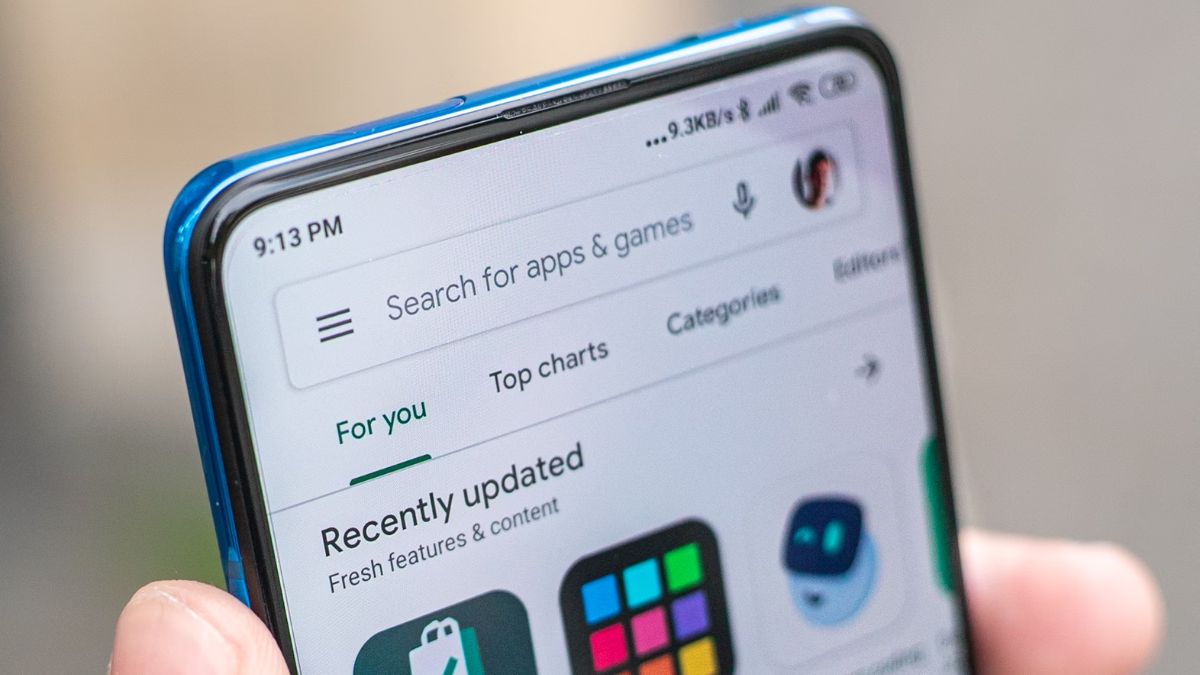
Photo Credit: Unsplash/ Mika Baumeister
Google will begin rolling out its updated sideloading restrictions in September 2026
Click Here to Add Gadgets360 As A Trusted Source

Advertisement
Google has revamped its security policies on Android, which affect apps that are downloaded without using the Google Play store. Among the major changes to ensure security is the implementation of a 24-hour waiting period to sideload apps from developers who are not verified. The company claims this measure aims to curb scams and malware attacks. While there are still a few months before the changes are implemented, this might frustrate power users, and you might be wondering about your options if you frequently sideload apps on your Android device.
Fortunately, users can skip this waiting period using the Android Debug Bridge (ADB), a powerful command line tool developed by Google that is used by developers and enthusiasts to install third-party apps on their smartphones. Here's what you need to know.
What Are Google's New Sideloading Rules on Android
Google's new developer verification system will restrict how apps are installed outside the Play Store. Under the updated rules, Android phones will only install apps from verified developers, who will need to submit identification, upload their app signing keys, and pay a fee to complete verification.

Consequently, apps from unverified developers will be blocked by default. Users who still want to install such apps will need to enable a hidden bypass option within Developer Settings. This process is intentionally complex and not surfaced during the usual app installation flow. Post completion of the aforementioned process, they must wait during the mandatory 24-hour security delay.
After this, they can choose to allow unverified app installs, either temporarily or indefinitely.
The tech giant says this delay is designed to counter social engineering attacks. It aims to prevent bad actors from coercing users into installing malicious software immediately, providing a necessary window for verification.
How ADB Helps Bypass Delay
ADB is a command-line tool used by Android users to communicate and interact with their Android device using a computer. While it is usually used by developers for debugging purposes, it can also be used for running system commands.
In the context of Android's new sideloading restrictions, ADB can be used as a workaround for bypassing the 24-hour waiting period. It does this by directly modifying Android settings associated with app verification. It is, however, used for more complex operations compared to normal user actions. ADB enables users to allow unverified app installations without waiting for 24 hours.
To use ADB, you must enable USB debugging and connecting your phone to a computer. It should only be used by users who are versed in the technical steps. Further, enabling Developer Options can impact app functionality. Several apps, particularly banking and financial services apps, may enforce restricted functionality if they detect that Developer Options or USB debugging is enabled, as part of their security checks.
There is a chance that such apps may refuse to run altogether, until the sideloading process is completed and the Developer Options feature is disabled.
How to Bypass Android's 24-Hour Delay Using ADB
- Enable Developer Options by navigating to Settings > About Phone and tapping the Build Number seven times
- Go to Settings > System > Developer Options and enable the USB Debugging option
- Download and install ADB on your computer, then connect your phone using a USB cable.
- Open a command prompt or terminal window on your computer and type adb devices to ensure your device is recognised
- Install the APK by typing the command adb install <application>.apk (Replace <application> with the name of your APK installation file).
- Once completed, disconnect your device.
Caution: You should note that Google's safeguards are in place to protect you from malware and scams. Bypassing them can expose your device to risks, so you should only install APKs from trusted sources, such as the developer's own website.
Comments
Get your daily dose of tech news, reviews, and insights, in under 80 characters on Gadgets 360 Turbo. Connect with fellow tech lovers on our Forum. Follow us on X, Facebook, WhatsApp, Threads and Google News for instant updates. Catch all the action on our YouTube channel.
Related Stories




Advertisement
Follow Us




-

09:53
iPhone 18 Goes On Sale In India: Huge Crowds, Long Queues At Apple Stores -
06:32
Google Pixel 11 Pro XL Review: The Most Exciting Pixel Yet? | 120X Zoom + Tensor G6 -
05:20
Samsung Galaxy Watch Ultra 2 Review: Is This the Best Android Smartwatch? -
07:01
Samsung Galaxy Z Fold 8 Review: Is This the Best Foldable Phone? -
06:39
Samsung Galaxy Z Fold8 Ultra Review: Cameras, Battery, Performance Tested
-
10 मिनट में घर पहुंचेंगे iPhone 18 Pro, Pro Max: सेल हुई शुरू
-
Lava ने लॉन्च किया 6000mAh बैटरी वाला Bold N4 Pro 5G
-
itel Zeno 300 भारत में होगा लॉन्च, मिलेगी 6,000mAh बैटरी और डुअल कैमरा
-
Oppo A7 Pro Max 5G ग्लोबल मार्केट में लॉन्च, 50MP दो कैमरा, 10,000mAh बैटरी, IP69 रेटिंग!
-
Ai+ LapTab लॉन्च होगा 10,000mAh बैटरी, 33W फास्ट चार्जिंग के साथ!
Advertisement
Popular on Gadgets
- Samsung Galaxy S26 Ultra
- Motorola Razr Fold
- ChatGPT
- OPPO Find N6
- Mobiles Under Rs. 40,000
- Vivo X300 Ultra
- Asus Zenbook S14
- iQOO 15
- Vivo X300 Pro
- Lenovo Yoga Slim 7i Aura Edition
- iQOO 15R
- Vivo X Fold 5
- Sony PlayStation 5
- HP OmniPad 12
- OnePlus Nord CE 6 Lite
- OnePlus Pad 4
- OPPO F33 Pro 5G
- Cryptocurrency
- HP OmniBook Ultra 14 (2026)
- iPhone 17
- Eureka Forbes AP 355 Room Air Purifier
- Latest Mobile Phones
- Compare Phones
Latest Gadgets
- Lava Bold N4 Pro 5G
- Samsung Galaxy A08
- Itel Muzik 450L
- OPPO K14 Lite
- Samsung Galaxy A18 4G
- iPhone Duo
- OPPO A7 Pro
- Huawei Mate XT 2 Ultimate Design
- Asus Vivobook S14 (S5452MA)
- Acer Aspire G 3D 16
- Xiaomi Pad 9 Pro
- Xiaomi Pad 9
- Apple Watch Ultra 4
- Apple Watch Series 12
- Haier M70 Mini LED 65-inch
- Xiaomi TV FX Mini LED 65
- Acer Predator Atlas 8
- Asus ROG Ally
- Blue Star 1.5 Ton 5 Star Inverter Split AC (IE518ZNURS)
- Blue Star 2 Ton 3 Star Inverter Window AC (WIE324L)

- About Us
- Sitemaps
- Feedback
- Archives
- Contact Us
- RSS
- Advertise
- Career
- Privacy Policy
- Ethics
- Editorial Policy
- Terms & Conditions
- Complaint Redressal
Download Our Apps
Available in Hindi
© Copyright Red Pixels Ventures Limited 2026. All rights reserved.