
-
 WhatsApp Could Get a New Contacts Tab With Online Status and Birthday Reminders7 October 2026
 -
WhatsApp Could Block Users From Logging In on Outdated Android, iOS Devices6 October 2026
-
WhatsApp Said to Be Testing iOS-Like Appearance for Android With Floating Navigation Bar28 September 2026
-
How to Check BSNL Prepaid Plan and Validity on Your Phone26 September 2026
-
WhatsApp Reportedly Brings Third-Party Agent Chats to iOS Beta Users22 September 2026
- Home
- How to
- How to Features
- How to Transfer WhatsApp Chats From Android to iPhone in India
How to Transfer WhatsApp Chats From Android to iPhone in India
Your entire WhatsApp history can move with you when switching devices in just a few steps. Here's how to do so.
Written by Shaurya Tomer, Edited by David Delima | Updated: 12 July 2026 12:00 IST

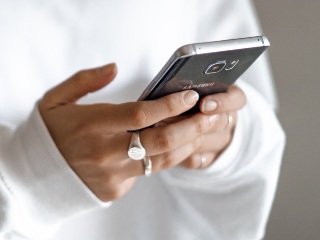
Photo Credit: Pexels/ Anton
How to transfer WhatsApp chats from Android to iPhone
Click Here to Add Gadgets360 As A Trusted Source

Advertisement
Switching to a new smartphone was usually considered a hassle, with the primary concern being leaving years of WhatsApp conversations behind. However, that is no longer the case. Earlier this year, the Meta-owned messaging app introduced a built-in cross-platform chat transfer feature. It allows users to securely move their chat history, including messages and media, between Android and iPhone and vice versa, without relying on third-party tools. Provided both of your devices meet the system requirements, the process is fairly straightforward.
In this guide, we will explain how you can transfer your WhatsApp chats from an Android phone to an iPhone in just a few simple steps.
WhatsApp Supports Cross-Platform Chat Transfers
WhatsApp offers native support for transferring chat history from Android to iPhone. Unlike cloud backups, which are platform-specific, such as Google Drive for Android and iCloud for iPhone, this method transfers chats directly between the two devices over a local Wi-Fi connection.
This means your data does not pass through cloud servers during the transfer. WhatsApp also notes that it cannot access or view the data being transferred.
There are a few limitations, however. Firstly, it is not possible to merge old chats with new conversations. Further, WhatsApp does not allow you to transfer chats to a different phone number without first changing it on the old device. WhatsApp Business chats, status updates, and peer-to-peer payment messages are not supported during transfer, either.
In case you want to transfer WhatsApp chats from iOS to Android, here's our dedicated guide on how to do so. And if you still haven't reserved your username on WhatsApp before the functionality is widely rolled out, you can do so in just a few steps.
What You Need to Know Before Transferring Your WhatsApp Chats
Before beginning with the chat transfer, you should ensure that both devices have the latest version of WhatsApp installed and that you are using the same phone number. The Wi-Fi connection should be stable, and both the Android and iPhone should have sufficient charge.
Lastly, the iPhone must have enough free storage to accommodate the transferred chats and media.
How to Transfer WhatsApp Chats From Android to iPhone: A Step-by-Step Guide
- Open WhatsApp on your Android phone and navigate to Chats > Transfer chat history > Transfer to iPhone
- Tap Continue once WhatsApp finishes preparing your chat history for transfer.
- If prompted, tap Allow to grant WhatsApp access to your Android phone's camera. Keep the device unlocked during the entire transfer process.
- Now switch to your iPhone. Open WhatsApp and verify your account using the same phone number that was used on your Android phone.
- When prompted, tap Allow to let the two devices connect.
- Use your Android phone's camera to scan the QR code displayed on the iPhone.
- When prompted on your Android phone, tap Join to connect to the temporary Wi-Fi network created for the transfer.
- Wait for WhatsApp to transfer your chat history and media to the iPhone.
- Once the transfer is complete, tap Next on your iPhone.
- Your chats will now appear in WhatsApp, and you can continue using the app on your new iPhone.
1. Will my media files also be transferred?
Yes. WhatsApp transfers your messages as well as supported media files, including photos, videos, and voice notes.
2. Do I need Google Drive or iCloud backup?
No. The transfer takes place directly between the two devices and does not rely on cloud backups.
3. Can I use a different phone number on my iPhone?
No. You must verify WhatsApp on the iPhone using the **same phone number** that was active on your Android phone during the transfer.
4. Can I continue using WhatsApp on my Android phone after the transfer?
Once you activate WhatsApp on your iPhone, your account will be logged out of the Android phone, as WhatsApp only supports one primary device per account.
Comments
Get your daily dose of tech news, reviews, and insights, in under 80 characters on Gadgets 360 Turbo. Connect with fellow tech lovers on our Forum. Follow us on X, Facebook, WhatsApp, Threads and Google News for instant updates. Catch all the action on our YouTube channel.
Related Stories




Advertisement
Follow Us



-
![[Sponsored]: CP PLUS CarKam CP-F89B: 4K Dashcam With Rear Camera, GPS & Emergency Recording](https://www.gadgets360.com/static/desktop/images/spacer.png)
04:37
[Sponsored]: CP PLUS CarKam CP-F89B: 4K Dashcam With Rear Camera, GPS & Emergency Recording -
04:23
[Partner Content] Your Phone Can Do WAY More Than You Think | OPPO ColorOS 16 -
01:59
Samsung Galaxy Z Fold8 Ultra: Unfold the Ultra Night -
03:24
Apple Pay Launches In India: Supported Devices, Cards And Payments Explained -
00:21
[Sponsored] Samsung Galaxy Z Fold8, Fold8 Ultra
-
Amazon Great Indian Festival Sale: iPhone 17 Pro पर बंपर डील
-
Flipkart Big Billion Days Sale: ₹8K से सस्ता मिल रहा Google Pixel 10a
-
भारत में दुनिया का सबसे सस्ता इंटरनेट, 1GB की कीमत सिर्फ 8 रुपये
-
Flipkart Big Billion Sale 2026: ₹15 हजार से भी सस्ते मिल रहे Motorola, Poco, Ai+ के AI कैमरा वाले फोन
-
HMD ला रही 2 डिस्प्ले वाला बजट फोन! 6,000mAh बैटरी से हो सकता है लैस
Advertisement
Popular on Gadgets
- Samsung Galaxy S26 Ultra
- Motorola Razr Fold
- ChatGPT
- OPPO Find N6
- Mobiles Under Rs. 40,000
- Vivo X300 Ultra
- Asus Zenbook S14
- iQOO 15
- Vivo X300 Pro
- Lenovo Yoga Slim 7i Aura Edition
- iQOO 15R
- Vivo X Fold 5
- Sony PlayStation 5
- HP OmniPad 12
- OnePlus Nord CE 6 Lite
- OnePlus Pad 4
- OPPO F33 Pro 5G
- Cryptocurrency
- HP OmniBook Ultra 14 (2026)
- iPhone 17
- Eureka Forbes AP 355 Room Air Purifier
- Latest Mobile Phones
- Compare Phones
Latest Gadgets
- Vivo Y600s Pro
- Vivo Y32 (2026)
- Infinix Smart 20 HD
- Vivo V80
- Vivo S2 FE
- Vivo Y600K Turbo
- Realme P4s Lite
- Vivo S60t
- Dell Pro Rugged 14
- Dell Pro Rugged 13 Extreme
- Amazon Alexa Tablet 8
- Amazon Alexa Tablet 11
- Amazfit T-Rex Dual Solar
- OPPO Watch S2
- Toshiba 65-Inch 4K Ultra HD Smart Mini LED QLED TV (65Z670SP)
- Haier M70 Mini LED 65-inch
- Acer Predator Atlas 8
- Asus ROG Ally
- Blue Star 1.5 Ton 5 Star Inverter Split AC (IE518ZNURS)
- Blue Star 2 Ton 3 Star Inverter Window AC (WIE324L)

- About Us
- Sitemaps
- Feedback
- Archives
- Contact Us
- RSS
- Advertise
- Career
- Privacy Policy
- Ethics
- Editorial Policy
- Terms & Conditions
- Complaint Redressal
Download Our Apps
Available in Hindi
© Copyright Red Pixels Ventures Limited 2026. All rights reserved.