
-
 How to Scan Documents With an Android Phone: A Step-by-Step Guide26 September 2026
 -
How to Factory Reset an Android Phone Safely: A Step-by-Step Guide12 September 2026
-
Nothing Phone 2 to Stop at Android 16 as CEO Carl Pei Explains Update Decision9 September 2026
-
How to Improve Battery Life of an Android Phone: A Step-by-Step Guide23 August 2026
-
How to Check Battery Health on an Android Phone: A Step-by-Step Guide22 August 2026
- Home
- How to
- How to Features
- How to Find Which Apps Are Taking Up Storage on Android Phone: A Step by Step Guide
How to Find Which Apps Are Taking Up Storage on Android Phone: A Step-by-Step Guide
Google offers two different ways to let you see which apps are taking up the most storage space on your Android phone.
Written by Dhruv Raghav, Edited by Rohan Pal | Updated: 23 August 2026 12:00 IST
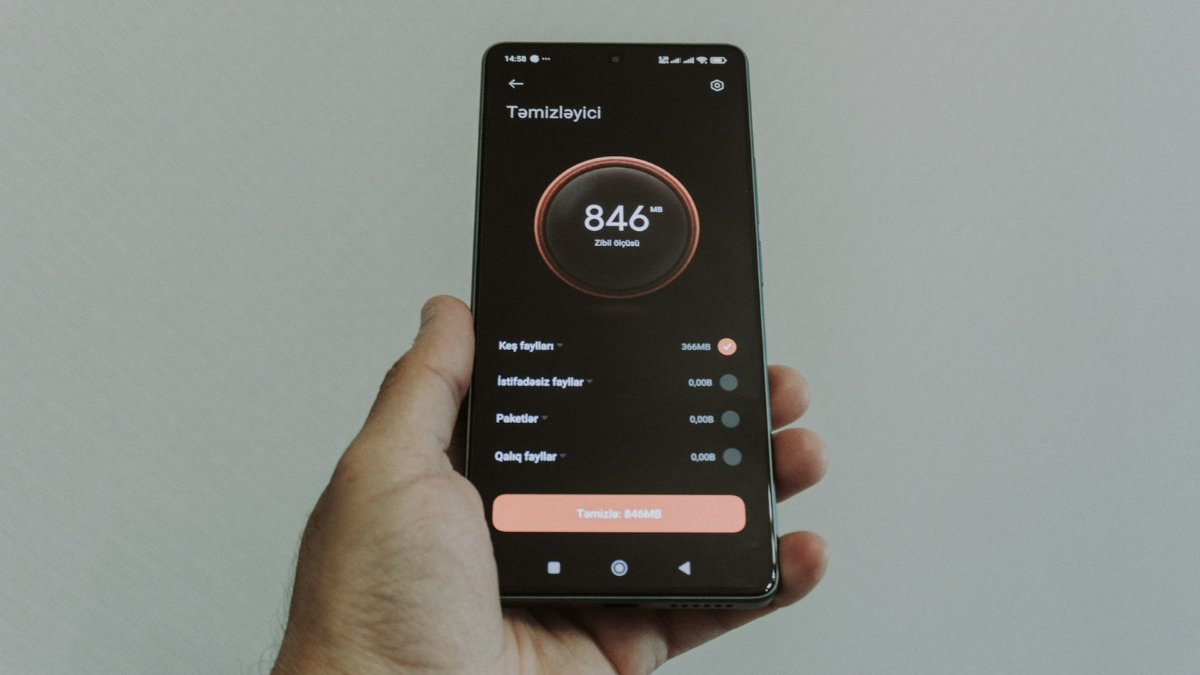
Photo Credit: Unsplash/ Zulfugar Karimov
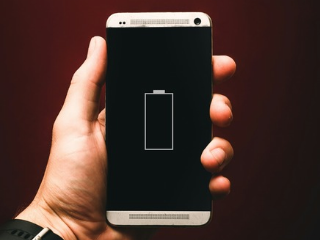
Here's how you can find apps that are taking up storage on Android
Click Here to Add Gadgets360 As A Trusted Source
Advertisement
Apps on Android phones have become significantly larger in recent years, occupying a big portion of your handset's onboard storage. Hence, it becomes extremely important for you to keep checking which apps are taking how much space on your Android phone to avoid unexpected usage hindrances. There are multiple ways you can do this. Google lets Android users see the list of apps and the amount of storage they are occupying on your handset via the Settings menu and the Files app. You can choose to uninstall, clear cache, and clear storage to free up some space on your Android phone for new photos and videos, or other apps.
Here is a step-by-step guide for you that will help you check which apps are taking up the most storage on your Android phone.
Benefits of Checking Which Apps Are Taking Up Storage on Your Android Phone
If you are wondering why you should check which apps are taking up storage on your Android phone, there are multiple benefits of doing the same. For example, it helps you identify large apps that you might not be using regularly, but are still occupying space on your phone's internal storage. There is only limited storage available on Android phones.
If your handset does not support an external microSD card, you do not even have an option to upgrade it. Hence, it is important that you know which app is taking how much storage space, allowing you to prioritise your usage. Apart from all this, freeing up storage on your Android phone can potentially improve your phone's performance. Because of memory swapping, handsets also use the onboard storage if there is not enough RAM available.
Hence, identifying and deleting apps will help your Android phone offer better multitasking performance. On top of this, by deleting unused apps, you can make more space for photos and videos on your handset, along with other important documents.
How to Find Which Apps Are Taking Up Storage on Your Android Phone From the Settings App
- Open your Android phone and swipe down from the top-right corner of the screen.
- To open the Settings menu, tap on the gear button, placed in the bottom-right corner of the screen.
- Scroll down and tap on the Storage settings option.
- Here, you can click on the Apps button.
- To check which app is taking the most storage on your Android phone, tap on the sort by button and select Sort by size*.
- Alternatively, you can also choose to sort the list of apps by sorting them by name.
- Here, you can tap on the name of any particular app and tap on the clear storage or clear cache buttons to reduce the amount of storage the app is occupying on your Android phone.
How to Find Which Apps Are Taking Up Storage on Your Android Phone From the Files Apps
- Open your Android phone and swipe on the home screen to open the app drawer.
- Now, scroll down and open the Files app.
- Here, you can tap on the Apps, placed in the bottom-right corner of the screen.
- A new screen will appear, showing different sections for Large Apps, Unused Apps, and Games. Select the section you wish to view the apps in by tapping on one of the options.
- Here, you can tap on the app you think is occupying space on your Android phone unnecessarily and click on the Uninstall button.
FAQs
1. How can I check the list of apps taking up storage on my Android phone?
You can either go to your Android phone's Settings menu or check the same via the pre-installed Files app.
2. If I clear the cache, will it delete the app from my Android phone?
No, clearing the cache does not delete the app from your Android phone. However, it might delete some internal data, like passwords and usernames, or other saved data.
3. How can I see the least-used apps on my Android phone?
You can head over to the Files app to see the list of unused apps on your Android phone.
Comments
Get your daily dose of tech news, reviews, and insights, in under 80 characters on Gadgets 360 Turbo. Connect with fellow tech lovers on our Forum. Follow us on X, Facebook, WhatsApp, Threads and Google News for instant updates. Catch all the action on our YouTube channel.
Related Stories



Advertisement
Follow Us




-
![[Sponsored]: CP PLUS CarKam CP-F89B: 4K Dashcam With Rear Camera, GPS & Emergency Recording](https://www.gadgets360.com/static/desktop/images/spacer.png)
04:37
[Sponsored]: CP PLUS CarKam CP-F89B: 4K Dashcam With Rear Camera, GPS & Emergency Recording -
04:23
[Partner Content] Your Phone Can Do WAY More Than You Think | OPPO ColorOS 16 -
01:59
Samsung Galaxy Z Fold8 Ultra: Unfold the Ultra Night -
03:24
Apple Pay Launches In India: Supported Devices, Cards And Payments Explained -
00:21
[Sponsored] Samsung Galaxy Z Fold8, Fold8 Ultra
-
Amazon Great Indian Festival Sale 2026: ₹15,999 से शुरू स्मार्टफोन डील्स
-
घर की दीवार बनेगी 120 इंच की सिनेमा स्क्रीन! Lumio Arc 7 (2026) हुआ लॉन्च
-
Amazon Great Indian Festival Sale 2026: ₹18 हजार सस्ता मिलेगा iPhone 16!
-
Oppo Find X10 Pro Max जल्द होगा भारत में लॉन्च, MediaTek Dimensity 9600 Pro चिपसेट
-
Lenovo ने लॉन्च किया AI फीचर्स वाला ThinkBook 14x लैपटॉप, आपकी पसंद के मिलेंगे फीचर्स
Advertisement
Popular on Gadgets
- Samsung Galaxy S26 Ultra
- Motorola Razr Fold
- ChatGPT
- OPPO Find N6
- Mobiles Under Rs. 40,000
- Vivo X300 Ultra
- Asus Zenbook S14
- iQOO 15
- Vivo X300 Pro
- Lenovo Yoga Slim 7i Aura Edition
- iQOO 15R
- Vivo X Fold 5
- Sony PlayStation 5
- HP OmniPad 12
- OnePlus Nord CE 6 Lite
- OnePlus Pad 4
- OPPO F33 Pro 5G
- Cryptocurrency
- HP OmniBook Ultra 14 (2026)
- iPhone 17
- Eureka Forbes AP 355 Room Air Purifier
- Latest Mobile Phones
- Compare Phones
Latest Gadgets
- Vivo Y32 (2026)
- Infinix Smart 20 HD
- Vivo V80
- Vivo S2 FE
- Vivo Y600K Turbo
- Realme P4s Lite
- Vivo S60t
- OPPO F35 5G
- Dell 14 Plus 2-in-1 (AMD Ryzen AI 7 350, 2025)
- Microsoft Surface Laptop, 13-inch (2nd Edition)
- Samsung Galaxy Tab S12+
- Samsung Galaxy Tab S12 Ultra
- Amazfit T-Rex Dual Solar
- OPPO Watch S2
- Toshiba 65-Inch 4K Ultra HD Smart Mini LED QLED TV (65Z670SP)
- Haier M70 Mini LED 65-inch
- Acer Predator Atlas 8
- Asus ROG Ally
- Blue Star 1.5 Ton 5 Star Inverter Split AC (IE518ZNURS)
- Blue Star 2 Ton 3 Star Inverter Window AC (WIE324L)

- About Us
- Sitemaps
- Feedback
- Archives
- Contact Us
- RSS
- Advertise
- Career
- Privacy Policy
- Ethics
- Editorial Policy
- Terms & Conditions
- Complaint Redressal
Download Our Apps
Available in Hindi
© Copyright Red Pixels Ventures Limited 2026. All rights reserved.