
- Home
- Laptops
- Laptops Reviews
- Dell 14 Plus 2 in 1 Review: A Convertible Worth Considering?
Dell 14 Plus 2-in-1 Review: A Convertible Worth Considering?
The Dell 14 Plus 2-in-1 offers a comfortable keyboard, solid build and dependable battery, making it well suited to everyday work, but does it make for a good investment?
Written by Sucharita Ganguly, Edited by Ketan Pratap | Updated: 2 October 2026 11:00 IST
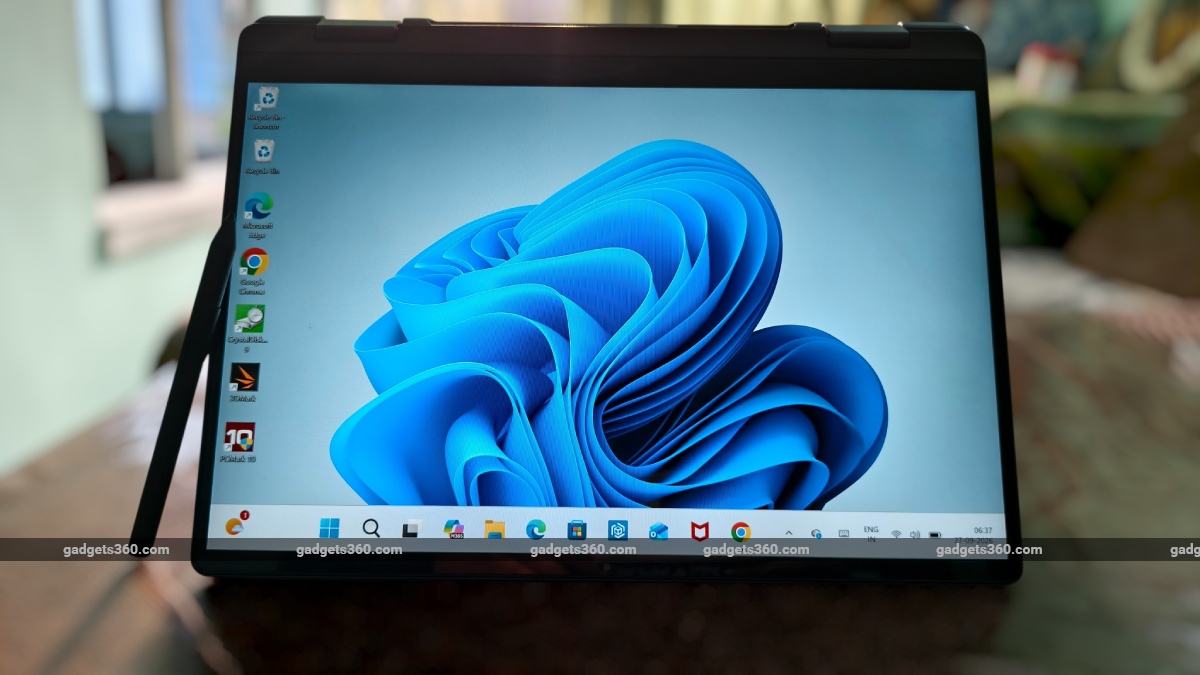
The tent mode of the Dell 14 Plus 2-in-1 proved particularly useful in everyday use
Click Here to Add Gadgets360 As A Trusted Source

Advertisement
Some people buy a convertible knowing the roof will spend most of its life firmly in place. A conventional car gets you where you need to go without folding its roof into the boot, but sometimes “I don't need this” isn't a particularly compelling argument against having something nice. Sometimes, having the option is the point. You may rarely use it, but knowing you can makes the experience worthwhile.
The Dell 14 Plus 2-in-1 makes a similar case. It is a regular laptop until you decide it isn't, at which point the screen folds all the way back and turns it into a tablet, a stand or a tent. That sounds useful on a spec sheet, but after spending some time with it, the more interesting question is whether you actually use those tricks, or whether the 2-in-1 is simply the laptop equivalent of a convertible roof that rarely comes down.

Dell 14 Plus 2-in-1 Design: A Laptop First, a Tablet When You Need It
- Dimensions – 314 x 226.15 x 14–16.39mm
- Weight – Starting at 1.59kg
- Build – Aluminium
- Hinge – 360-degree
- Colours – Ice Blue
The Dell 14 Plus 2-in-1 is a good-looking laptop, and I think Dell has made the right choice by keeping the design relatively restrained. It has rounded edges, a clean finish and very little visual fuss. Nothing particularly adventurous about it, but that works in its favour. It looks like a laptop that belongs on a work desk, without trying to make a point about how stylish it is. The Ice Blue finish gives the laptop some personality without looking flashy, and the matching keyboard keeps the whole thing cohesive.
At 1.59kg, the Dell 14 Plus 2-in-1 is reasonably easy to carry for a 14-inch convertible, though I wouldn't call it particularly light. You notice the weight when you pick it up, especially since you will likely handle this machine in more ways than a regular laptop. Still, it never feels cumbersome when you carry it from one room to another or put it in a bag. The chassis is between 14mm and 16.39mm thick, so it avoids the chunky feel some convertible laptops can have.
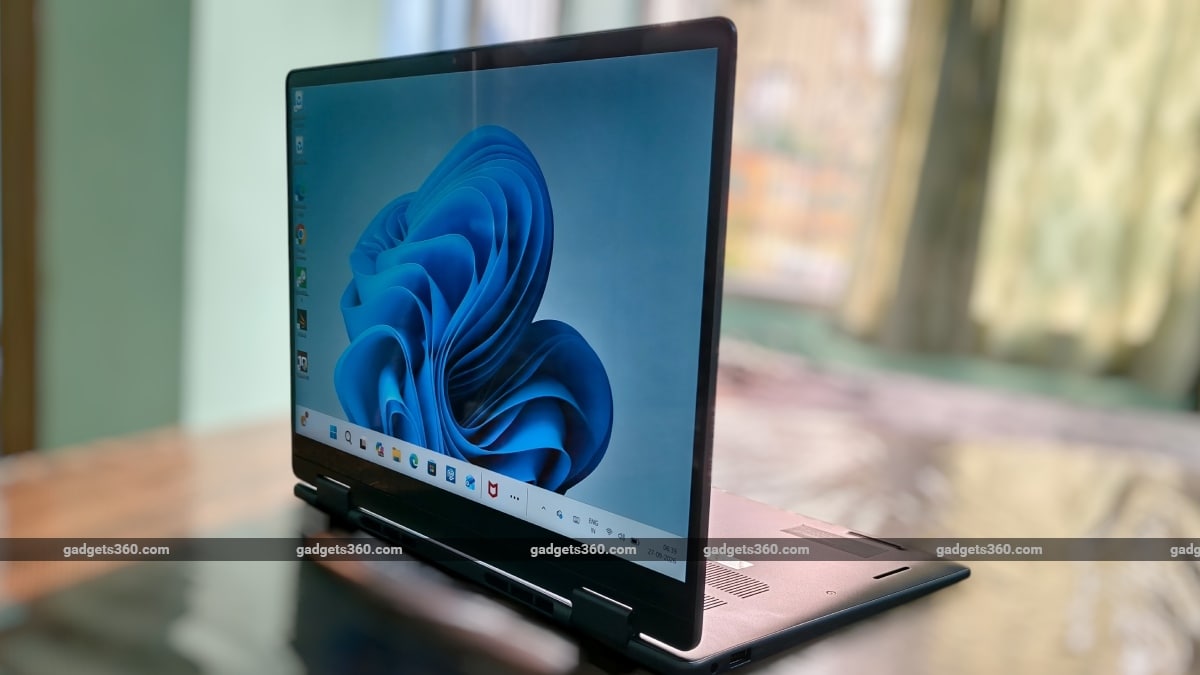
Stand mode is useful when you want the screen raised without the keyboard in the way
The aluminium build gives the laptop a solid feel, with very little flex in the chassis or display. It also feels sturdy when switching between its different modes, which is reassuring for a convertible. The hinge is probably the most important piece of hardware on the laptop, and thankfully it does not make a song and dance about itself. It is firm enough to hold the display where you leave it, but does not require an awkward amount of force to move. That sounds small until you have used a bad convertible hinge. Here, changing modes feels deliberate rather than fiddly.
In its conventional laptop mode, the Dell 14 Plus 2-in-1 feels much like a regular 14-inch laptop, which is where I spent most of my time. The full-size backlit keyboard without a numeric keypad and precision touchpad make it comfortable for everyday work, and the layout doesn't feel compromised to accommodate the 360-degree hinge. This is still the position where the laptop makes the most sense, and the convertible design doesn't get in the way.
To be honest, I used Stand mode the least. It works as expected and can be useful when you want the screen raised without the keyboard in front of you, but I rarely found a reason to use this position. I usually preferred either the regular laptop position or folding the display further back.
Tent mode, on the other hand, turned out to be much more useful for me. I particularly liked using it while editing photos, as the angled touchscreen was easier to work with directly and made the stylus more comfortable to use. It was also a better position for watching videos, since I could adjust the display to a convenient angle without having the keyboard taking up space underneath it. Of the convertible modes, this was the one I found myself reaching for most often.
Folding the display all the way back turns the laptop into a 14-inch tablet. I liked having this option, particularly for reading, browsing and annotating documents, but I did not use it for particularly long periods. At around 1.6kg, the laptop is much more comfortable resting on a desk or my lap than being held like a conventional tablet, and the weight becomes noticeable fairly quickly when you are holding it in your hands.
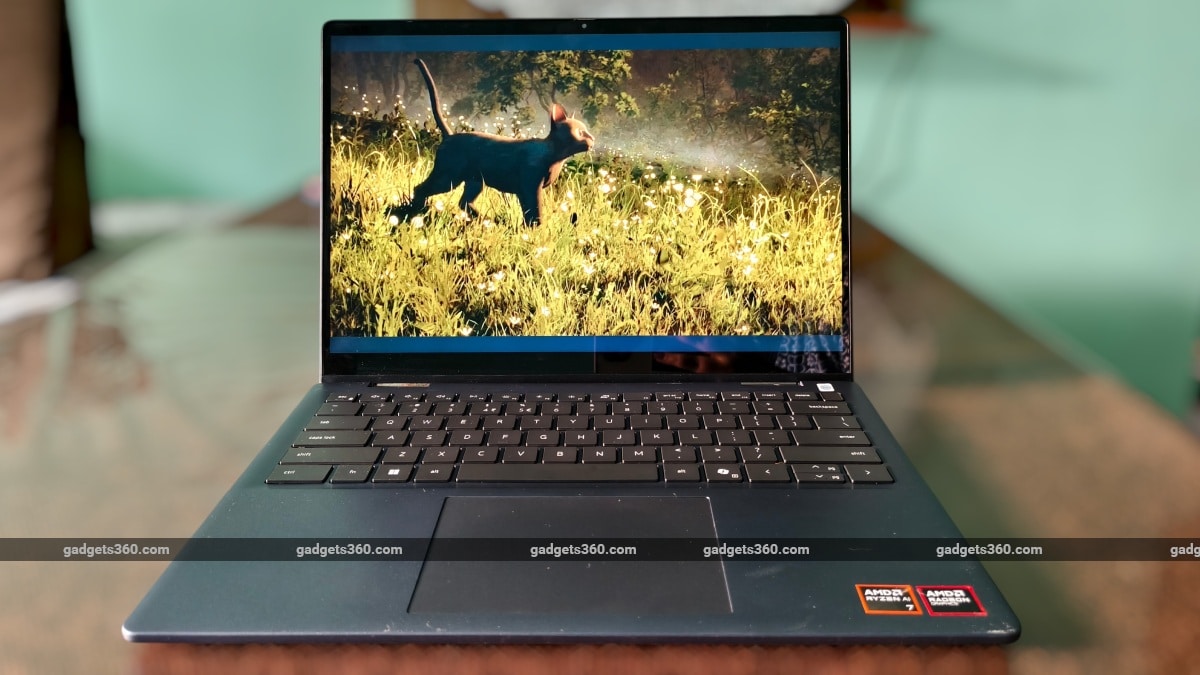
The 14-inch display is well suited to casual video watching and everyday work
Overall, I found the 360-degree hinge genuinely useful, but mainly because it gave me a few practical alternatives to the regular laptop setup. Laptop mode remained my default, while tent mode proved particularly handy for photo editing, stylus use and watching videos. Stand mode saw the least use, while tablet mode worked well for shorter stretches, so the convertible functionality felt like a useful extension of the laptop rather than the reason the laptop needed to be different.
Dell 14 Plus 2-in-1 Display: Useful, But Not a Standout
- Size – 14-inch
- Resolution – 1920x1200 pixels
- Panel – WVA
- Refresh rate – 60Hz
- Brightness – 300 nits
- Colour gamut – 45 percent NTSC
- Aspect ratio – 16:10
- Touch – Yes
- Features – ComfortView, Active Pen support
The 14-inch, 1,920x1,200-pixel display is a decent fit for the laptop, but I appreciated it more for how well it suited the different ways I used the 2-in-1 than for the panel specifications themselves. The 16:10 aspect ratio gives you a little more vertical room, which helps when you are working through documents or browsing, while the touchscreen gives the display a more practical role once you move away from the conventional laptop setup.
The screen is perfectly fine for casual content consumption, but I wouldn't make it my first choice for watching something for a couple of hours. The 14-inch laptop can become your companion for casual binge-watching. I could happily put on a Smosh video or catch some match highlights, especially with the laptop sitting in tent mode on my desk. But for a film or a full live match, I would still choose a better (and possibly bigger) screen. The 16:10 panel leaves black bars around most 16:9 video, and while that isn't a deal-breaker, it adds to the feeling that this screen is designed more for productivity than entertainment.
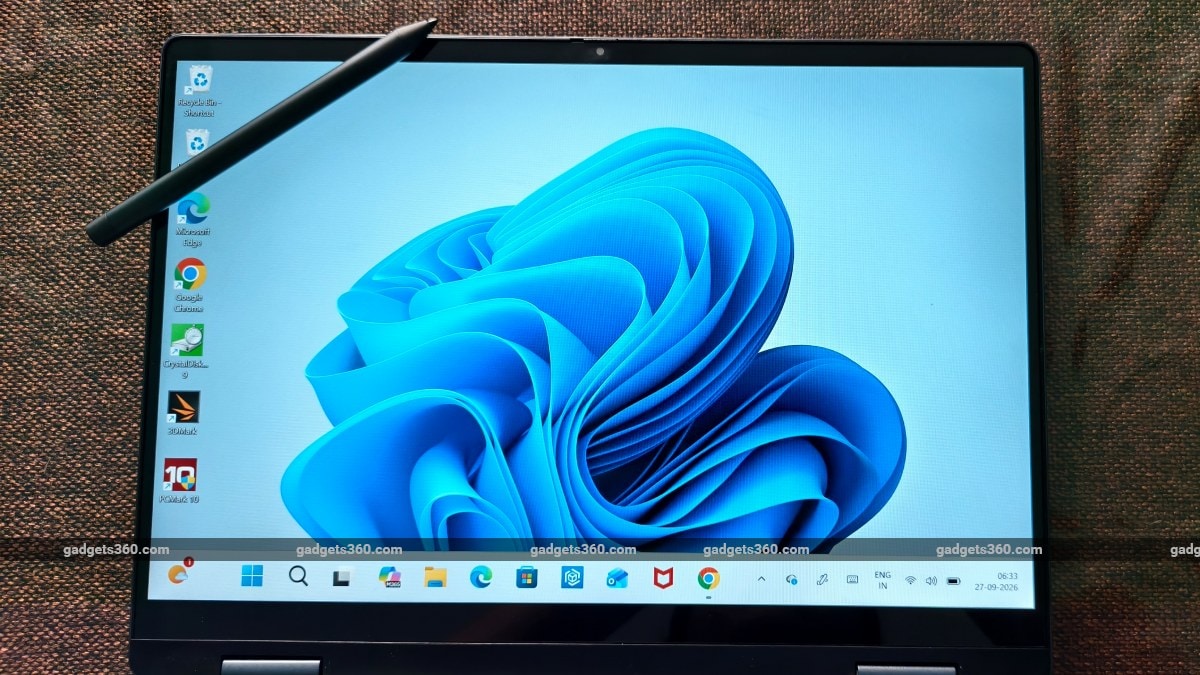
The touchscreen works with the included stylus for more precise input
The screen falls short when you move beyond usability and start looking at image quality. The 300-nit panel is fine indoors, but I would have liked more brightness for brighter surroundings, particularly because a convertible gives you more freedom to use it away from a desk. The 45 percent NTSC coverage also means colours do not have the richness you would get from a better display, which I noticed more when editing photos of my cats (my social circle has, unfortunately, come to expect a steady supply of feline content) than when doing regular work.
So while I wouldn't call this a particularly impressive display, I also didn't find myself wishing for a better one every time I used it. Its strengths are really in the size, proportions and touchscreen functionality, and those qualities make it work well with the 2-in-1 design. The panel itself is fairly ordinary, but I found the overall experience more useful than the specifications might suggest.
Dell 14 Plus 2-in-1 Keyboard, Touchpad, Stylus: Comfortable Where It Matters
- Keyboard – Full-size, backlit, no numeric keypad
- Touchpad – Precision touchpad with multi-touch gestures and integrated scrolling
- Stylus – Dell Active Pen PN5122W support
I spent a lot of time typing on the Dell 14 Plus 2-in-1, and the keyboard is one of the parts I liked most. The keys have a decent amount of travel and a soft, tactile feel, so typing remains comfortable even over several hours. The layout gives you plenty of room to type, and the flat keycaps took me a little while to get used to simply because I am more accustomed to slightly curved ones. It was not a problem for long, though, and I settled into the keyboard fairly quickly. The backlighting is also useful in low light, although it is nothing particularly elaborate.
The touchpad is perfectly fine, which is probably the nicest thing I can say about it. It is responsive, gestures work reliably, and there is enough space for everyday navigation, but it is not particularly large, and the physical click feels less satisfying. Nothing here is bad enough to be a problem, but after using a really good haptic touchpad, this one feels like it is doing the minimum required.
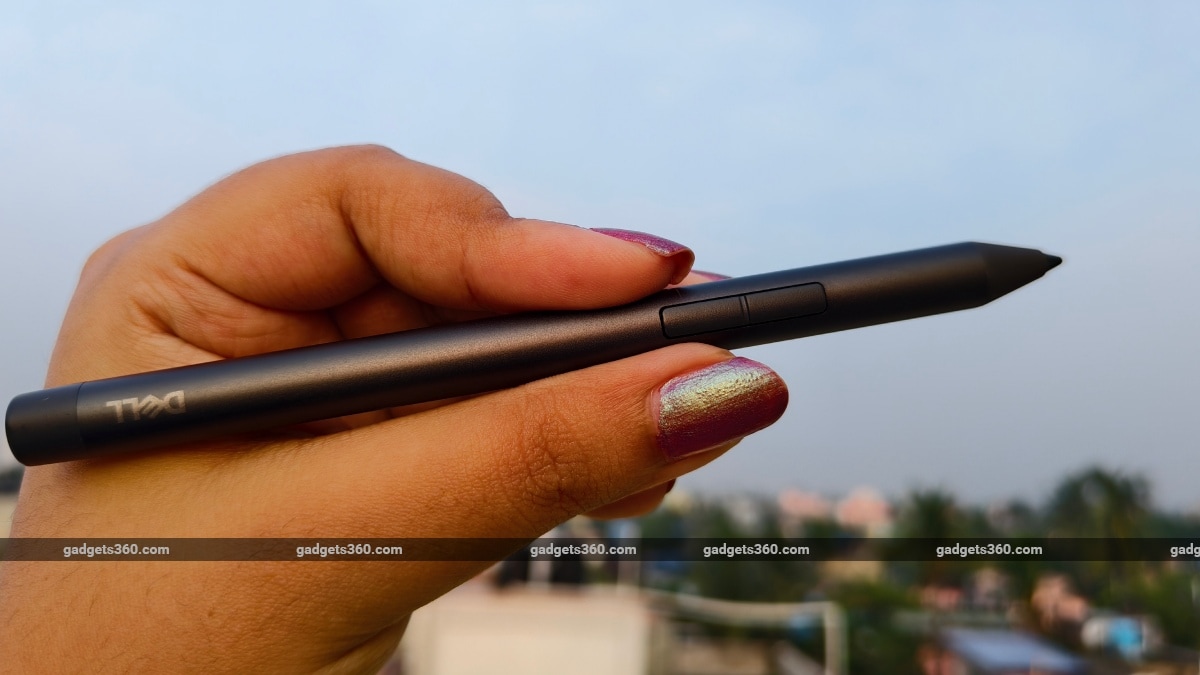
The Dell Active Pen came in handy for making small edits directly on the screen
The Dell 14 Plus 2-in-1 is compatible with the Dell Active Pen PN5122W, which has all the basics I would want from a proper stylus, including 4,096 levels of pressure sensitivity, two customisable buttons and palm rejection. It runs on an AAAA battery and doesn't need to be paired, so you can just pick it up and start using it. I liked not having another device to remember to charge alongside the laptop.
I mostly used the pen while editing photos, and this was probably where I appreciated it most. I am so used to doing this on a laptop or PC with a mouse and keyboard that using a pen on the screen felt a little strange at first. A finger is fine for moving around an image, but it is hardly ideal when you are trying to make a small adjustment. The touchpad gives you more control, but you are still moving a cursor around the screen. With the pen, I could point to the part of the photo I wanted to work on and make the change there. After I got used to it, I found myself preferring it for smaller edits. Tent mode helped too, since I could prop the laptop up on my desk and work directly on the screen without holding it.
Dell 14 Plus 2-in-1 Speakers, Webcam, Connectivity: No-Frills and Functional
- Speakers – Stereo speakers with Dolby Atmos
- Webcam – FHD camera with dual digital microphones and AI noise reduction
- Connectivity – Wi-Fi 7, Bluetooth 5.4
- Ports – 2x USB-C, USB-A, HDMI 1.4, 3.5mm headphone jack
The Dell 14 Plus 2-in-1 stereo speakers are decent for everyday use. Videos, calls, and dialogue-heavy content sound clear enough, and the volume is sufficient for casual listening. Music is less impressive, as the sound lacks the depth you get from a good pair of headphones.
The FHD webcam is similarly good. It is decent for the occasional video call, while the dual microphones and AI noise reduction should help keep your voice clear. I also like the physical privacy shutter, a small but useful addition when the laptop spends a lot of time with you.
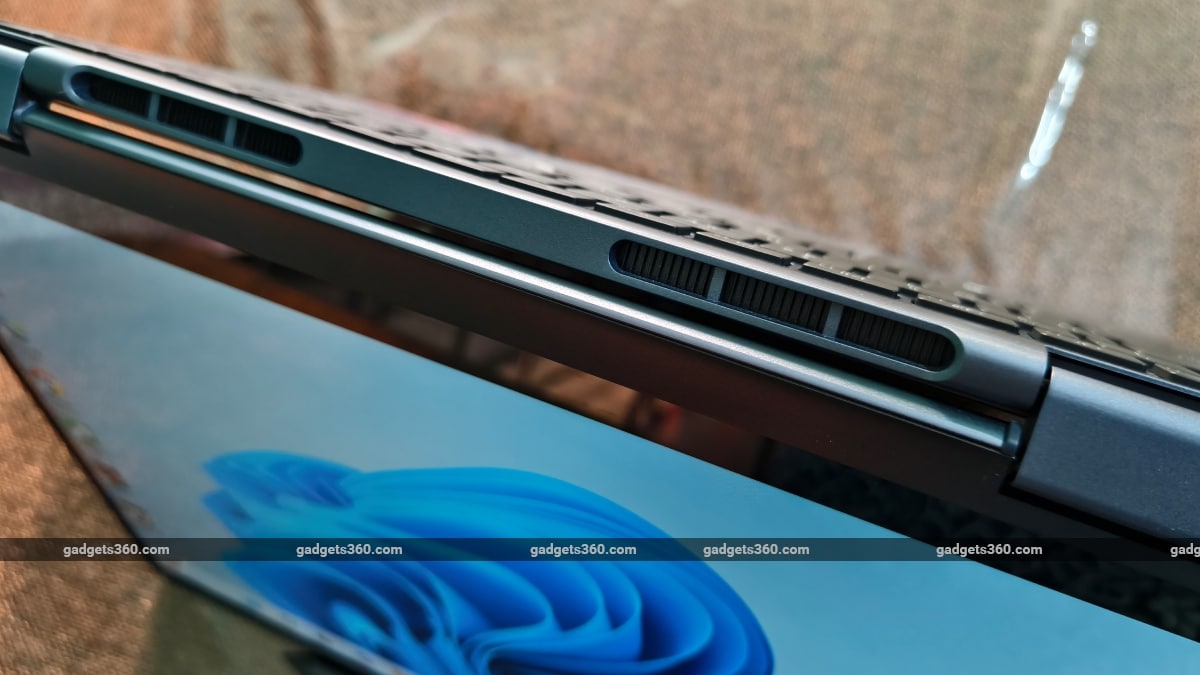
Cooling vents along the hinge help keep air moving through the laptop
You get two USB-C ports with DisplayPort and Power Delivery on the Dell 14 Plus 2-in-1, a USB-A port, HDMI 1.4 and a 3.5mm headphone jack, which covers pretty much everything I would expect to plug into a laptop like this. Both USB-C ports also support charging, so you have a little more flexibility in where you plug in the charger. The HDMI port is limited to 1080p at 60Hz, so you will need to use one of the USB-C ports to connect a higher-resolution external display. Wi-Fi 7 and Bluetooth 5.4 handle wireless connectivity, with support for newer routers, headphones, mice and other Bluetooth accessories.
Dell 14 Plus 2-in-1 Software: A Few AI Extras
- Operating system – Windows 11 Home, Copilot+ PC
- AI features – Recall, Windows Studio Effects, Live Captions, Cocreator
- Dell software – Dell Optimiser, Dell Pair, SupportAssist
The Dell 14 Plus 2-in-1 runs Windows 11 Home, along with Dell's Optimiser, Pair and SupportAssist apps. It is also a Copilot+ PC, which brings features such as Recall, Windows Studio Effects, Live Captions and Cocreator into the mix. I tried a few of them, but I wouldn't say the AI features changed how I used the laptop day to day.
Windows Studio Effects was probably the easiest to notice because it fits into something I already do on a laptop. The options for background blur, automatic framing, and Voice Focus are useful on a video call, and once they are set up, you don't really need to think about them. I left Recall switched off, too. It is disabled by default, and I was quite happy to leave it that way rather than have Windows keep track of the apps, files, emails and websites I had been looking at.
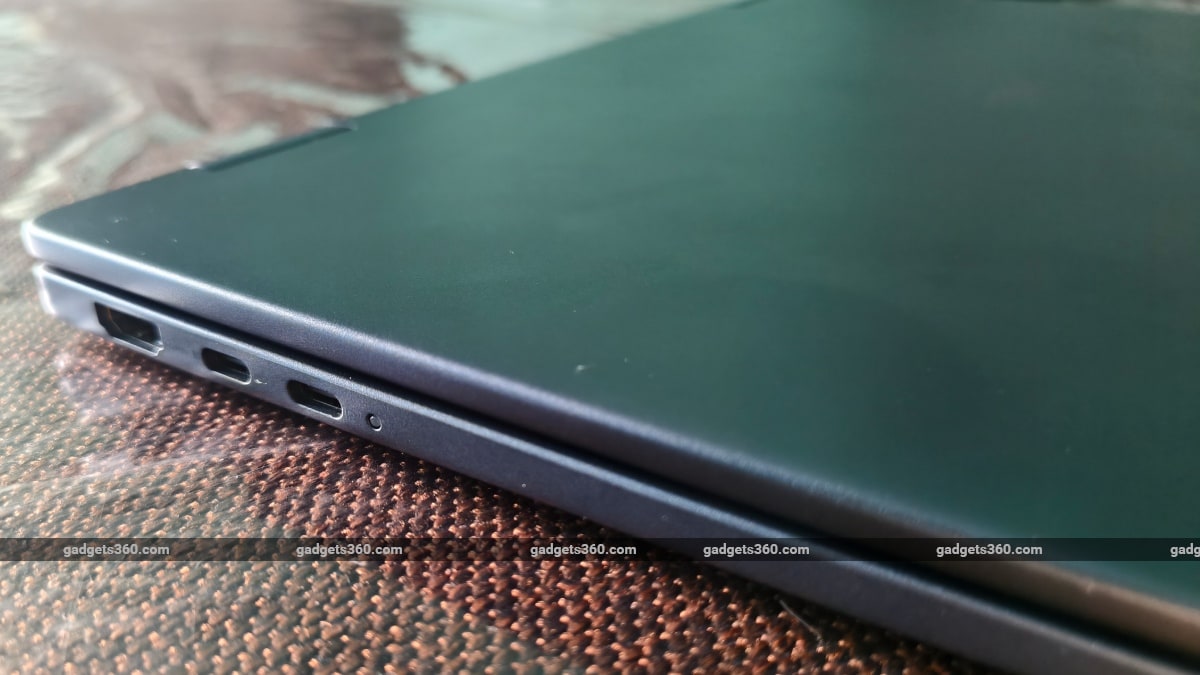
The Dell 14 Plus 2-in-1 gets two USB-C ports alongside HDMI and USB-A
Cocreator was probably the most fun AI feature to mess around with. I drew a very rough little landscape in Paint, added a prompt describing a mountain scene, and watched it turn my rather questionable sketch into something that actually looked like a landscape. I tried changing the prompt and creativity level a few times, but the results could be unpredictable, especially when I was deliberately vague. It was fun to play around with, but once I had finished making the AI turn my terrible ideas into pictures, I was pretty much done with it.
After the initial curiosity wore off, I went back to writing, browsing, editing photos and watching videos, which is where most of my time on the laptop was going anyway.
Dell 14 Plus 2-in-1 Performance: Capable, With a Clear Graphics Limit
- Processor – AMD Ryzen AI 7 350 (8 cores, 16 threads)
- Graphics – AMD Radeon 860M
- RAM – 16GB LPDDR5X
- Storage – 1TB PCIe NVMe SSD
The Dell 14 Plus 2-in-1 review unit is powered by AMD's Ryzen AI 7 350, paired with 16GB of LPDDR5X RAM and a 1TB SSD. For the work I normally do, that combination has been more than enough. I could have multiple browser tabs open alongside documents, photo-editing software and media playing in the background without running into obvious slowdowns. Switching between applications was generally quick, and basic tasks such as opening documents or loading photos never turned into a waiting game.
The benchmarks tell a similar story, although they also show where the system starts to run out of room. The laptop scored 7,417 in PCMark 10, including 13,583 in the Productivity test. Geekbench 7 returned 2,475 in single-core and 10,508 in multi-core performance, while Cinebench R23 produced 1,777 points in single-core and 8,350 points in multi-core testing.
| Benchmark | Dell 14 Plus 2-in-1 | Asus Vivobook 14 Flip (2025) | HP OmniBook X Flip 14 |
|---|---|---|---|
| Cinebench R23 Single Core | 1,777 | 1,427 | 1,876 |
| Cinebench R23 Multi Core | 8,350 | 9,667 | 9,150 |
| Geekbench 7 Single Core | 2,475 | — | — |
| Geekbench 7 Multi Core | 10,508 | — | — |
| Geekbench 6 Single Core | — | 2,690 | 2,750 |
| Geekbench 6 Multi Core | — | 10,625 | 11,189 |
| PCMark 10 | 7,417 | 6,737 | 7,198 |
| 3DMark Night Raid | 15,041 | 17,848 | 32,098 |
| 3DMark CPU Profile | 4,892* | 5,915 | 7,254 |
| 3DMark Steel Nomad Light | 1,082 | 1,363 | 3,345 |
| CrystalDiskMark (Read/Write) | 5,807.06 / 4,973.05 MB/s | 6,345.60 / 4,246.06 MB/s | 6,992.56 / 5,795.91 MB/s |
For my workload, 16GB of RAM was enough to keep several applications running without the system becoming noticeably sluggish. The catch is that the memory is onboard, so what is comfortable for my current workload is also what this laptop has to live with. I haven't run into a situation where I needed more RAM, but anyone planning to use this machine for heavier workloads over several years won't have the option to add more later.
The bigger dividing line is the graphics hardware. The Ryzen AI 7 350 handles the CPU side of everyday multitasking and photo editing with ease, but the Radeon 860M cannot offer the same headroom once the workload gets more graphics-heavy. Its Geekbench 7 OpenCL score was 19,624, while 3DMark Night Raid returned 15,041. Those numbers are perfectly reasonable for integrated graphics, but the 1,082 score in Steel Nomad Light, at just 8.02fps, makes the limitation much harder to ignore.
That difference matters because the processor can make the laptop feel like it has plenty of performance to spare, right up until you ask the GPU to do something substantially more demanding. Photo editing was fine for me, but gaming and GPU-heavy creative work are a different proposition. This is also where the Ryzen AI 7 branding can be slightly misleading if you expect the machine to behave like a performance laptop. The processor is capable, but the integrated Radeon 860M ultimately sets the ceiling for graphics-heavy workloads.
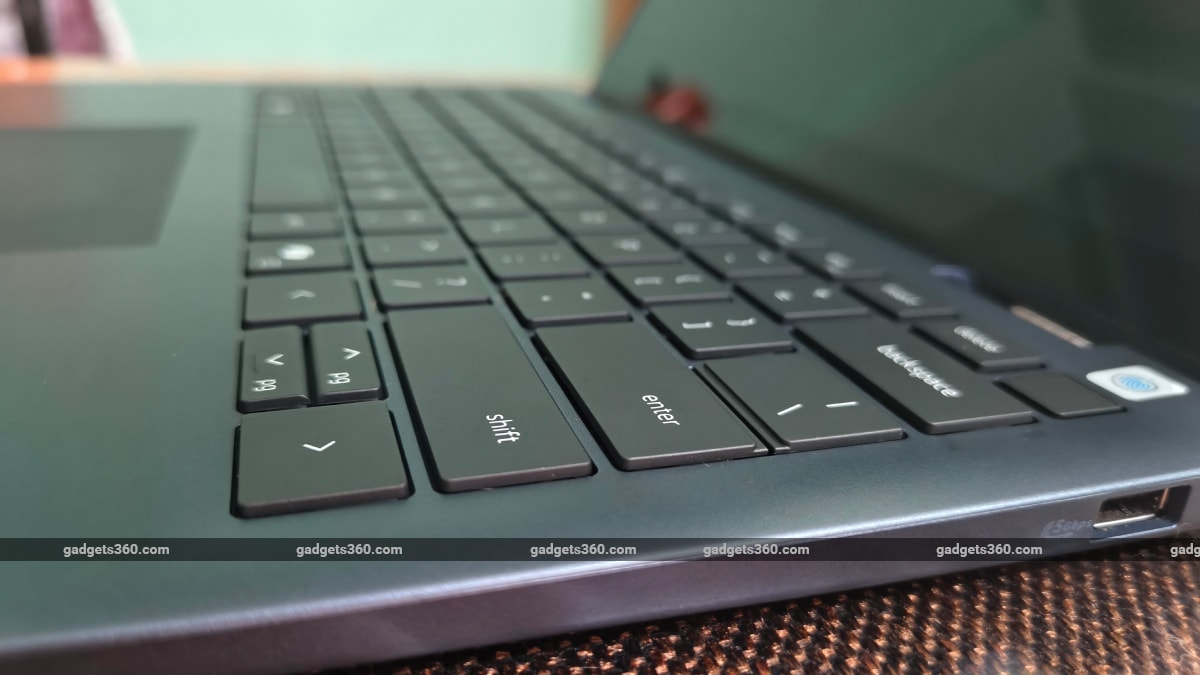
The flat-top keys offer a comfortable typing experience for long work sessions
The 1TB SSD is another reason the laptop feels responsive in normal use. CrystalDiskMark recorded sequential read and write speeds of 5,807.06MB/s and 4,973.05MB/s, respectively. File transfers and application loading were quick, although this is less something I actively noticed and more something that meant storage rarely got in the way.
Thermals did not give me much to complain about either. The CPU averaged 70 degrees Celsius during my 3DMark run, while fan and processor activity increased as the workload became heavier. During normal writing, browsing, and photo editing, I didn't notice the same level of heat or fan activity.
After using it for a while, I think the Ryzen AI 7 350 is doing most of what I would want from a laptop like this. It handles everyday work and lighter creative tasks comfortably, and 16GB of RAM was enough for everything I threw at it during my testing. The Radeon 860M is where things start to get more limited, though. The Steel Nomad Light result makes that pretty clear, and it also explains why the laptop feels much more at home with productivity than with anything particularly graphics-heavy. For the way I used it, that wasn't really a problem, but keep it in mind if you expect the Ryzen AI 7 350 to make this a particularly powerful machine across the board.
Dell 14 Plus 2-in-1 Battery: Enough for a Day of Work
- Battery – 64Wh, four-cell
- Charger – 65W USB-C
- Charging – ExpressCharge
- Claimed battery life – Up to 19 hours
The Dell 14 Plus 2-in-1 packs a 64Wh battery, and battery life sits around 10 to 12 hours with typical mixed use. That makes a full workday quite manageable, although battery life will drop depending on how much time you spend on more demanding tasks. Dell claims up to 19 hours of battery life, but that figure comes from controlled video playback tests, so treat it as a best-case result rather than something to expect on a typical workday.
The 65W USB-C charger also makes topping up fairly painless. Dell says ExpressCharge can take the battery to 80 percent in an hour, although you need to leave the laptop switched off or in hibernation to get that charging speed. So this is more of a quick top-up during a break than something you can rely on while continuing to work.
Dell 14 Plus 2-in-1 Verdict
The Dell 14 Plus 2-in-1 with the Ryzen AI 7 350 handled my workload easily; the keyboard is comfortable for long writing sessions, and the battery gets through a workday without drama. But the 2-in-1 features were the real surprise. I barely used Stand mode, while Tent mode became genuinely useful for photo editing and watching videos. The stylus also went from “nice to have” to something I actually reached for.
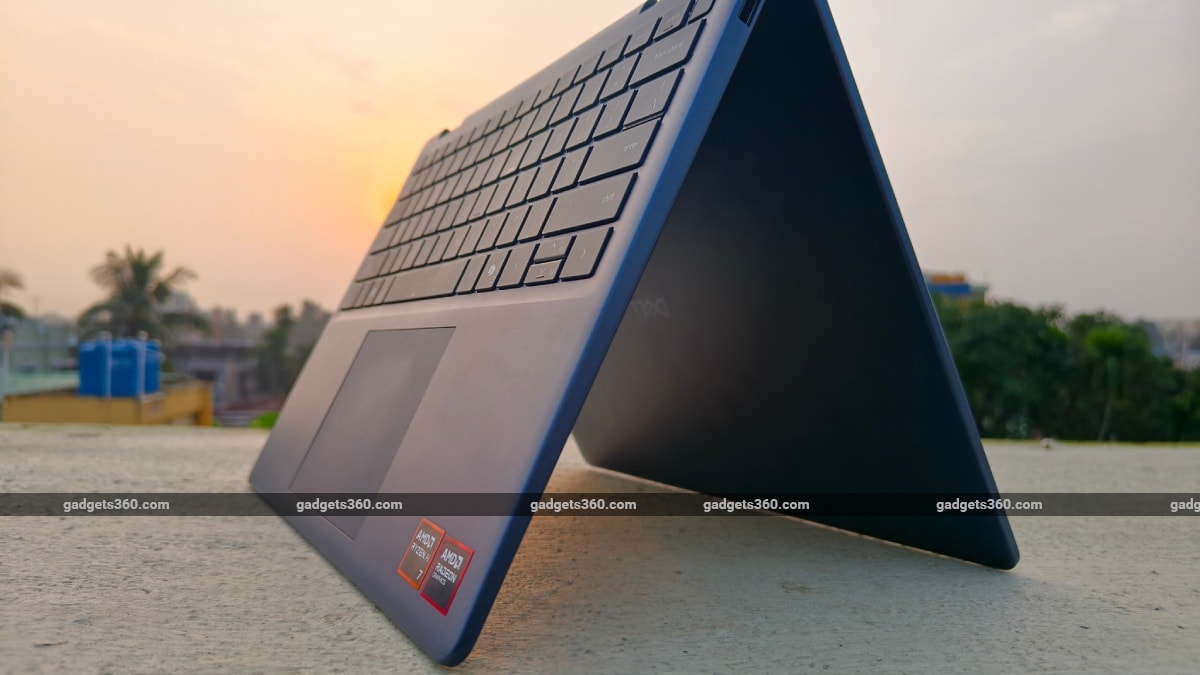
Tent mode gives the Dell 14 Plus 2-in-1 another useful way to use its touchscreen
The screen, unfortunately, brings me back down to earth. Colours look flat when editing photos, and 300 nits is hardly exciting. Tablet mode is useful, but at around 1.6kg, I didn't fancy holding it for long. The Radeon 860M also tells you to keep your gaming ambitions modest. For everyday work and lighter creative tasks, though, it is more than capable.
The problem is that it launched at around Rs. 90,000. At that price, “perfectly fine” is a harder sell, especially when other options give you an OLED panel for only a little more. I like the laptop and what it does, but I would have an easier time recommending it if the screen were better or the price lower.
That is where the Asus Vivobook 14 Flip (2025) (Review) becomes interesting. At Rs. 96,990, it costs only a little more, but its 14-inch OLED display is a much better fit for anyone who cares about colours, movies, or photo editing. It is also slightly lighter at 1.5kg and has a larger touchpad, although you get 512GB of storage instead of the Dell's 1TB. The HP OmniBook X Flip 14 (Review) is a much more expensive proposition at around Rs. 1.5 lakh, but it also feels like a proper step up, with a 3K 120Hz OLED display and a lighter 1.38kg body.
- REVIEW
- KEY SPECS
- NEWS
- Good
- Comfortable keyboard
- Useful 2-in-1 design
- Solid everyday performance
- Good battery life
- Useful stylus support
- Bad
- Display colours are underwhelming
- Tablet mode is cumbersome to hold
- Limited graphics performance
- Touchpad is merely average
- Price makes the display harder to overlook
Read detailed Dell 14 Plus 2-in-1 (AMD Ryzen AI 7 350, 2025) review
Display size 14.00-inch
Display resolution 1920x1200 pixels
Touchscreen Yes
Processor Ryzen
RAM 16GB
OS Windows 11 Home
SSD 1TB
Weight 1.59 kg
Comments
Get your daily dose of tech news, reviews, and insights, in under 80 characters on Gadgets 360 Turbo. Connect with fellow tech lovers on our Forum. Follow us on X, Facebook, WhatsApp, Threads and Google News for instant updates. Catch all the action on our YouTube channel.
Further reading:
Dell 14 Plus 2 in 1, Dell 14 Plus 2 in 1 Review, Dell 14 Plus 2 in 1 Price in India, Dell

Related Stories


Advertisement
Follow Us




-
![[Sponsored]: CP PLUS CarKam CP-F89B: 4K Dashcam With Rear Camera, GPS & Emergency Recording](https://www.gadgets360.com/static/desktop/images/spacer.png)
04:37
[Sponsored]: CP PLUS CarKam CP-F89B: 4K Dashcam With Rear Camera, GPS & Emergency Recording -
04:23
[Partner Content] Your Phone Can Do WAY More Than You Think | OPPO ColorOS 16 -
01:59
Samsung Galaxy Z Fold8 Ultra: Unfold the Ultra Night -
03:24
Apple Pay Launches In India: Supported Devices, Cards And Payments Explained -
00:21
[Sponsored] Samsung Galaxy Z Fold8, Fold8 Ultra
-
Flipkart Big Billion Days: Xiaomi के 5 Redmi स्मार्टफोन्स पर Deals रिवील
-
Delhi Pollution 2026: 50% Work From Home, बिना PUCC नहीं मिलेगा Fuel
-
Oppo K15x हुआ लॉन्च; 6500mAh बैटरी, 120Hz डिस्प्ले के साथ आया बजट 5G फोन
-
भारत में लॉन्च हुए Vivo T5 Lite 5G, Vivo T5 Pro 5G के नए RAM और स्टोरेज वेरिएंट्स
-
₹24 हजार सस्ता हो गया OnePlus का 48MP तीन कैमरा वाला फोन!
Advertisement
Popular on Gadgets
- Samsung Galaxy S26 Ultra
- Motorola Razr Fold
- ChatGPT
- OPPO Find N6
- Mobiles Under Rs. 40,000
- Vivo X300 Ultra
- Asus Zenbook S14
- iQOO 15
- Vivo X300 Pro
- Lenovo Yoga Slim 7i Aura Edition
- iQOO 15R
- Vivo X Fold 5
- Sony PlayStation 5
- HP OmniPad 12
- OnePlus Nord CE 6 Lite
- OnePlus Pad 4
- OPPO F33 Pro 5G
- Cryptocurrency
- HP OmniBook Ultra 14 (2026)
- iPhone 17
- Eureka Forbes AP 355 Room Air Purifier
- Latest Mobile Phones
- Compare Phones
Latest Gadgets
- Samsung Galaxy F08
- Samsung Galaxy M08
- OPPO K15x
- OPPO K15s
- HMD Vibe 2 Pro 5G
- OPPO K14 Plus 5G
- Lava Shark 2 Pro 5G
- Ai+ Pulse 2 FE
- Dell 14 Plus 2-in-1 (AMD Ryzen AI 7 350, 2025)
- Microsoft Surface Laptop, 13-inch (2nd Edition)
- Samsung Galaxy Tab S12+
- Samsung Galaxy Tab S12 Ultra
- Amazfit T-Rex Dual Solar
- OPPO Watch S2
- Toshiba 65-Inch 4K Ultra HD Smart Mini LED QLED TV (65Z670SP)
- Haier M70 Mini LED 65-inch
- Acer Predator Atlas 8
- Asus ROG Ally
- Blue Star 1.5 Ton 5 Star Inverter Split AC (IE518ZNURS)
- Blue Star 2 Ton 3 Star Inverter Window AC (WIE324L)

- About Us
- Sitemaps
- Feedback
- Archives
- Contact Us
- RSS
- Advertise
- Career
- Privacy Policy
- Ethics
- Editorial Policy
- Terms & Conditions
- Complaint Redressal
Download Our Apps
Available in Hindi
© Copyright Red Pixels Ventures Limited 2026. All rights reserved.
-
 Apple Watch Series 12
Starts from ₹56,900
Apple Watch Series 12
Starts from ₹56,900
-
 Samsung Galaxy Watch Ultra 2
Starts from ₹59,909
Samsung Galaxy Watch Ultra 2
Starts from ₹59,909
-
 Samsung Galaxy Watch 9 (44mm, LTE)
Starts from ₹41,999
Samsung Galaxy Watch 9 (44mm, LTE)
Starts from ₹41,999
-
 Samsung Galaxy Watch 9 (40mm, LTE)
Starts from ₹38,999
Samsung Galaxy Watch 9 (40mm, LTE)
Starts from ₹38,999
-
 Samsung Galaxy Watch 9 (40mm)
Starts from ₹37,999
Samsung Galaxy Watch 9 (40mm)
Starts from ₹37,999
-
 Samsung Galaxy Watch 9 (44mm)
Starts from ₹40,999
Samsung Galaxy Watch 9 (44mm)
Starts from ₹40,999
-
 F1 25, Hunt: Showdown 1896 and Earth Defense Force: World Brothers 2 Join PS Plus in October
-
 Samsung Galaxy A08 Launched in India With MediaTek Helio G99+ SoC, 6,000mAh Battery: Price, Features
-
 Samsung Galaxy Buds On Unveiled With Clip-On Design, Up to 9.5 Hours of Battery Life: Price, Features
-
 OnePlus Nord Buds 3r Gets Jade Mist Colour Variant in India: Price, Specifications