-
 Adobe Photoshop Is Free for a Year for Students in India: How to Claim the Offer5 October 2026
 -
Adobe’s Creative Tools Now Available in Gemini, Claude Gets New Acrobat PDF Features25 September 2026
-
Adobe Premiere Now Available on Android With Multi-Track Editing, 4K Export, AI Tools23 September 2026
-
Adobe to Offer Free Express, AI Skill-Building Resources Across Government Schools in India27 August 2026
-
Adobe Integrates Acrobat Directly Into WhatsApp Web and Windows App, Allowing Users to View, Highlight PDFs22 July 2026
- Home
- Apps
- Apps Sponsored
- How to Get the Most Out of Adobe Acrobat's Free Online PDF Editor
Sponsored Content
How to Get the Most Out of Adobe Acrobat's Free Online PDF Editor
Boost productivity when you unlock Adobe Acrobat features that are free to use for all: comment, annotate, highlight, sign, and more.
By Sponsored Content | Updated: 8 December 2025 16:06 IST

Click Here to Add Gadgets360 As A Trusted Source

Explore Adobe Acrobat's free online PDF editor >
As businesses and organisations across India go digital, you may often find yourself needing to make quick updates to documents, whether it is finalising a vendor agreement while commuting, reviewing a quotation during a client meeting, or updating a scanned document for an official submission.
Having the right PDF editor that is powerful and easy to use can make all the difference. Adobe Acrobat's free online PDF editor lets you edit from almost anywhere, using any device. It is a web-based tool, built with security in mind, and does not require any software installation.
Now, you can access premium features for free on your first use. Add text, edit images, annotate, and draw directly on the document.
Why people prefer Adobe Acrobat's free online PDF editor over others.
For the longest time, Adobe Acrobat has been the gold standard in PDFs and for a good reason. Beyond its well-known desktop and mobile tools, it also offers a wide range of free online services that stand out against many of the other web-based PDF solutions out there. Its reliability, ease of use, and consistent churn of quality outputs make it the perfect choice of quick, online tasks.
With in-line text and image editing and advanced annotation tools now available, users can handle most common PDF tasks in just a few clicks. On top of that, Acrobat online services are 100% browser-based, so there is no need to download or install any software. It works across all devices (desktop, tablet, mobile), has a clean, intuitive interface, relies on Adobe's trusted security, and of course, it's free!
Free online tools for all your PDF editing needs.
Adobe Acrobat offers more than just basic editing. It gives you a full suite of free tools to make working with PDFs easier, without leaving your browser. All you need to do is log in, upload your file, and start editing!
Add comments.

Adding comments is one of the simplest ways to collaborate, helping everyone stay on the same page. Adobe Acrobat makes it easy to centralise feedback, whether you're reviewing proposals, giving thoughts on business proposals, or working on a presentation with colleagues. You know your comments are visible to everyone, so nothing gets missed.
Step-by-step guide on how to add comments in PDF online:
- Open your PDF in Adobe Acrobat's PDF editor.
- Look for the speech bubble icon on the toolbar and click Add a comment.
- Click anywhere on the page where you want to add feedback. A yellow sticky note box will appear.
- Type your note in the box.
- When finished, click outside the box to save your comment.
Annotate your PDFs.
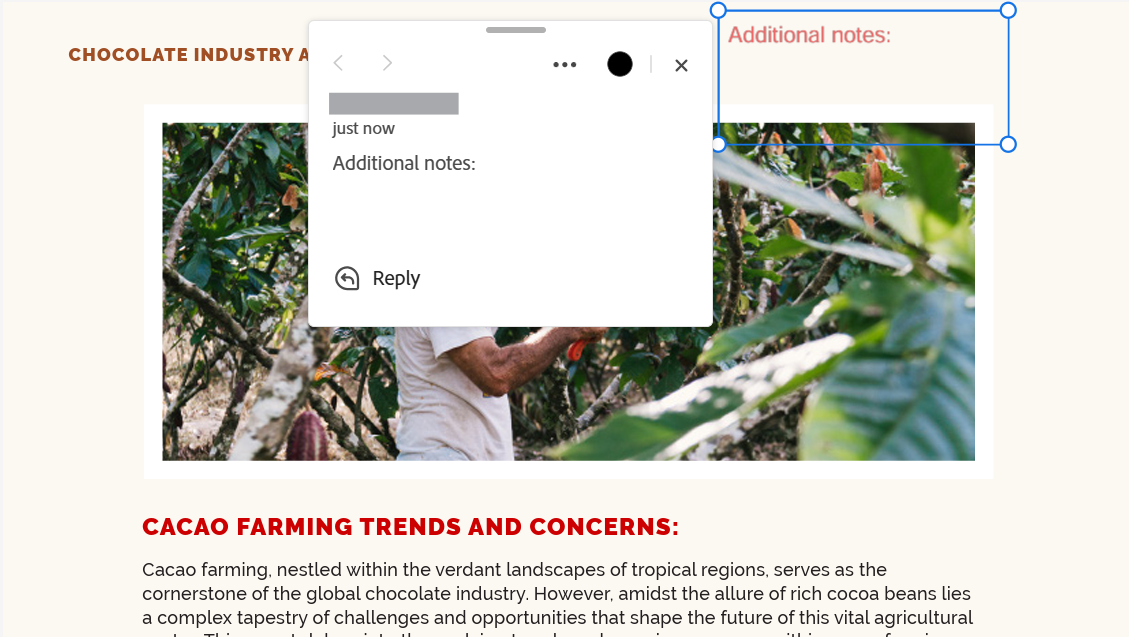
Annotations go a step further than comments by letting you do more with your feedback. You can add text boxes with customisable fonts, underline or strike through text, and even add shapes or freehand notes. This is particularly useful for ensuring clarity and context, whether you are a consultant reviewing client proposals, a team editing pitch decks, or a business owner annotating contracts or invoices.
Step-by-step guide on how to add annotations in PDF:
- Open your PDF in Adobe Acrobat's PDF editor.
- Click on an annotation tool icon from the toolbar.
- Click and drag over the text or section you want to annotate.
- Save your document once finished.
Insert markups.
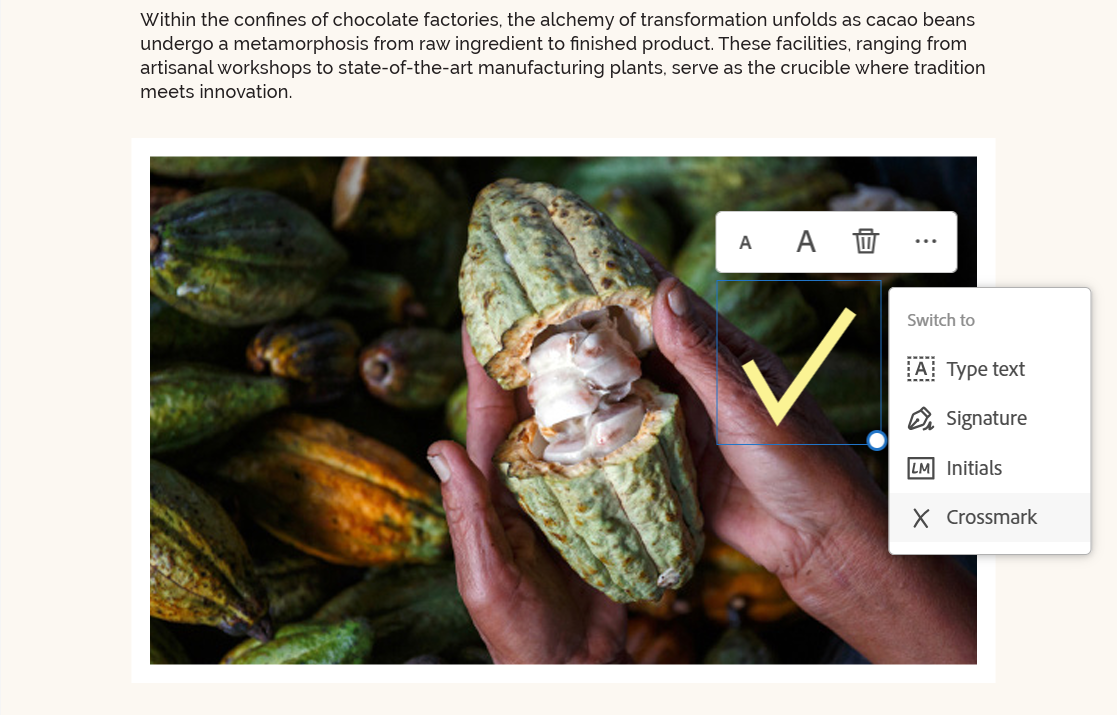
Sometimes words are not enough to get your point across. With Acrobat's markup tools, you can draw arrows, circles, or freehand sketches directly on your PDF to highlight exactly what needs attention. Visual markups bring the spotlight to details that might otherwise get overlooked in text-only comments. This comes in handy for graphic designers flagging layout issues, researchers annotating documents, legal professionals reviewing contracts, and more.
Step-by-step guide on how to markup PDFs:
- Open your PDF in Adobe Acrobat's PDF editor.
- On the toolbar, select the mark-up tool you want to use. You can choose a shape (rectangle, arrow, circle) or switch to Freehand drawing.
- Draw directly on your PDF to mark up the section.
- Adjust the colour, size, and location of your markups as needed.
Highlight important text.

Highlighting helps you draw attention to what matters most. With Acrobat, you can highlight text in different colours to categorise information or use freehand drawing to sketch arrows and circles. This is especially helpful for students studying from digital notes or teams reviewing business proposals, training materials, or policy drafts.
Step-by-step guide on how to highlight text in PDFs:
- Open your PDF in Adobe Acrobat's PDF editor.
- Click the Highlight tool in the toolbar.
- Drag your cursor over the text you want to emphasise.
- Change highlight colour if needed for organization.
- Save your progress.
Fill and sign.

No more printing, scanning, or mailing forms. With Adobe Acrobat's online PDF editor, you can add your digital signature, initials, or custom text in seconds and skip the pen and paper completely. This helps you finalise paperwork quickly and professionally whether you are filling out application forms, signing rental agreements, submitting vendor contracts, or approving offer letters.
Step-by-step guide on how to sign PDFs online:
- Open your PDF in Adobe Acrobat's PDF editor.
- On the toolbar, select Fill & Sign.
- To create a signature:
- Choose Type to type your name.
- Choose Draw to sign with your mouse or trackpad.
- Choose Upload to insert an image of your signature.
- Drag your signature to the right spot on the PDF.
- Click Apply, then save your signed PDF.
Share and collaborate.
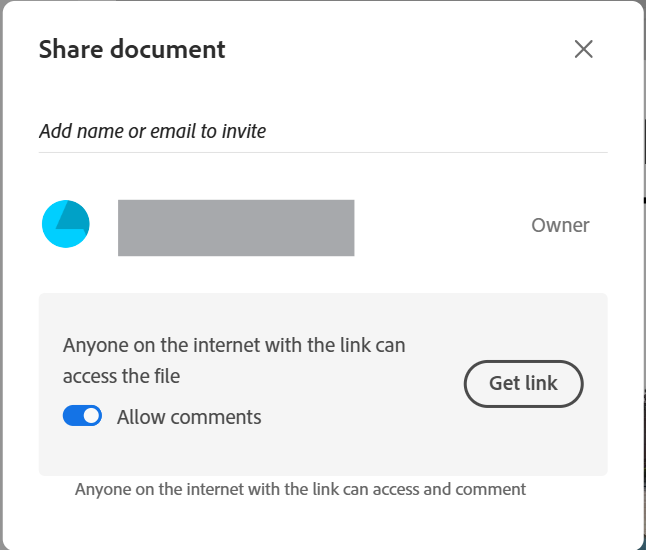
Teamwork is easier when everyone's on the same page, and with Acrobat, you can send, comment, and review PDFs together in real time. Instead of juggling multiple email attachments, you can share one file link and allow others to comment or review. This helps simplify feedback and speed up decision-making.
Step-by-step guide on how to share PDFs:
- Open your PDF in Adobe Acrobat's PDF editor.
- Click the Share button.
- Choose to either:
- Copy link to share directly.
- Invite by email to send access.
- Adjust settings to allow others to comment or review.
- Send the link, and collaborators can work on the same document.
Tips for maximising Adobe Acrobat's free features.
Adobe Acrobat's free online PDF editing tools are powerful on their own, but they really shine when used together as part of a workflow. Each tool plays a role in the process: comment, annotate, highlight, markup, sign, and share. When integrated into a start-to-finish workflow, they help you move faster, collaborate more efficiently, and deliver high-quality results on time.
Whether you are finalising contracts, reviewing creative projects, or collaborating on academic work, this workflow ensures that every step, from creation to fruition, happens smoothly in one place.
Real-world use case: a team project review.
Take for example a marketing team working on a product brochure. Here's how the process would work:
- The copywriter adds comments to suggest wording changes.
- The editor uses annotations and colour-coded highlights to flag sections for revision.
- The design manager then uses drawing markups to circle layout issues and point out where images should go.
- Once the edits are finalised, the project lead uses Fill & Sign to approve the draft, and the file is shared directly from Acrobat, so everyone has the final version in one place.
This end-to-end workflow saves time, eliminates endless email chains, and ensures the document is both professional and ready to use, all with Acrobat's free online tools.
Additional Adobe Acrobat tools to streamline your processes
Beyond editing and collaboration, Adobe Acrobat also offers extra free online tools that help you move projects forward more efficiently:
- Convert PDF: Quickly turn your Word, Excel, PowerPoint, or image files into PDFs (and vice versa) without losing formatting, perfect for standardising file types, or sharing documents across platforms.
- Merge PDFs: Combine multiple files into a single PDF for easier sharing and storage.
- Request e-signatures: Collect digital approvals seamlessly and track the signing process in real time.
- Summary Generator: Leverage AI to summarise text, articles, and paragraphs in seconds.
- Chat with PDF: Have virtual conversations with your PDFs—ask questions, instruct to refine content, request definitions and clarifications, and more.
Adobe Acrobat goes a step further with built in AI capabilities. Its AI Assistant is a revelation in transforming the way you work. Choose an assistant that works for you (analyst, instructor, or create a personalised one), so you can get more relevant, accurate answers and help. Incorporate it into your workflows, select the right prompts, and enjoy smarter, more streamlined processes.
Get more done with PDFs
Free does not always mean limited. With Adobe Acrobat's free online editor, you can handle everyday PDF tasks quickly and more securely from your browser. Couple that with Adobe Acrobat's suite of online tools, you have what you need to stay productive with less effort.
And if you need to go beyond everyday tasks such as generating instant summaries of pitch decks, pulling key insights from a presentation or getting help analysing contracts, Adobe Acrobat Studio gives you the control to manage documents quickly and professionally. It is designed to help streamline processes, automate document workflows, and boost productivity. Try Adobe Acrobat Studio free for 7 days.
Still curious? Check out the FAQs below:
Do I need to install any software to use Acrobat's free PDF tools?
No, Adobe Acrobat's free PDF editor is entirely browser-based. You can open, edit, sign, and share PDFs without downloading or installing any software.
Can I request e-signatures or send PDFs for review with the free version?
You can fill and sign PDFs for free. To request signatures from others or send documents for formal e-signing, you can try Acrobat Studio free for 7 days.
How is the online Acrobat PDF editor different from Acrobat Studio?
The free online editor is great for basic edits and tasks. Acrobat Studio, on the other hand, adds AI-powered features to summarise documents, extract key insights, and boost efficiency. With Adobe Express Premium included, you also get advanced image and video editing tools plus access to a rich library of creative templates and assets, which is great for marketing, branding, and social media content.
What is AI Assistant?
AI Assistant in Adobe Acrobat lets you interact with your PDF documents directly. You can ask it to find answers, generate summaries, draft emails, spark ideas, and create presentation points in seconds. Try chat with PDF and the summary generator for free to see it in action.
Can I summarise any kind of document with the AI summariser?
Yes, Acrobat Studio uses generative AI to transform lengthy documents into clear, concise summaries. It works with a wide range of content, including educational texts, meeting notes, feedback forms, surveys, resumes, policy documents, and more.
Which Adobe Acrobat plan is right for me?
Here's a quick look at what each Adobe Acrobat plan offers to help you decide:
- Acrobat online services: For quick edits and everyday online tasks (adding text, inserting comments, annotating).
- Acrobat Reader: For effortless viewing, printing, and sharing.
- Acrobat Standard: For all core text and image editing, conversion, filling, and signatory requirements.
- Acrobat Pro: For advanced editing and security (redact sensitive information, collect bulk e-signatures, transform scans into editable files, compare documents).
- Acrobat Studio: For the most complete solution, combining Pro features with AI, collaboration tools, and creative integration.
For a more detailed comparison, click here.
Comments
Get your daily dose of tech news, reviews, and insights, in under 80 characters on Gadgets 360 Turbo. Connect with fellow tech lovers on our Forum. Follow us on X, Facebook, WhatsApp, Threads and Google News for instant updates. Catch all the action on our YouTube channel.
Further reading:
Adobe
Related Stories





Follow Us




-
![[Sponsored] LG NANO 4K UHD AI TV NU885: Gemini Search, Dolby Atmos & 5 Years of Updates](https://www.gadgets360.com/static/desktop/images/spacer.png)
04:17
[Sponsored] LG NANO 4K UHD AI TV NU885: Gemini Search, Dolby Atmos & 5 Years of Updates -
00:57
[Sponsored] Samsung Galaxy Z Fold8 My Fan Cam in Action: Find the Moment, Then Share It -
01:41
[Sponsored] What Do You Need To Know Before Your Next Run? | Samsung Galaxy Watch Ultra2 -
01:32
[Sponsored] Big Day Tomorrow? Prep Today | Samsung Galaxy Watch Ultra2 -
04:37
[Sponsored]: CP PLUS CarKam CP-F89B: 4K Dashcam With Rear Camera, GPS & Emergency Recording
-
SBI डाटा लीक, क्या हुआ और कैसा डाटा था, अकाउंट है तो क्या करना चाहिए?
-
भारत में गिरी स्मार्टफोन की बिक्री, फोन महंगे होने से 26% कम हुई शिपमेंट
-
Lava Aura Curve 5G: 6000mAh बैटरी, 50 मेगापिक्सल कैमरा के साथ पेश, जानें
-
₹20 हजार से कम है बजट तो ये स्मार्टफोन Amazon सेल में मिल रहे सस्ते, देखें बेस्ट ऑप्शन
-
Poco X8s लॉन्च हुआ 6300mAh बैटरी फीचर, IP68 रेटिंग के साथ
Popular on Gadgets
- Samsung Galaxy S26 Ultra
- Motorola Razr Fold
- ChatGPT
- OPPO Find N6
- Mobiles Under Rs. 40,000
- Vivo X300 Ultra
- Asus Zenbook S14
- iQOO 15
- Vivo X300 Pro
- Lenovo Yoga Slim 7i Aura Edition
- iQOO 15R
- Vivo X Fold 5
- Sony PlayStation 5
- HP OmniPad 12
- OnePlus Nord CE 6 Lite
- OnePlus Pad 4
- OPPO F33 Pro 5G
- Cryptocurrency
- HP OmniBook Ultra 14 (2026)
- iPhone 17
- Eureka Forbes AP 355 Room Air Purifier
- Latest Mobile Phones
- Compare Phones
Latest Gadgets
- Lava Aura Curve
- Poco X8s
- Samsung Galaxy F70 5G
- Tecno Spark 50S 5G
- Vivo Y600s Pro
- Vivo Y32 (2026)
- Infinix Smart 20 HD
- Vivo V80
- HP ZBook Ultra G3a
- Dell Pro Rugged 14
- Amazon Alexa Tablet 8
- Amazon Alexa Tablet 11
- Pebble Qore 2
- Amazfit T-Rex Dual Solar
- Toshiba 65-Inch 4K Ultra HD Smart Mini LED QLED TV (65Z670SP)
- Haier M70 Mini LED 65-inch
- Acer Predator Atlas 8
- Asus ROG Ally
- Blue Star 1.5 Ton 5 Star Inverter Split AC (IE518ZNURS)
- Blue Star 2 Ton 3 Star Inverter Window AC (WIE324L)

- About Us
- Sitemaps
- Feedback
- Archives
- Contact Us
- RSS
- Advertise
- Career
- Privacy Policy
- Ethics
- Editorial Policy
- Terms & Conditions
- Complaint Redressal
Download Our Apps
Available in Hindi
© Copyright Red Pixels Ventures Limited 2026. All rights reserved.