-
 Vi Wi-Fi Calling Comes in Haryana, Now in 12 Circles11 January 2022
-
Vi Expands Wi-Fi Calling Service to Apple iPhones, on Handsets Running iOS 14.53 May 2021
-
Vi Launches Wi-Fi Calling in Delhi; Brings 3GB Daily Data to Rs. 249, Rs. 399, Rs. 599 Prepaid Plans: Reports23 February 2021
-
Vi (Vodafone Idea) Reportedly Rolling Out Wi-Fi Calling Service; New Rs. 59, Rs. 65 Prepaid Plans Debut15 December 2020
-
Realme Completes Rollout of Wi-Fi Calling Support on All Phones, Realme C2 Gets March Update27 March 2020
- Home
- How to
- How to Features
- How to Enable Wi Fi Calling on iPhone and Android in India: A Step by Step Guide
How to Enable Wi-Fi Calling on iPhone and Android in India: A Step-by-Step Guide
Here is how to enable Wi-Fi Calling on an iPhone or Android phone in India.
Written by Shaurya Tomer, Edited by Rohan Pal | Updated: 22 November 2026 11:00 IST
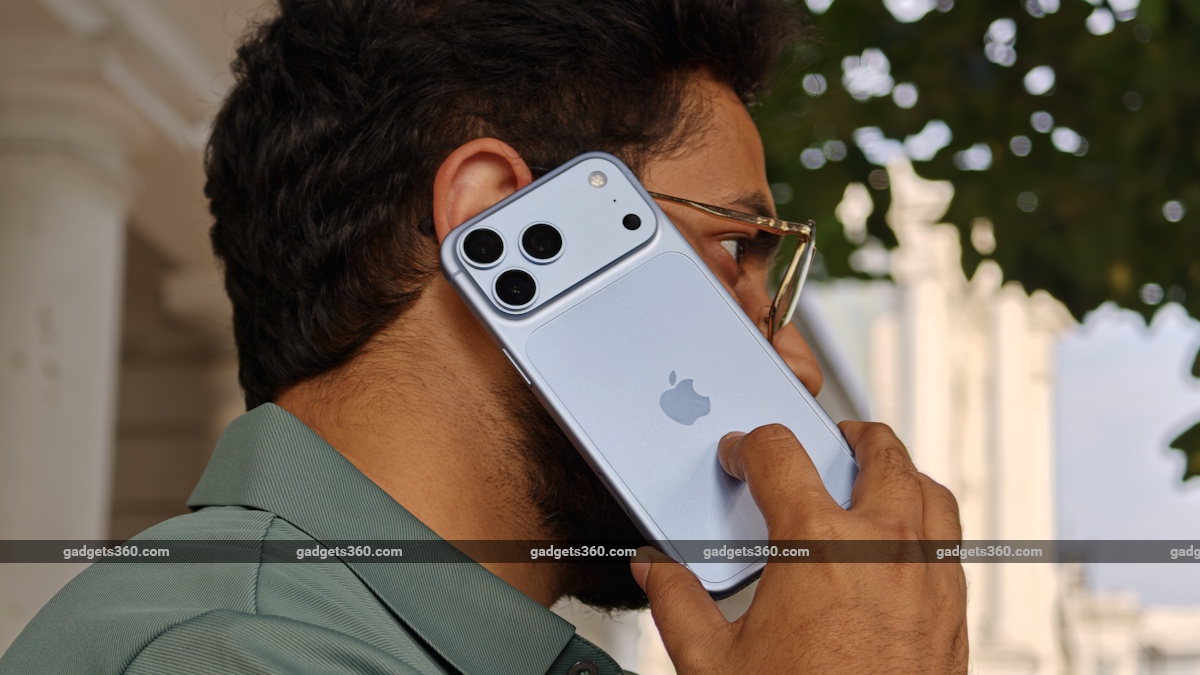
How to enable Wi-Fi Calling on an iPhone or Android phone in India
Click Here to Add Gadgets360 As A Trusted Source

Advertisement
Wi-Fi Calling is a useful feature when mobile network coverage is weak indoors, particularly in homes, offices and buildings where cellular signals struggle to reach. The feature allows users to make and receive regular phone calls using an available Wi-Fi connection instead of relying entirely on a nearby mobile tower. It is supported by several smartphones and Indian telecom operators, including Airtel and Reliance Jio.
Here is how to enable Wi-Fi Calling on an iPhone or Android phone in India.
What Is Wi-Fi Calling?
Wi-Fi Calling is a feature that allows users to make and receive regular phone calls using a Wi-Fi network instead of relying on a mobile network connection. The feature works with a user's existing mobile number. It does not require a separate application, account or login. When enabled, the phone can use an available Wi-Fi connection to route calls through the telecom operator's network.
Both the sender and recipient can use their regular phone numbers, even if the person receiving the call does not have Wi-Fi Calling enabled.
The feature requires a compatible smartphone, an eligible SIM connection and a stable Wi-Fi network. Users should also keep their phone's software updated.
How Is Wi-Fi Calling Different From Normal Calls Over a Mobile Network?
The primary difference between Wi-Fi Calling and conventional cellular calls is the network used to carry the voice data. Regular calls rely on a nearby mobile tower and the operator's cellular network. On the other hand, Wi-Fi Calling routes the call through an internet connection provided by a Wi-Fi network.
This difference makes a big difference in places where mobile reception is unreliable. For example, a user may experience dropped calls or poor voice quality inside a basement. With Wi-Fi Calling enabled, the phone can use the Wi-Fi network to make and receive calls instead.
How to Enable Wi-Fi Calling on iPhone
Apple allows users to enable Wi-Fi Calling through the Settings app on compatible iPhone models. Here's how to enable it on your iPhone:
- Open the Settings app on your iPhone.
- Tap Cellular.
- If you use multiple SIMs, select the mobile number for which you want to enable Wi-Fi Calling.
- Tap Wi-Fi Calling and turn on the Wi-Fi Calling on This iPhone toggle.
- Tap Enable if prompted. Connect your iPhone to an available Wi-Fi network.
- Once enabled and available, the iPhone will display Wi-Fi alongside the carrier name in the status bar when viewed through Control Centre.
How to Enable Wi-Fi Calling on Android
Android users can enable Wi-Fi Calling through their phone's network or SIM settings. Here's how to enable it on your Android phone, although the settings may vary slightly depending on the device manufacturer.
- Open the Settings app on your Android phone.
- Tap Network & Internet.
- Select SIMs and choose the SIM or carrier connection you want to use.
- Tap Wi-Fi Calling and turn on the Wi-Fi Calling toggle.
- Connect to an available Wi-Fi network.
- On some Android smartphones, particularly Samsung Galaxy devices, the setting may be available under Settings > Connections > Wi-Fi Calling.
Once enabled, users can make calls through the phone's regular dialler.
Comments
Get your daily dose of tech news, reviews, and insights, in under 80 characters on Gadgets 360 Turbo. Connect with fellow tech lovers on our Forum. Follow us on X, Facebook, WhatsApp, Threads and Google News for instant updates. Catch all the action on our YouTube channel.
Related Stories


Advertisement
Follow Us


-
 Best Bridal Emergency Kit Essentials: Safety Pins, Fashion Tape, Blister Pads & Mini Perfume
-
Full-Sleeve Embroidered Velvet Blouses That Elevate Any Plain Silk Saree
-
Top Ultrasonic Cool-Mist Humidifiers to Beat Winter Dryness & Static at Home
-
Best Gaming Laptops for Live Streaming on YouTube: High-FPS Picks With Smooth Encoding
-
Top CCTV Cameras With SIM Card Support for Farms, Construction Sites & Vacation Homes
Advertisement
Popular on Gadgets
- Samsung Galaxy S26 Ultra
- Motorola Razr Fold
- ChatGPT
- OPPO Find N6
- Mobiles Under Rs. 40,000
- Vivo X300 Ultra
- Asus Zenbook S14
- iQOO 15
- Vivo X300 Pro
- Lenovo Yoga Slim 7i Aura Edition
- iQOO 15R
- Vivo X Fold 5
- Sony PlayStation 5
- HP OmniPad 12
- OnePlus Nord CE 6 Lite
- OnePlus Pad 4
- OPPO F33 Pro 5G
- Cryptocurrency
- HP OmniBook Ultra 14 (2026)
- iPhone 17
- Eureka Forbes AP 355 Room Air Purifier
- Latest Mobile Phones
- Compare Phones
Latest Gadgets
- Redmi R80m 5G
- Redmi R80 5G
- Lava Smart 4 Pro
- OPPO Reno 17 Pro (China)
- OPPO Reno 17 (China)
- Vivo Y6k
- Karbonn Rebel
- Karbonn Rebel Pro
- Dell XPS 16 Creator Edition
- Dell 14S (2026)
- OPPO Pad Air 6
- Infinix Xpad 30
- Honor Watch 6 Pro
- Xiaomi Watch S5 41mm
- Toshiba 65-Inch 4K Ultra HD Smart Mini LED QLED TV (65Z670SP)
- Haier M70 Mini LED 65-inch
- Acer Predator Atlas 8
- Asus ROG Ally
- Blue Star 1.5 Ton 5 Star Inverter Split AC (IE518ZNURS)
- Blue Star 2 Ton 3 Star Inverter Window AC (WIE324L)

- About Us
- Sitemaps
- Feedback
- Archives
- Contact Us
- RSS
- Advertise
- Career
- Privacy Policy
- Ethics
- Editorial Policy
- Terms & Conditions
- Complaint Redressal
Download Our Apps
Available in Hindi
© Copyright Red Pixels Ventures Limited 2026. All rights reserved.