
-
 Best 5G Smartphones for Parents and Senior Citizens in India Under Rs. 20,00024 November 2026
-
Best Phones Under Rs. 35,000 for Scrolling Instagram Reels and YouTube Shorts22 November 2026
-
Motorola Edge 70 Fusion vs Realme P4 Power 5G: Which One Should You Buy?21 November 2026
-
Redmi R80 5G, Redmi R80m 5G Listed: Price, Specs, MediaTek Dimensity 6300 Revealed20 November 2026
-
Redmi Note 18 5G Tipped to Feature Larger Battery Than Redmi Note 17 5G17 November 2026
- Home
- How to
- How to Features
- 5G Not Working on Your Phone? How to Fix Network and Settings Problems
5G Not Working on Your Phone? How to Fix Network and Settings Problems
Resetting network settings can help resolve persistent issues.
Written by Sucharita Ganguly, Edited by Rohan Pal | Updated: 24 November 2026 13:00 IST
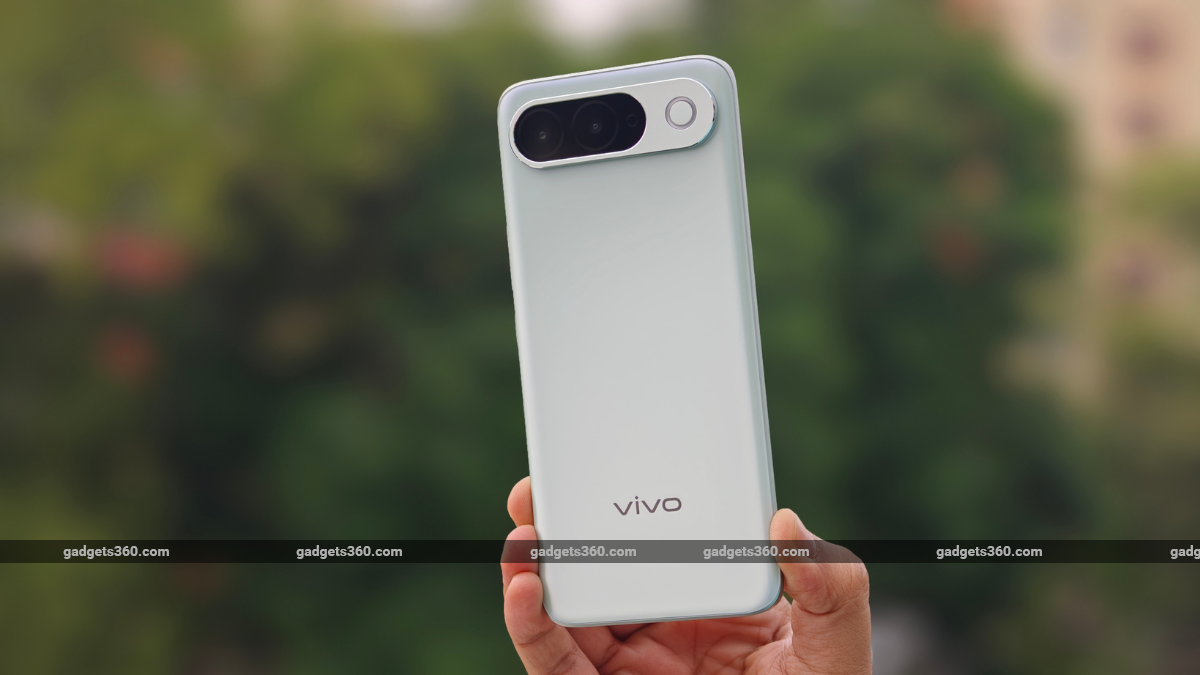
Your SIM card and mobile plan must also support 5G
Click Here to Add Gadgets360 As A Trusted Source

Advertisement
Your phone may support 5G, your mobile plan may be eligible, and your area may have coverage, but that doesn't always mean you'll get a 5G connection. You might find your phone stuck on 4G or notice that it keeps switching between the two networks. There are a few possible reasons for this, and not all of them have to do with your operator. Your network settings, SIM card and even your phone's power-saving mode could be affecting the connection. Here's what you can check to get things working again.
How to Check if Your Phone and SIM Support 5G
First, check whether your phone supports 5G. The manufacturer's website should have this information in the specifications. If you bought the phone outside India, it's also worth checking whether it supports the 5G bands used by Indian operators.
- 5G in India is fast, but my battery is dying in 4 hours
- I was looking at the new Redmi 17 5G because of the battery, but now Motorola has entered the same price range
- Samsung Galaxy M47 5G Gets Substantial Price Hike in India Days After Launch
- Realme Narzo 100x 5G will launch in India soon
- Realme P4R 5G has been launched in India for Rs. 18,999. Will you consider this smartphone?
You should also check whether your SIM and plan are eligible for 5G. Your operator's app or website can tell you if the service is available on your number. And if you've had the same SIM for years, ask your operator whether it needs an upgrade.
How to Enable 5G on Your Android Phone
Your phone may support 5G but still be set to use 4G by default. You can change this in the mobile network settings, although the steps vary a little between different brands. Here's where to find the option on Samsung Galaxy and Google Pixel phones.
On Samsung Galaxy phones:
- Start by opening Settings and tapping Connections.
- Tap Mobile Networks. This is where you'll find the network settings for your SIM card.
- Select Network Mode to see the connection options available on your phone.
- Choose 5G/LTE/3G/2G (auto connect), or any other option that has 5G in its name.
On Google Pixel phones:
- Open Settings and head to Network & Internet.
- Tap SIMs and select the SIM card you use for mobile data.
- Scroll down to Preferred Network Type and open it.
- Select 5G from the list.
If you are using a different Android phone, the setting is usually tucked away under Mobile Network or SIM Settings. The name can vary from one brand to another, but look for an option that allows you to choose 5G as your preferred network.
How to Enable 5G on Your iPhone
If you have an iPhone 12 or newer, you can change this setting in just a few taps.
- Open Settings and select Mobile Data.
- Tap Mobile Data Options to get to the network settings.
- Select Voice & Data. You'll find the 5G settings here.
- Choose between 5G Auto and 5G On.
5G Auto lets your iPhone switch to LTE when it doesn't need a 5G connection, which saves battery. If you select 5G On, it'll use 5G whenever it's available, even if that means draining the battery a little faster. If you have two SIMs in your iPhone, just make sure you've selected the right one before changing these settings.
How to Fix 5G Connectivity Problems
A phone that supports 5G won't necessarily stay connected to it all the time. Coverage, network congestion and phone settings can all affect the connection. If yours keeps dropping back to 4G, try these fixes before contacting your operator.
Check 5G coverage in your area
5G coverage isn't the same across an entire city. Your operator might offer the service in your area, but the signal can still be weak inside your home or office. Check the operator's coverage map to see how well your location is covered. You can also try using your phone outdoors to rule out poor indoor reception.
Turn Airplane Mode on and off
Switching Airplane Mode on briefly disconnects your phone from the mobile network. Leave it on for 10 seconds or so, then turn it off. Your phone will search for the network again and reconnect.
Restart your phone
A restart is another way to deal with a temporary network glitch. Turn your phone off, wait a few seconds and switch it back on. This forces it to reconnect to the mobile network, which may resolve problems with the 5G connection.
Turn off Battery Saver
Battery-saving features can affect network connectivity. Some Android phones limit 5G when Battery Saver is enabled, while an iPhone switches to LTE when Low Power Mode is on. Turn off the relevant setting and check your connection again. On an iPhone, you'll find Low Power Mode under Settings > Battery.
Check for software and carrier updates
Your phone's software and carrier settings need to be up to date for the network to work properly. Check Settings for a pending system update. On an iPhone, you can also check for carrier updates by going to Settings > General > About. Stay on that page for a few seconds. If an update is available, a prompt will appear.
Reset your network settings
Resetting network settings is a bigger step, so leave this until you've tried the simpler fixes. It removes saved Wi-Fi networks and passwords, Bluetooth pairings and other network preferences. You'll have to reconnect your devices and networks afterwards.
On Android, the reset option is usually under System or General Management in Settings. The exact menu depends on the manufacturer. On an iPhone, go to Settings > General > Transfer or Reset iPhone > Reset > Reset Network Settings.
Check your APN settings
APN settings are generally configured by your operator and don't need to be changed manually. However, if mobile data isn't working either, incorrect APN details could be the reason. Check the settings against the details provided on your operator's website or ask its customer support for help. There's no need to change them if mobile data is working normally.
FAQs
1. How do I enable 5G on my Android phone?
Open your phone's mobile network settings, select Network Mode or Preferred Network Type, and choose an option that includes 5G.
2. Which iPhones support 5G?
The iPhone 12 series and all newer iPhone models support 5G connectivity.
3. Can Battery Saver stop my phone from using 5G?
Yes. Some Android phones limit 5G connectivity in Battery Saver mode, while iPhones switch to LTE when Low Power Mode is enabled.
Comments
Get your daily dose of tech news, reviews, and insights, in under 80 characters on Gadgets 360 Turbo. Connect with fellow tech lovers on our Forum. Follow us on X, Facebook, WhatsApp, Threads and Google News for instant updates. Catch all the action on our YouTube channel.
Related Stories


Advertisement
Follow Us


-
 Best Cast Iron Cookware Sets Pre-Seasoned for Indian Cooking
-
Deals on Best Textured Winter Boots for Women At Flipkart Black Friday Sale 2026
-
Flipkart Black Friday Sale: Best Ring Lights with Tripod Stands for Makeup Artists & Content Creators
-
Top Sennheiser Over-Ear Wireless Headphones for Audiophile-Grade Sound & Comfort
-
Top Winter Travel Packing Checklist: Must-Have Gear for Hill Station & Snow Trips
-
Nothing Phone 4 (b) मिल रहा ₹3800 से ज्यादा सस्ता! Flipkart पर धमाका डील
-
WhatsApp Web इस्तेमाल करने वाले जरा सावधान! लीक हो सकती है प्राइवेट चैट
-
Honor Earbuds Clip लॉन्च, 40 घंटे की बैटरी लाइफ के साथ AI ट्रांसलेटर भी
-
Motorola Edge 70 Neo लॉन्च हुआ 50MP तीन कैमरा, 7000mAh बैटरी, IP64 रेटिंग के साथ, जानें कीमत
Advertisement
Popular on Gadgets
- Samsung Galaxy S26 Ultra
- Motorola Razr Fold
- ChatGPT
- OPPO Find N6
- Mobiles Under Rs. 40,000
- Vivo X300 Ultra
- Asus Zenbook S14
- iQOO 15
- Vivo X300 Pro
- Lenovo Yoga Slim 7i Aura Edition
- iQOO 15R
- Vivo X Fold 5
- Sony PlayStation 5
- HP OmniPad 12
- OnePlus Nord CE 6 Lite
- OnePlus Pad 4
- OPPO F33 Pro 5G
- Cryptocurrency
- HP OmniBook Ultra 14 (2026)
- iPhone 17
- Eureka Forbes AP 355 Room Air Purifier
- Latest Mobile Phones
- Compare Phones
Latest Gadgets
- Redmi R80m 5G
- Redmi R80 5G
- Lava Smart 4 Pro
- Motorola Edge 70 Neo
- OPPO Reno 17 Pro (China)
- OPPO Reno 17 (China)
- Vivo Y6k
- Karbonn Rebel
- Dell XPS 16 Creator Edition
- Dell 14S (2026)
- OPPO Pad Air 6
- Infinix Xpad 30
- Honor Watch 6 Pro
- Xiaomi Watch S5 41mm
- Toshiba 65-Inch 4K Ultra HD Smart Mini LED QLED TV (65Z670SP)
- Haier M70 Mini LED 65-inch
- Acer Predator Atlas 8
- Asus ROG Ally
- Blue Star 1.5 Ton 5 Star Inverter Split AC (IE518ZNURS)
- Blue Star 2 Ton 3 Star Inverter Window AC (WIE324L)

- About Us
- Sitemaps
- Feedback
- Archives
- Contact Us
- RSS
- Advertise
- Career
- Privacy Policy
- Ethics
- Editorial Policy
- Terms & Conditions
- Complaint Redressal
Download Our Apps
Available in Hindi
© Copyright Red Pixels Ventures Limited 2026. All rights reserved.