-
 WhatsApp Reels Shortcut for Chats Rolling Out to Android Beta Testers23 October 2026
 -
Samsung Galaxy S26 Ultra Users Report Setup Screen Freeze After One UI 9 Update23 October 2026
-
Google Adds Personal Intelligence to Gemini on Android Auto22 October 2026
-
Goodbye One UI? Samsung’s Next Android Update May Be Renamed Galaxy OS19 October 2026
-
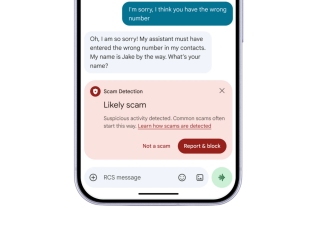
Google AI to Add More Anti-Scam Protections to Messages and Calls on Android Devices15 October 2026
- Home
- How to
- How to Features
- How to Enable Advanced Protection on Your Android Phone: A Step by Step Guide
How to Enable Advanced Protection on Your Android Phone: A Step-by-Step Guide
Google first introduced Advanced Protection with Android 16.
Written by Dhruv Raghav, Edited by David Delima | Updated: 26 April 2026 10:00 IST

Photo Credit: Unsplash/ NordWood Themes
Not all users will need Advanced Protection enabled on their Android phone
Click Here to Add Gadgets360 As A Trusted Source

Advertisement
Google began rolling out the first stable version of the Android 16 update in June last year. While the update introduced various design changes for smartphones and tablets, it also brought a major security feature to Android devices, dubbed Advanced Protection. The tech giant introduced the security feature as part of its Advanced Protection programme. Advanced Protection aims to protect your device, if you are an Android user, by automatically identifying and blocking malicious websites, scam calls, cyberattacks, and other forms of harmful digital activities that might put your device's security at risk. Google also allows users to enable and disable Advanced Protection, giving you more control over your device.
If you are wondering how to enable and disable Advanced Device Protection on your Android smartphone running Android 16, we have prepared a step-by-step guide to help you with the same.
What Is Advanced Protection on Your Android Phone
Introduced in June 2025, Advanced Device Protection acts as a single control point for security settings in apps like Google Chrome, Message, and Phone apps. The feature is capable of automatically identifying and blocking malicious websites that have previously been reported for suspicious activity, while also displaying an alert for harmful links to these websites. Such websites have been infamous for stealing your personal information without your permission or knowledge.
Similarly, it can block suspicious incoming calls and alert the users about the same. This is claimed to curb the rising problem of fraud and scam calls, including digital arrests and phishing scams. The Scam and Spam Protection in Google Messages identify unwanted and potentially harmful messages, helping you avoid interacting with them. Moreover, phones with Advanced Protection enabled will not connect to 2G cellular networks, which it deems as less secure.
How to Enable Advanced Protection on Your Android Phone:
- To enable Advanced Protection on your Android phone, open your device's Settings app.
- Open the Security & Privacy settings menu.
- Tap on the Advanced Protection button, displayed under the Other settings menu.
- Alternatively, you can turn on Advanced Protection through the Google settings by tapping on the All services button in the Google app > click on the Advanced Protection button, under the Personal and device safety menu.
- Then, click on the Device protection button under the Advanced Protection menu.
- You must now select Turn on.
- At this stage, your Android phone will ask you to restart the device.
How to Disable Advanced Protection on Your Android Phone
Before you disable Advanced Protection, you should note that your Android phone might ask you to restart the device to revert some settings.
- To disable Advanced Protection on your Android phone, open your phone's Settings app.
- Then, open the Advanced Protection page.
- In the Settings app, navigate to the Security & Privacy menu > tap on the Advanced Protection button under the Other settings menu.
- Alternatively, you can open the Google app and tap on the *All services button > click on the Advanced Protection button under the Personal and device safety menu.
- Then, navigate to the Advanced Protection section and turn off Device protection.
- You will now have to provide biometric authentication or your phone's security PIN.
- Your device might reboot at this point to complete the process.
FAQs
1. Can I disable Advanced Protection on my Android phone?
Yes, Google lets you disable Advanced Protection on your Android phones and tablets, if you wish to do so.
2. Do I need a screen lock to enable Advanced Protection on my Android phone?
Yes, Google requires you to first set a screen lock before you enable Advanced Protection on your Android phone.
3. Can I miss an important call or message with Advanced Protection if the number has been marked as scam or spam?
With Advanced Protection enabled, your device will send an alert when it detects a suspicious message or call.
Comments
Get your daily dose of tech news, reviews, and insights, in under 80 characters on Gadgets 360 Turbo. Connect with fellow tech lovers on our Forum. Follow us on X, Facebook, WhatsApp, Threads and Google News for instant updates. Catch all the action on our YouTube channel.
Related Stories






Advertisement
Follow Us




-
![[Sponsored] Galaxy Watch9 for Everyday Health Insights | Smarter Wellness Choices](https://www.gadgets360.com/static/desktop/images/spacer.png)
01:42
[Sponsored] Galaxy Watch9 for Everyday Health Insights | Smarter Wellness Choices -
01:15
[Sponsored] Galaxy Tab S10 Lite for Students: Notes, Solve Math and More -
04:17
[Sponsored] LG NANO 4K UHD AI TV NU885: Gemini Search, Dolby Atmos & 5 Years of Updates -
00:57
[Sponsored] Samsung Galaxy Z Fold8 My Fan Cam in Action: Find the Moment, Then Share It -
01:41
[Sponsored] What Do You Need To Know Before Your Next Run? | Samsung Galaxy Watch Ultra2
-
NVIDIA के सीईओ ने पेश किए माइक्रोडक रोबोट, AI से चलते हैं, क्या काम आएंगे
-
iPhone Duo को बीच से खोला, फोल्डेबल डिस्प्ले से हटाया कवर, फिर क्या दिखा?
-
1 जनवरी से फोन में बिना सिम नहीं चलेगा WhatsApp, सिम बाइडिंग हुआ अनिवार्य
-
Amazon Sale में ₹15 हजार सस्ता हो गया Redmi का 50MP AI कैमरा, 6000mAh बैटरी वाला फोन!
Advertisement
Popular on Gadgets
- Samsung Galaxy S26 Ultra
- Motorola Razr Fold
- ChatGPT
- OPPO Find N6
- Mobiles Under Rs. 40,000
- Vivo X300 Ultra
- Asus Zenbook S14
- iQOO 15
- Vivo X300 Pro
- Lenovo Yoga Slim 7i Aura Edition
- iQOO 15R
- Vivo X Fold 5
- Sony PlayStation 5
- HP OmniPad 12
- OnePlus Nord CE 6 Lite
- OnePlus Pad 4
- OPPO F33 Pro 5G
- Cryptocurrency
- HP OmniBook Ultra 14 (2026)
- iPhone 17
- Eureka Forbes AP 355 Room Air Purifier
- Latest Mobile Phones
- Compare Phones
Latest Gadgets
- HMD 2660 Flip Senior Edition
- Lava Aura Curve
- Poco X8s
- Samsung Galaxy F70 5G
- Tecno Spark 50S 5G
- Vivo Y600s Pro
- Vivo Y32 (2026)
- Infinix Smart 20 HD
- Lenovo Yoga 9n 2-in-1
- Lenovo Yoga Pro 9n
- Amazon Alexa Tablet 8
- Amazon Alexa Tablet 11
- Pebble Qore 2
- Amazfit T-Rex Dual Solar
- Toshiba 65-Inch 4K Ultra HD Smart Mini LED QLED TV (65Z670SP)
- Haier M70 Mini LED 65-inch
- Acer Predator Atlas 8
- Asus ROG Ally
- Blue Star 1.5 Ton 5 Star Inverter Split AC (IE518ZNURS)
- Blue Star 2 Ton 3 Star Inverter Window AC (WIE324L)

- About Us
- Sitemaps
- Feedback
- Archives
- Contact Us
- RSS
- Advertise
- Career
- Privacy Policy
- Ethics
- Editorial Policy
- Terms & Conditions
- Complaint Redressal
Download Our Apps
Available in Hindi
© Copyright Red Pixels Ventures Limited 2026. All rights reserved.