-
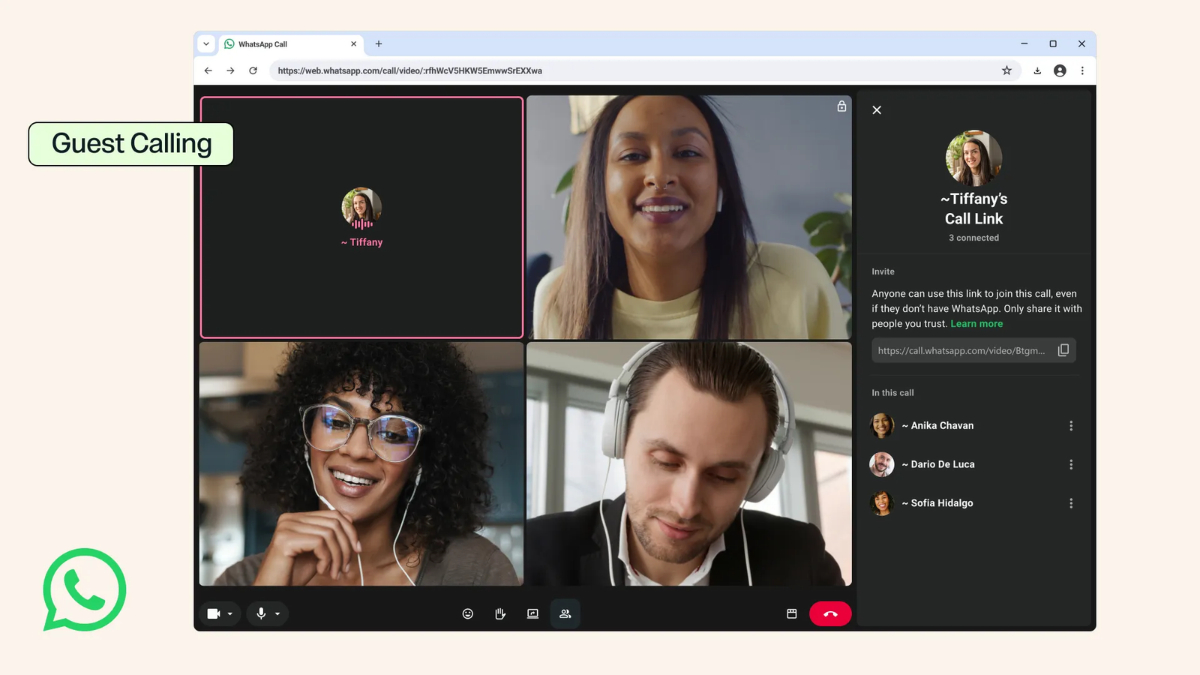
 WhatsApp Introduces Guest Calls for Up to 32 Participants With No Account Requirement15 October 2026
 -
WhatsApp May Soon Let Android Users Schedule Messages, Photos and Videos12 October 2026
-
WhatsApp Could Get a New Contacts Tab With Online Status and Birthday Reminders7 October 2026
-
WhatsApp Could Block Users From Logging In on Outdated Android, iOS Devices6 October 2026
-
WhatsApp Said to Be Testing iOS-Like Appearance for Android With Floating Navigation Bar28 September 2026
- Home
- How to
- How to Features
- How to Create AI Generated Call Backgrounds for WhatsApp Calls: A Step by Step Guide
How to Create AI-Generated Call Backgrounds for WhatsApp Calls: A Step-by-Step Guide
WhatsApp’s AI-generated backgrounds for video calls are available in select countries, including India.
Written by Dhruv Raghav, Edited by David Delima | Updated: 18 April 2026 10:00 IST

Here's a step-by-step guide on how you can create AI-generated backgrounds on WhatsApp
Click Here to Add Gadgets360 As A Trusted Source

Advertisement
WhatsApp introduced the ability to create and apply AI-generated video call backgrounds for its instant messaging app in September last year. The feature was introduced to “enhance” the user's video call and camera “experience”. It works similarly to how you can set a particular background on a Zoom or a Microsoft Teams video call. It helps the user hide their background, especially when they are working from, or they do not wish to show the person on the other side where they are sitting, while also minimising environmental distractions. WhatsApp added the functionality as part of a suite of creative communications tools, which also includes filters and themes.
The feature is available on both WhatsApp for iOS and Android, allowing most users to access the features. To help you create AI-generated video call backgrounds on WhatsApp, regardless of which smartphone you are using, we will be taking you step-by-step through the process.
How to Create AI-Generated Call Backgrounds for WhatsApp Calls on Android
- Open WhatsApp and start a video call.
- Alternatively, join the video call you've received and tap on the camera button.
- Click on the call effects button.
- Then, tap on the backgrounds button.
- You can now swipe through the backgrounds. Here, you can choose to apply a preset background image.
- To create an AI-generated background, tap on the Create with AI button.
- Then, in the text box, enter the description of the background image you wish to generate.
- You can also take inspiration from the suggested images.
- Once generated, you can either click on the check mark to apply the background.
- Or, tap on the regenerate button to create a different image.
You also have the option to remove the background and set another image as the background by tapping on the remove background button. To remove the call effects and background, you can tap on the remove all effects button.
How to Create AI-Generated Call Backgrounds for WhatsApp Calls on iOS
- Open WhatsApp on your iPhone.
- Join an incoming call or start a new call.
- Then, turn on your camera by tapping on the camera button.
- Now, tap on the call effects button > click on backgrounds.
- Then, you must swipe through the preset backgrounds.
- Or, tap on the Create with AI button to create a new background image.
- Now, you can provide a description of the image you wish to set as your background.
Follow the same steps to apply a background image, remove the background image, and remove all call effects as the ones mentioned above for WhatsApp for Android.
FAQs
1. Can I use AI-generated video call backgrounds on WhatsApp on Android and iOS
The AI-Generated Call Backgrounds for WhatsApp Calls feature is available in select regions on both iOS and Android.
2. Do I need my camera to be turned on to create an AI-generated background for WhatsApp calls?
Yes, you must first join the call and turn on your camera to create an AI-generated background for WhatsApp calls.
3. Do I have to pay to create an AI-generated background for WhatsApp calls?
No, WhatsApp does not charge you anything for the feature.
Comments
Get your daily dose of tech news, reviews, and insights, in under 80 characters on Gadgets 360 Turbo. Connect with fellow tech lovers on our Forum. Follow us on X, Facebook, WhatsApp, Threads and Google News for instant updates. Catch all the action on our YouTube channel.
Further reading:
WhatsApp, How to Create AI Generated Call Backgrounds for WhatsApp Calls, AI Generated Call Backgrounds for WhatsApp Calls, How to
Related Stories



Advertisement
Follow Us




-
![[Sponsored] LG NANO 4K UHD AI TV NU885: Gemini Search, Dolby Atmos & 5 Years of Updates](https://www.gadgets360.com/static/desktop/images/spacer.png)
04:17
[Sponsored] LG NANO 4K UHD AI TV NU885: Gemini Search, Dolby Atmos & 5 Years of Updates -
00:57
[Sponsored] Samsung Galaxy Z Fold8 My Fan Cam in Action: Find the Moment, Then Share It -
01:41
[Sponsored] What Do You Need To Know Before Your Next Run? | Samsung Galaxy Watch Ultra2 -
01:32
[Sponsored] Big Day Tomorrow? Prep Today | Samsung Galaxy Watch Ultra2 -
04:37
[Sponsored]: CP PLUS CarKam CP-F89B: 4K Dashcam With Rear Camera, GPS & Emergency Recording
-
आ गई हवा में उड़ने वाली Tesla Roadster कार, आखिर सच हुआ फिल्मों वाला कमाल
-
रोबोट ने की लड़की से छेड़छाड़, पीछे से पकड़ा और किए गंदे इशारे, जानें
-
PS5 कहां मिलेगा सस्ता, Flipkart या Amazon, जानें सबकुछ
-
Flipkart Big Billion Days Sale: 9 हजार से भी सस्ता रेफ्रिजरेटर, 5 बेस्ट ऑप्शन पर डिस्काउंट
-
Samsung Galaxy A38 5G में मिल सकती है ट्रिपल रियर कैमरा यूनिट
Advertisement
Popular on Gadgets
- Samsung Galaxy S26 Ultra
- Motorola Razr Fold
- ChatGPT
- OPPO Find N6
- Mobiles Under Rs. 40,000
- Vivo X300 Ultra
- Asus Zenbook S14
- iQOO 15
- Vivo X300 Pro
- Lenovo Yoga Slim 7i Aura Edition
- iQOO 15R
- Vivo X Fold 5
- Sony PlayStation 5
- HP OmniPad 12
- OnePlus Nord CE 6 Lite
- OnePlus Pad 4
- OPPO F33 Pro 5G
- Cryptocurrency
- HP OmniBook Ultra 14 (2026)
- iPhone 17
- Eureka Forbes AP 355 Room Air Purifier
- Latest Mobile Phones
- Compare Phones
Latest Gadgets
- Tecno Spark 50S 5G
- Vivo Y600s Pro
- Vivo Y32 (2026)
- Infinix Smart 20 HD
- Vivo V80
- Vivo S2 FE
- Vivo Y600K Turbo
- Realme P4s Lite
- HP ZBook Ultra G3a
- Dell Pro Rugged 14
- Amazon Alexa Tablet 8
- Amazon Alexa Tablet 11
- Amazfit T-Rex Dual Solar
- OPPO Watch S2
- Toshiba 65-Inch 4K Ultra HD Smart Mini LED QLED TV (65Z670SP)
- Haier M70 Mini LED 65-inch
- Acer Predator Atlas 8
- Asus ROG Ally
- Blue Star 1.5 Ton 5 Star Inverter Split AC (IE518ZNURS)
- Blue Star 2 Ton 3 Star Inverter Window AC (WIE324L)

- About Us
- Sitemaps
- Feedback
- Archives
- Contact Us
- RSS
- Advertise
- Career
- Privacy Policy
- Ethics
- Editorial Policy
- Terms & Conditions
- Complaint Redressal
Download Our Apps
Available in Hindi
© Copyright Red Pixels Ventures Limited 2026. All rights reserved.