- Home
- How to
- How to Features
- How to Recall a Message in Outlook: A Step by Step Guide
How to Recall a Message in Outlook: A Step-by-Step Guide
Outlook's Recall feature isn't a universal undo button, but it can prevent an email from being read under the right conditions.
Written by Sucharita Ganguly, Edited by David Delima | Updated: 22 December 2025 19:23 IST
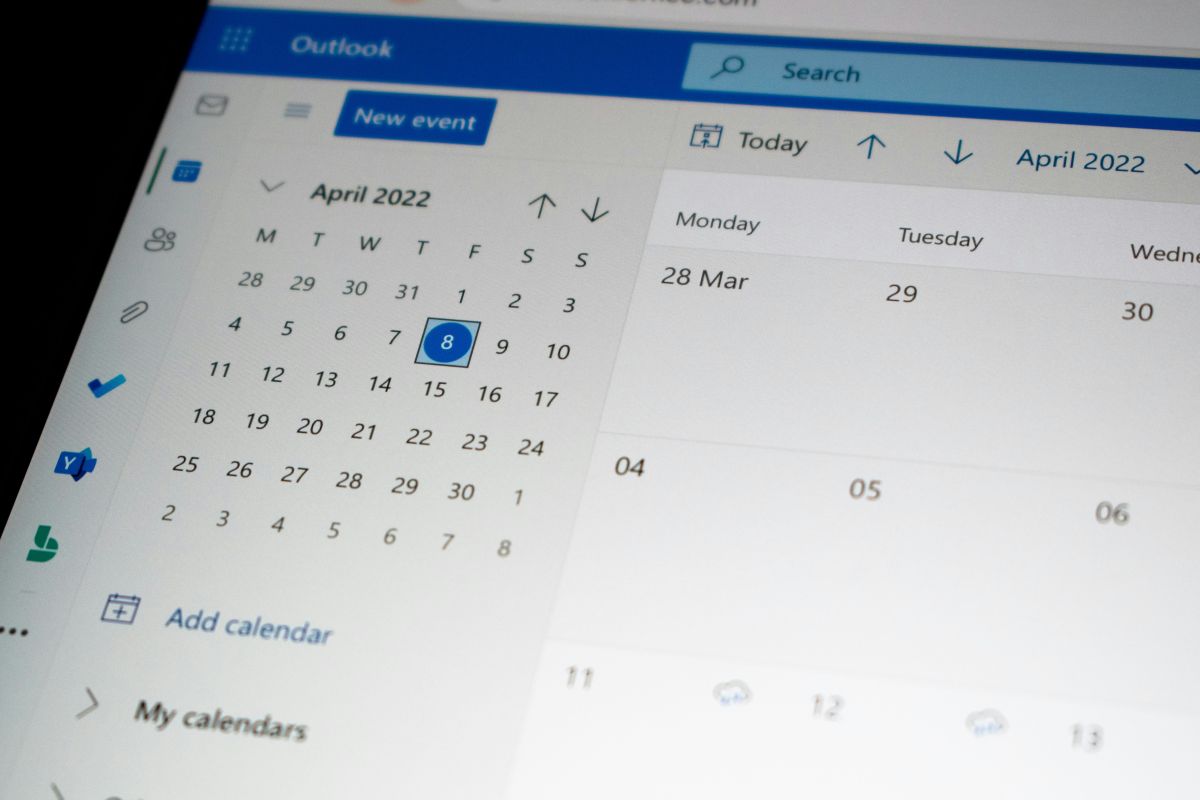
Photo Credit: Unsplash/ Ed Hardie
Outlook includes a message recall option to pull back an email after it has been sent
Click Here to Add Gadgets360 As A Trusted Source

Advertisement
Hitting the send button after typing an important email and immediately realising something is wrong is a feeling that most of us are familiar with. Maybe the message was addressed to the wrong person, an attachment was missing, or there was a glaring typo that couldn't be ignored. If you use Microsoft Outlook, there is a feature that may help you undo the mistake, at least in some cases. Outlook includes a message recall option that lets you attempt to pull back an email after it has been sent. It's not a universal undo button, and it doesn't always work, but when the conditions are right, it can stop an incorrect or unfinished email from being read.
How to Recall a Message in Outlook: A Step-by-Step Guide
The recall feature works mainly within organisations that use Microsoft Exchange or Microsoft 365, and it depends on factors. Because of these limitations, recalling an email in Outlook requires more than just a quick click. You need to understand how the feature works, who it works for, and why it sometimes fails. In this guide, we'll walk through how to recall a message in Outlook, what to expect when you try it, and when it's better to follow up with a correction instead.
How to Recall a Message in Outlook Desktop (Classic)
- Start by opening Outlook and going to the Sent Items folder, where you'll find the email you want to recall.
- Next, double-click the message to open it in a new window, and make sure you do not use the Reading Pane.
- Once the email opens, look at the top menu and click the Message tab. From there, select Actions and choose Recall This Message.
- You can also access the same option by clicking File, then Info, followed by Resend or Recall, and finally Recall This Message.
- After selecting the recall option, Outlook will ask you how you want to proceed.
- Choose Delete unread copies of this message if you simply want to remove the email.
- If you want to correct the mistake, select Delete unread copies and replace with a new message, which lets you edit the original email before sending the updated version.
- Before you finish, tick the box to receive a notification telling you whether the recall succeeds or fails.
- When you're ready, click OK to complete the process.
How to Recall a Message in Outlook Desktop (New)
- Firstly, you will need to open the Sent Items folder from the left-hand pane so you can find the email you want to recall.
- Then double-click the email to open it in a separate window, rather than viewing it in the preview pane.
- Once the message opens, look at the ribbon at the top and select Recall Message.
- When the confirmation dialogue box appears, click OK to proceed with the recall.
- Finally, check your inbox for a notification from Outlook that tells you whether the recall attempt was successful or failed.
How to Recall a Message in Outlook on the Web (New)
- To begin with, open the Sent Items folder from the left-hand menu and locate the email you want to recall.
- Then double-click the message to open it in a separate window instead of the preview pane.
- Once the email opens, start the recall process based on the ribbon view you're using.
- If you see the Classic ribbon, select Recall message directly.
- If you're using the Simplified ribbon, click More options (the three dots) and then choose Recall message.
- When Outlook asks you to confirm the action, select OK to continue.
- After that, keep an eye on your inbox. Outlook will send you a status report telling you whether the recall was successful, is still pending, or has failed.
Limitations and Alternatives
The message recall feature in Outlook comes with several important limitations that you should keep in mind before relying on it. First, it only works with Microsoft Exchange or Microsoft 365 work or school accounts. You cannot use message recall with personal email addresses such as Gmail, Yahoo, outlook.com, hotmail.com, or live.com.
The recall feature also works only within the same organisation or domain. This means both you and the recipient must be on the same Microsoft 365 or Exchange setup, such as a workplace or school email system. If the email goes to someone outside your organisation, the recall will not work.
If recall is not an option, you can use Outlook's Undo Send feature instead. This setting adds a short delay before emails are sent, giving you a few seconds to cancel a message if you spot a mistake. However, this option is only available on Outlook.com and Outlook on the Web and not via the desktop Outlook app.
FAQs
1. Can you recall an email sent to Gmail, Yahoo, or other personal accounts?
No, you cannot recall emails sent to personal email addresses such as Gmail, Yahoo, outlook.com, or hotmail.com. The recall feature only works with Microsoft Exchange or Microsoft 365 work or school accounts.
2. Can you recall an email if the recipient has already opened it?
Yes, even if the recipient has already opened the email, even in the preview pane, the recall should work thanks to Microsoft's Cloud-Based Recall, which was introduced in 2023 for Microsoft 365 users.
3. Does email recall work outside your organisation?
It depends, email recall works reliably when both you and the recipient are within the same organisation or domain using Microsoft 365 or Exchange, but it might also work across platforms thanks to Cloud-Based Recall.
4. Can you recall an email if the recipient checks mail on mobile or web?
Recalls would fail if the recipient read the email on a mobile app or webmail before the recall request is processed, but this seems to have been rectified with Cloud-Based Recall.
5. Will you know if your recall attempt succeeds or fails?
Yes, Outlook can send you a notification that tells you whether the recall was successful, pending, or failed, if you enable the option.
6. What should you do if recall is not available to you?
If recall is not an option, you can enable Outlook's Undo Send feature, which gives you a short delay before sending emails so you can cancel them if needed.
Comments
Get your daily dose of tech news, reviews, and insights, in under 80 characters on Gadgets 360 Turbo. Connect with fellow tech lovers on our Forum. Follow us on X, Facebook, WhatsApp, Threads and Google News for instant updates. Catch all the action on our YouTube channel.


Advertisement
Follow Us




-

09:53
iPhone 18 Goes On Sale In India: Huge Crowds, Long Queues At Apple Stores -
06:32
Google Pixel 11 Pro XL Review: The Most Exciting Pixel Yet? | 120X Zoom + Tensor G6 -
05:20
Samsung Galaxy Watch Ultra 2 Review: Is This the Best Android Smartwatch? -
07:01
Samsung Galaxy Z Fold 8 Review: Is This the Best Foldable Phone? -
06:39
Samsung Galaxy Z Fold8 Ultra Review: Cameras, Battery, Performance Tested
-
10 मिनट में घर पहुंचेंगे iPhone 18 Pro, Pro Max: सेल हुई शुरू
-
Lava ने लॉन्च किया 6000mAh बैटरी वाला Bold N4 Pro 5G
-
itel Zeno 300 भारत में होगा लॉन्च, मिलेगी 6,000mAh बैटरी और डुअल कैमरा
-
Ai+ Nova 2 Power 5G भारत में हुआ लॉन्च, 48MP दो कैमरा, 7000mAh बैटरी के साथ, IP65 रेटिंग
-
आधार कार्ड में मोबाइल नम्बर घर बैठे करें अपडेट, सबसे आसान तरीका
Advertisement
Popular on Gadgets
- Samsung Galaxy S26 Ultra
- Motorola Razr Fold
- ChatGPT
- OPPO Find N6
- Mobiles Under Rs. 40,000
- Vivo X300 Ultra
- Asus Zenbook S14
- iQOO 15
- Vivo X300 Pro
- Lenovo Yoga Slim 7i Aura Edition
- iQOO 15R
- Vivo X Fold 5
- Sony PlayStation 5
- HP OmniPad 12
- OnePlus Nord CE 6 Lite
- OnePlus Pad 4
- OPPO F33 Pro 5G
- Cryptocurrency
- HP OmniBook Ultra 14 (2026)
- iPhone 17
- Eureka Forbes AP 355 Room Air Purifier
- Latest Mobile Phones
- Compare Phones
Latest Gadgets
- Lava Bold N4 Pro 5G
- Samsung Galaxy A08
- Itel Muzik 450L
- OPPO K14 Lite
- Samsung Galaxy A18 4G
- iPhone Duo
- OPPO A7 Pro
- Huawei Mate XT 2 Ultimate Design
- Asus Vivobook S14 (S5452MA)
- Acer Aspire G 3D 16
- Xiaomi Pad 9 Pro
- Xiaomi Pad 9
- Apple Watch Ultra 4
- Apple Watch Series 12
- Haier M70 Mini LED 65-inch
- Xiaomi TV FX Mini LED 65
- Acer Predator Atlas 8
- Asus ROG Ally
- Blue Star 1.5 Ton 5 Star Inverter Split AC (IE518ZNURS)
- Blue Star 2 Ton 3 Star Inverter Window AC (WIE324L)

- About Us
- Sitemaps
- Feedback
- Archives
- Contact Us
- RSS
- Advertise
- Career
- Privacy Policy
- Ethics
- Editorial Policy
- Terms & Conditions
- Complaint Redressal
Download Our Apps
Available in Hindi
© Copyright Red Pixels Ventures Limited 2026. All rights reserved.