-
 Best Phones for Video Recording in India: iPhone 17 Pro Max, Galaxy S26 Ultra, and More12 September 2026
 -
Best Phones for Portrait Photography in India in 2026: Pixel 11 Pro, Vivo X300 Ultra, More12 September 2026
-
Best Compact Smartphones in India: iPhone 17, Google Pixel 11, Vivo X300 FE and More12 September 2026
-
iPhone 18 Pro, iPhone 18 Pro Max Alternatives: Pixel 11 Pro to Xiaomi 17 Ultra and More12 September 2026
-
Samsung Galaxy SmartTag 3 Design, Colourways and Price Leaked Online11 September 2026
- Home
- How to
- How to Features
- How to Restart Your Samsung Phone Automatically to Keep It Running Smoothly
How to Restart Your Samsung Phone Automatically to Keep It Running Smoothly
Here's how to set up Auto Optimisation, which allows a Samsung Galaxy smartphone to restart itself periodically to fix sluggish performance.
Written by Shaurya Tomer, Edited by David Delima | Updated: 25 April 2026 10:00 IST
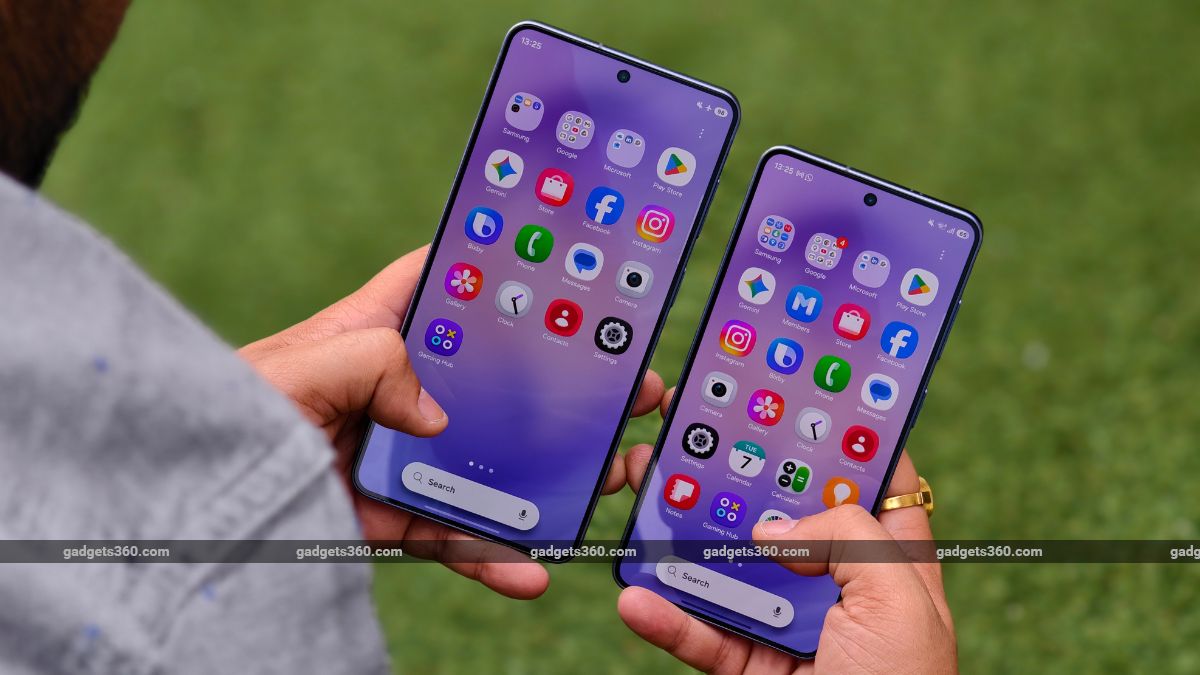
Samsung phones like the Galaxy S26 series support this feature
Click Here to Add Gadgets360 As A Trusted Source

Advertisement
Smartphones tend to slow down as time goes by, and it's a familiar issue faced by almost everyone. This usually stems from apps running in the background, which causes cache to build up, piling on system processes. This results in even a flagship smartphone feeling sluggish after prolonged use. While clearing out storage and uninstalling apps can help alleviate this to some extent, there are only so many times you'll have the time to do it manually. One of the simplest and most effective ways to maintain performance is restarting your phone regularly.
On the Samsung Galaxy phones, this process can be automated, ensuring your phone stays smooth without requiring manual intervention.
- Samsung Galaxy Z Fold8 Ultra has 15% brighter display then Galaxy Z fold7.
- Samsung Galaxy Z Fold8 Ultra has 200 MP and 50 MP cameras which gives users high resolution photos.
- Samsung Galaxy Z Fold8 Ultra features a 6.5 inch cover screen and 8 inch main screen.
- Samsung Galaxy Z Fold8 Ultra comes in three storage options.
- Samsung Galaxy Z Flip8 has 25% improved graphics performance than Galaxy Z Flip7.
Why Restarting Helps and What Automatic Restart Means
Restarting your phone clears temporary files, refreshes system memory, and stops background processes that may be slowing things down. In simpler terms, it gives your phone a clean slate, which can help improve responsiveness, fix minor glitches, and even help with battery efficiency.
Samsung, on the other hand, takes this simple yet effective process a step further, with a feature called Auto Optimisation. This allows your Galaxy smartphone to restart itself periodically, which typically occurs at a time when you're not using it.
With Auto Optimisation, the system can proactively refresh itself at regular intervals, instead of passively waiting for performance issues to occur. Samsung even recommends doing this occasionally to prevent freezing or lag, especially if your phone is used heavily throughout the day.
How to Set Up Automatic Restart on Samsung Galaxy Phones
Setting up automatic restart on a Samsung Galaxy device is straightforward. The exact steps may vary slightly depending on your One UI version. Here's how to enable Auto Optimisation on your Samsung Galaxy smartphone:
Open the Settings app on your Samsung Galaxy phone.
- Scroll down and tap on Battery and Device Care
- Under the Additional Care tab, select the Auto optimisation setting
- Toggle the Auto-restart feature
- You can also select your preferred day(s) and time for the restart
Once enabled, the Samsung phone will automatically reboot based on the preset schedule. Users are advised to pick a time when their phone is not in use. For example, they can set the feature to early morning hours or late at night.
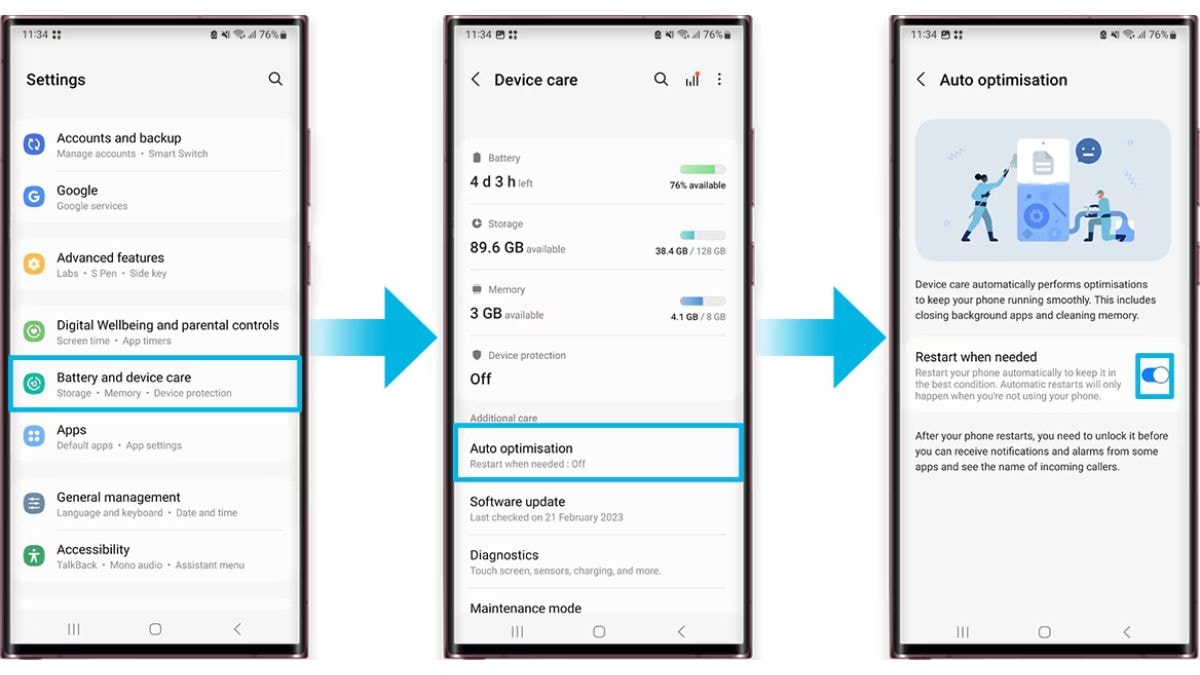
How to enable Samsung's Auto optimisation feature
Photo Credit: Samsung
Samsung says the Galaxy smartphone will only restart when certain conditions are met. These include when the screen is off, the device is not being used, the battery level is above 30 percent, and the SIM card lock is turned off. This is claimed to ensure the process does not interrupt active usage or critical functions.
Tips to Keep Your Samsung Phone Running Smoothly
Along with automatic restarts, there are several other steps you can take to keep your phone performing at its best:
- Use Device Care regularly - Samsung's built-in Device Care tool helps optimise battery, storage, and memory. It can be manually activated for a quick refresh. Alternatively, you can set it to perform automatic optimisations
- Clear cache periodically - App-related cache tends to accumulate with prolonged usage. Clearing this up periodically can help free up storage and make sure your phone remains responsive.
- Keep software updated - Install the latest updates for Android and apps to benefit from bug fixes, performance improvements, and security patches.
- Manage background apps - Limit apps, especially those you rarely use, from running in the background to conserve memory and battery.
- Free up storage space - An almost full storage space can often cause your device to become sluggish. Consider deleting apps you no longer use, clearing out old and large files, or moving your data to cloud storage services.
Affiliate links may be automatically generated - see our ethics statement for details.
Comments
Get your daily dose of tech news, reviews, and insights, in under 80 characters on Gadgets 360 Turbo. Connect with fellow tech lovers on our Forum. Follow us on X, Facebook, WhatsApp, Threads and Google News for instant updates. Catch all the action on our YouTube channel.
Related Stories



Advertisement
Follow Us




-

05:20
Samsung Galaxy Watch Ultra 2 Review: Is This the Best Android Smartwatch? -
07:01
Samsung Galaxy Z Fold 8 Review: Is This the Best Foldable Phone? -
06:39
Samsung Galaxy Z Fold8 Ultra Review: Cameras, Battery, Performance Tested -
04:33
[Sponsored] JBL Live 780NC: Great Sound, Perfect Comfort, Smart ANC & 80-Hour Battery -
12:04
[Partner Content] OPPO Reno16 Series Deep Dive: Built for Creators?
-
iPhone Duo के लिए ₹3 लाख का बजट नहीं है? ये 4 सस्ते फोल्डेबल फोन देखिए
-
सोशल मीडिया में छाया 80s AI Photo Trend, आप भी आजमाएं ये 5 Prompts
-
Motorola के 7000mAh बैटरी वाले फोन पर ₹4,500 तक की बचत
-
Vivo X Fold 6 के इंटरनेशनल मार्केट में लॉन्च की तैयारी, Geekbench पर हुई लिस्टिंग
-
Mivi One 5G सस्ता फोन भारत में आएगा तीन रंगों में, Android 16 सपोर्ट, 24 सितंबर को है लॉन्च
Advertisement
Popular on Gadgets
- Samsung Galaxy S26 Ultra
- Motorola Razr Fold
- ChatGPT
- OPPO Find N6
- Mobiles Under Rs. 40,000
- Vivo X300 Ultra
- Asus Zenbook S14
- iQOO 15
- Vivo X300 Pro
- Lenovo Yoga Slim 7i Aura Edition
- iQOO 15R
- Vivo X Fold 5
- Sony PlayStation 5
- HP OmniPad 12
- OnePlus Nord CE 6 Lite
- OnePlus Pad 4
- OPPO F33 Pro 5G
- Cryptocurrency
- HP OmniBook Ultra 14 (2026)
- iPhone 17
- Eureka Forbes AP 355 Room Air Purifier
- Latest Mobile Phones
- Compare Phones
Latest Gadgets
- iPhone Duo
- OPPO A7 Pro
- Huawei Mate XT 2 Ultimate Design
- Realme 16 Pro Harry Potter Edition
- Samsung Galaxy A07s
- Huawei Pura X View
- Tecno Camon Slim 5G
- iQOO Z11xa
- Acer Aspire G 3D 16
- Acer Swift Air 16 (2026)
- Infinix Xpad 30 Pro
- Lenovo Yoga Tab Gen 2
- Apple Watch Ultra 4
- Apple Watch Series 12
- Haier M70 Mini LED 65-inch
- Xiaomi TV FX Mini LED 65
- Acer Predator Atlas 8
- Asus ROG Ally
- Blue Star 1.5 Ton 5 Star Inverter Split AC (IE518ZNURS)
- Blue Star 2 Ton 3 Star Inverter Window AC (WIE324L)

- About Us
- Sitemaps
- Feedback
- Archives
- Contact Us
- RSS
- Advertise
- Career
- Privacy Policy
- Ethics
- Editorial Policy
- Terms & Conditions
- Complaint Redressal
Download Our Apps
Available in Hindi
© Copyright Red Pixels Ventures Limited 2026. All rights reserved.