-
 Best Phones for Video Recording in India: iPhone 17 Pro Max, Galaxy S26 Ultra, and More12 September 2026
 -
Best Phones for Portrait Photography in India in 2026: Pixel 11 Pro, Vivo X300 Ultra, More12 September 2026
-
iPhone 18 Pro, iPhone 18 Pro Max Alternatives: Pixel 11 Pro to Xiaomi 17 Ultra and More12 September 2026
-
Samsung Galaxy S26 Ultra Tipped to Get Price Hike in India Soon; Galaxy Z Fold 8, Fold 8 Ultra Could Follow Suit11 September 2026
-
Samsung Galaxy S26, S26 Ultra Now Available as Certified Re-Newed Phones in India10 September 2026
- Home
- Mobiles
- Mobiles Features
- How to Enable Privacy Display on the Samsung Galaxy S26 Ultra: A Step by Step Guide
How to Enable Privacy Display on the Samsung Galaxy S26 Ultra: A Step-by-Step Guide
Samsung has designed Privacy Display for scenarios such as commuting, public spaces, or using a phone in crowded areas.
Written by Shaurya Tomer, Edited by David Delima | Updated: 13 March 2026 17:05 IST
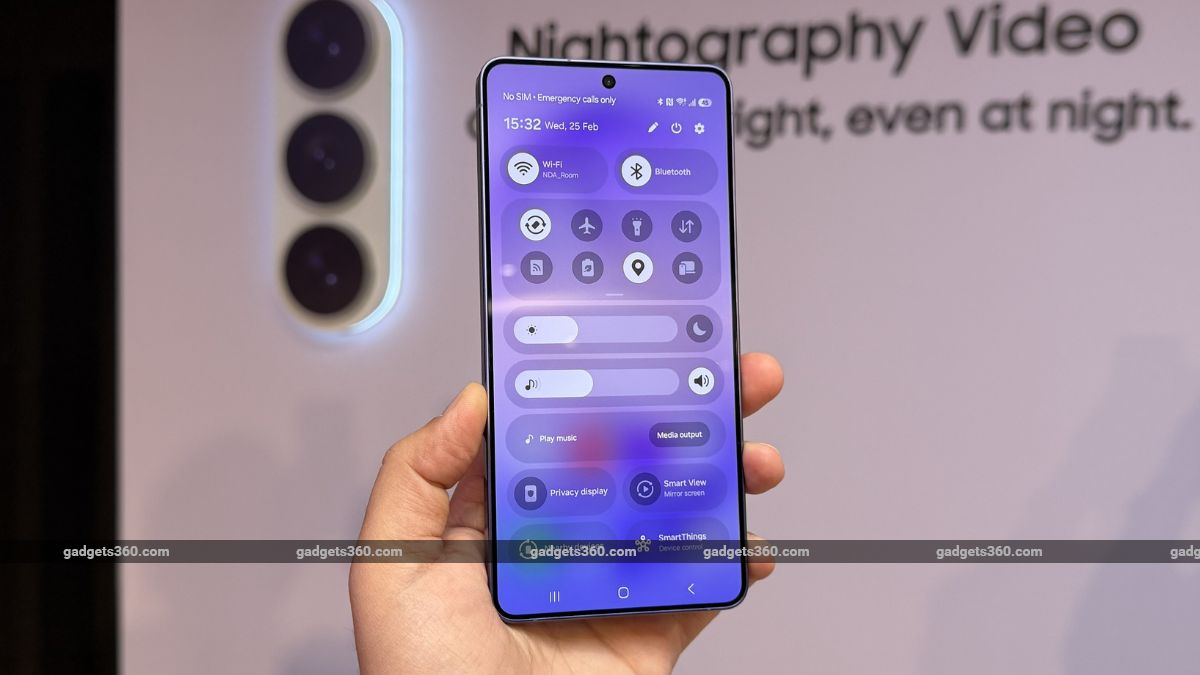
Galaxy S26 Ultra's Privacy Display combines hardware engineering with software controls
Click Here to Add Gadgets360 As A Trusted Source

 Samsung Galaxy S26 Ultra FAQs
Advertisement
The Samsung Galaxy S26 Ultra was launched in February as the company's flagship smartphone. While it brought several notable hardware changes and artificial intelligence (AI)-backed enhancements, the headlining feature is touted to be the Privacy Display. Built directly into the handset's screen, it is designed to limit side-angle visibility without affecting the user's viewing experience. The Privacy Display on the Galaxy S26 Ultra combines display engineering at the hardware level with software controls, which, the company claims, is the mobile industry's first integrated privacy display.
What Is Privacy Display on Samsung Galaxy S26 Ultra
Privacy Display is a built-in option for the Galaxy S26 Ultra, which restricts the view of the screen from any angle. Unlike the traditional privacy screen protectors, which are stick-on types, the Privacy Display on the Galaxy S26 Ultra is a built-in type, which means the screen is not dimmed as with the traditional screen protectors. When the Privacy Display option is enabled, the phone restricts the view of the screen for users looking at the phone from the side, while the person looking from the front can see the screen as usual.
- Samsung Galaxy S26 Ultra or Samsung Galaxy Z Fold8 Ultra. What would you choose in terms of productivity?
- Samsung Galaxy S26 Ultra camera processing finally sounds less aggressive now
- Samsung Galaxy S26 Ultra Feels Cooler During Android Auto Use
- Samsung Galaxy S26 Ultra's Display Looks Better Side-by-Side
- Samsung Galaxy S26 Ultra's Privacy Display Is Surprisingly Handy at Airports
This can help prevent nearby people from reading messages, viewing photos, or seeing sensitive information. The feature supports multiple levels of privacy. In some cases, it partially obscures specific types of content, such as passwords or PIN entry fields, while simultaneously allowing the rest of the interface to remain visible.
Samsung has designed the feature for scenarios such as commuting, working in public spaces, or using a phone in crowded areas.
How Privacy Display Works
The core technology used to enable the Privacy Display feature is Samsung's Flex Magic Pixel technology. As explained by Samsung, it operates by managing the distribution of pixels and how light is dispersed at different angles. The technology makes use of both small and large pixels in the display panel.
When turned off, the screen primarily utilises wide pixels, which disperse light more broadly. This ensures wide viewing angles and consistent image quality from multiple directions, similar to other AMOLED panels. The system switches to narrow pixels when the Privacy Display is actuated. Samsung says these pixels are engineered to control and restrict how light spreads from the screen.
As Flex Magic Pixel technology operates at the hardware level, Samsung claims that the overall quality of the display remains unaffected and that problems such as dimming or colour distortion do not occur, as they do in less sophisticated solutions, like third-party privacy screen protectors.
Conditions for Partial Screen Obscuring
Privacy Display can automatically obscure certain types of sensitive content when the system detects specific situations on the Galaxy S26 Ultra. This behaviour is typically triggered when users interact with authentication fields or private input screens, as per the company.
For example, when entering a password, PIN, or other sensitive credentials, the phone can partially limit screen visibility from the sides. In such situations, the display remains clear for the user holding the phone, while appearing dim or unreadable to someone viewing it from an angle.
Samsung notes that Privacy Display works most effectively when the device is held directly in front of the user, as the system is designed to prioritise the primary viewing angle.
How to Enable Privacy Display on Samsung Galaxy S26 Ultra
- Open the Settings app on your Samsung Galaxy S26 Ultra.
- Scroll down and tap Display.
- Locate and select the Privacy Display option
- Toggle the Privacy Display switch to turn the feature on
Once enabled, the screen's viewing angle will be automatically restricted for people looking at the display from the sides.
How to Enable Privacy Display for Passwords or PIN Entry
- Open Settings on your Samsung Galaxy S26 Ultra
- Go to Display and tap Privacy Display
- Enable Partial Obscuring for Sensitive Content
- The phone will now automatically limit visibility when entering passwords, PINs, or other sensitive information.
With this option turned on, authentication fields become harder to view from side angles while remaining clearly visible to the user.
Samsung Galaxy S26 Ultra FAQsWhat are the main features of the Samsung Galaxy S26 Ultra?
The Samsung Galaxy S26 Ultra is available with 16GB of RAM paired with 512GB of internal storage, along with 12GB of extended RAM support. It features a dual rear camera setup comprising a 200MP main camera, a 50MP ultrawide, and 50MP 10MP telephoto cameras, along with a 12MP front-facing selfie camera. The phone supports fast charging with 60W wired charging and 25W wireless charging, backed by a 5000mAh battery. It is powered by the Snapdragon 8 Elite Gen 5 for Galaxy processor and comes with a 6.9-inch QHD Dynamic AMOLED 2X display that supports up to a 120Hz refresh rate. The Samsung Galaxy S26 Ultra is available in 4 colour options.
When was the Samsung Galaxy S26 Ultra released?
The Samsung Galaxy S26 Ultra was launched on February 25, 2026
Where can I buy the Samsung Galaxy S26 Ultra?
You can buy the Samsung Galaxy S26 Ultra through the official Samsung website, e-commerce platforms such as Amazon, and select retail stores across India.
Affiliate links may be automatically generated - see our ethics statement for details.
- REVIEW
- KEY SPECS
- NEWS
- Good
- Lighter IP68 rated design
- Privacy Display is handy and practical
- One UI gets smarter with better AI integrations
- Fast-charging finally
- Impressive video recording capability
- Bad
- 3x telephoto camera needs work
- Low-light performance could have been better
- Selfies don?t show accurate edge-detection
- S Pen cannot be used as camera remote
Read detailed Samsung Galaxy S26 Ultra review
Display 6.90-inch
Front Camera 12-megapixel
Rear Camera 200-megapixel + 50-megapixel + 50-megapixel + 10-megapixel
RAM 12GB, 16GB
Storage 256GB, 512GB, 1024GB
Battery Capacity 5000mAh
OS Android 16
Resolution 1,440x3,120 pixels
Comments
Get your daily dose of tech news, reviews, and insights, in under 80 characters on Gadgets 360 Turbo. Connect with fellow tech lovers on our Forum. Follow us on X, Facebook, WhatsApp, Threads and Google News for instant updates. Catch all the action on our YouTube channel.
Related Stories



Advertisement
Follow Us




-

05:20
Samsung Galaxy Watch Ultra 2 Review: Is This the Best Android Smartwatch? -
07:01
Samsung Galaxy Z Fold 8 Review: Is This the Best Foldable Phone? -
06:39
Samsung Galaxy Z Fold8 Ultra Review: Cameras, Battery, Performance Tested -
04:33
[Sponsored] JBL Live 780NC: Great Sound, Perfect Comfort, Smart ANC & 80-Hour Battery -
12:04
[Partner Content] OPPO Reno16 Series Deep Dive: Built for Creators?
-
iPhone Duo के लिए ₹3 लाख का बजट नहीं है? ये 4 सस्ते फोल्डेबल फोन देखिए
-
सोशल मीडिया में छाया 80s AI Photo Trend, आप भी आजमाएं ये 5 Prompts
-
Motorola के 7000mAh बैटरी वाले फोन पर ₹4,500 तक की बचत
-
₹8 हजार सस्ता मिल रहा 64MP कैमरा वाला Vivo 5G फोन! आई जबरदस्त डील
-
Motorola Edge 70 Neo भारत में लॉन्च होगा Snapdragon चिप, 6GB रैम के साथ, IP68, IP69 रेटिंग!
Advertisement
Popular on Gadgets
- Samsung Galaxy S26 Ultra
- Motorola Razr Fold
- ChatGPT
- OPPO Find N6
- Mobiles Under Rs. 40,000
- Vivo X300 Ultra
- Asus Zenbook S14
- iQOO 15
- Vivo X300 Pro
- Lenovo Yoga Slim 7i Aura Edition
- iQOO 15R
- Vivo X Fold 5
- Sony PlayStation 5
- HP OmniPad 12
- OnePlus Nord CE 6 Lite
- OnePlus Pad 4
- OPPO F33 Pro 5G
- Cryptocurrency
- HP OmniBook Ultra 14 (2026)
- iPhone 17
- Eureka Forbes AP 355 Room Air Purifier
- Latest Mobile Phones
- Compare Phones
Latest Gadgets
- iPhone Duo
- OPPO A7 Pro
- Huawei Mate XT 2 Ultimate Design
- Realme 16 Pro Harry Potter Edition
- Samsung Galaxy A07s
- Huawei Pura X View
- Tecno Camon Slim 5G
- iQOO Z11xa
- Acer Aspire G 3D 16
- Acer Swift Air 16 (2026)
- Infinix Xpad 30 Pro
- Lenovo Yoga Tab Gen 2
- Apple Watch Ultra 4
- Apple Watch Series 12
- Haier M70 Mini LED 65-inch
- Xiaomi TV FX Mini LED 65
- Acer Predator Atlas 8
- Asus ROG Ally
- Blue Star 1.5 Ton 5 Star Inverter Split AC (IE518ZNURS)
- Blue Star 2 Ton 3 Star Inverter Window AC (WIE324L)

- About Us
- Sitemaps
- Feedback
- Archives
- Contact Us
- RSS
- Advertise
- Career
- Privacy Policy
- Ethics
- Editorial Policy
- Terms & Conditions
- Complaint Redressal
Download Our Apps
Available in Hindi
© Copyright Red Pixels Ventures Limited 2026. All rights reserved.