- Home
- How to
- How to Features
- How to Save Live Photos as a Video on Your iPhone: A Step by Step Guide
How to Save Live Photos as a Video on Your iPhone: A Step-by-Step Guide
Apple also allows users to save multiple Live Photos as a single video on their iPhone.
Written by Dhruv Raghav, Edited by David Delima | Updated: 28 February 2026 10:00 IST
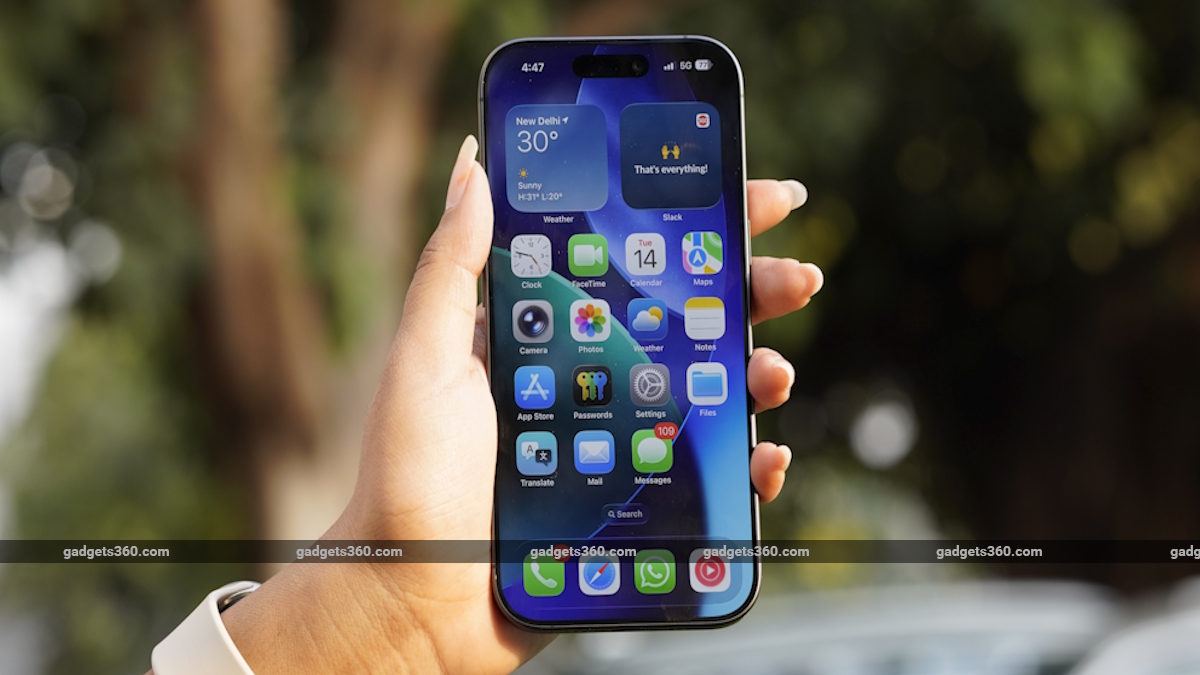
Here’s How You Can Save Live Photos as a Video on Your iPhone
Click Here to Add Gadgets360 As A Trusted Source

Advertisement
Apple launched the Live Photos feature for iPhone models in September 2015 with the iOS 9 update. Over the years, the feature has become an integral part of the iOS user experience, allowing you to record 1.5-second-long videos when you are taking a still photo. The feature is turned on by default in the iOS Camera app. However, since you are now also recording a short video along with a still photograph, the Live Photos feature takes up more space than saving still images, while also being less convenient when sharing them with others. Hence, Apple allows you to save Live Photos as videos. You can also save multiple Live Photos as a single video.
If you are wondering why you should save a Live Photo as a video on your iPhone, and how to do the same, we have created a step-by-step guide, along with listing various reasons.
Why You Might Want to Save Live Photos as a Video
There are multiple reasons why you may want to convert your Live Photos into a video. While Live Photos on iOS might appeal to some users, they are not the most convenient to share with friends who use incompatible devices. Live Photos also occupy more space on your iPhone than a still image.
Even if your friend's device supports Live Photos, it might not always play them as smoothly as your iPhone. By converting these Live Photos to videos, you can easily share them using popular platforms including Facebook, Instagram, and X without losing the video information.
Additionally, converting Live Photos to videos also offers greater convenience when you are trying to post them on a social media platform. For example, Live Photos get converted into still images when you try to upload them as an Instagram post. Hence, when you turn them into videos, you can upload them as Reels on Instagram or Shorts on YouTube.
Also, Live Photos are not easy to edit when you export them to your Windows laptop or PC. Hence, converting them to videos would allow you to not only easily export them to other devices, but also trim, crop, stabilise, and add music like you would to any other video.
Similarly, when you attempt to save a Live Photo onto an external hard drive, they often get saved as a still image. You can easily avoid this situation if you convert your Live Photos into videos. Moreover, excluding iCloud, most cloud services might not let you back up a Live Photo. However, most of them will let you create archives of videos.
How to Save Live Photos as a Video on iPhone
If the reasons mentioned above have convinced you to save Live Photos as videos on your iPhone, then you can follow these steps to begin.
- Unlock your iPhone > navigate to the Photos app.
- Then tap on the Photos app icon.
- In the Photos app > go to the Collections section.
- In the Collections section, tap on the Live Photos button.
- Select the Live Photo you wish to save as a video.
- Then, click on the More button denoted by a horizontal dotted line appearing in the top-right corner.
- Lastly, tap on the Save as Video button.
- The new video will appear in the Recently Saved section. However, your Live Photo will not be removed.
How to Save Multiple Live Photos as One Video on iPhone
If there are multiple Live Photos you wish to convert into a single video, you can follow the steps mentioned below:
- Unlock your iPhone > open the Photos app.
- Then, navigate to the Collections section > tap on the Live Photos button.
- Click on the Select button in the top-right corner of the screen.
- Tap on all the Live Photos that you want to save as videos.
- Tap on the More button in the top-right corner.
- Click on the Save as Video button.
- All the Live Photos will then be saved as one video in the Recently Saved section.
FAQs
1. If I save a Live Photo as a video on my iPhone, will the original file get replaced?
No, the original Live Photo will not be removed, deleted, or replaced by the new video when you convert it.
2. Is there a limit on how many Live Photos I can convert into videos at once?
No, you can save as many Live Photos as videos as you want, given that you have enough available storage on your iPhone.
3. Can I share Live Photos with people who do not have an iPhone?
Yes, but the Live Photos might not be of the same quality as the ones on your iPhone, and a few platforms do not offer support for them either.
Comments
Get your daily dose of tech news, reviews, and insights, in under 80 characters on Gadgets 360 Turbo. Connect with fellow tech lovers on our Forum. Follow us on X, Facebook, WhatsApp, Threads and Google News for instant updates. Catch all the action on our YouTube channel.


Advertisement
Follow Us




-
![[Sponsored]: CP PLUS CarKam CP-F89B: 4K Dashcam With Rear Camera, GPS & Emergency Recording](https://www.gadgets360.com/static/desktop/images/spacer.png)
04:37
[Sponsored]: CP PLUS CarKam CP-F89B: 4K Dashcam With Rear Camera, GPS & Emergency Recording -
04:23
[Partner Content] Your Phone Can Do WAY More Than You Think | OPPO ColorOS 16 -
01:59
Samsung Galaxy Z Fold8 Ultra: Unfold the Ultra Night -
03:24
Apple Pay Launches In India: Supported Devices, Cards And Payments Explained -
00:21
[Sponsored] Samsung Galaxy Z Fold8, Fold8 Ultra
Advertisement
Popular on Gadgets
- Samsung Galaxy S26 Ultra
- Motorola Razr Fold
- ChatGPT
- OPPO Find N6
- Mobiles Under Rs. 40,000
- Vivo X300 Ultra
- Asus Zenbook S14
- iQOO 15
- Vivo X300 Pro
- Lenovo Yoga Slim 7i Aura Edition
- iQOO 15R
- Vivo X Fold 5
- Sony PlayStation 5
- HP OmniPad 12
- OnePlus Nord CE 6 Lite
- OnePlus Pad 4
- OPPO F33 Pro 5G
- Cryptocurrency
- HP OmniBook Ultra 14 (2026)
- iPhone 17
- Eureka Forbes AP 355 Room Air Purifier
- Latest Mobile Phones
- Compare Phones
Latest Gadgets
- Vivo Y600s Pro
- Vivo Y32 (2026)
- Infinix Smart 20 HD
- Vivo V80
- Vivo S2 FE
- Vivo Y600K Turbo
- Realme P4s Lite
- Vivo S60t
- Dell Pro Rugged 14
- Dell Pro Rugged 13 Extreme
- Amazon Alexa Tablet 8
- Amazon Alexa Tablet 11
- Amazfit T-Rex Dual Solar
- OPPO Watch S2
- Toshiba 65-Inch 4K Ultra HD Smart Mini LED QLED TV (65Z670SP)
- Haier M70 Mini LED 65-inch
- Acer Predator Atlas 8
- Asus ROG Ally
- Blue Star 1.5 Ton 5 Star Inverter Split AC (IE518ZNURS)
- Blue Star 2 Ton 3 Star Inverter Window AC (WIE324L)

- About Us
- Sitemaps
- Feedback
- Archives
- Contact Us
- RSS
- Advertise
- Career
- Privacy Policy
- Ethics
- Editorial Policy
- Terms & Conditions
- Complaint Redressal
Download Our Apps
Available in Hindi
© Copyright Red Pixels Ventures Limited 2026. All rights reserved.